Create an Ona Personal Access Token
1
Open your user settings on Ona
In the lower-left corner of Ona, select your name, then click the gear icon to open user settings.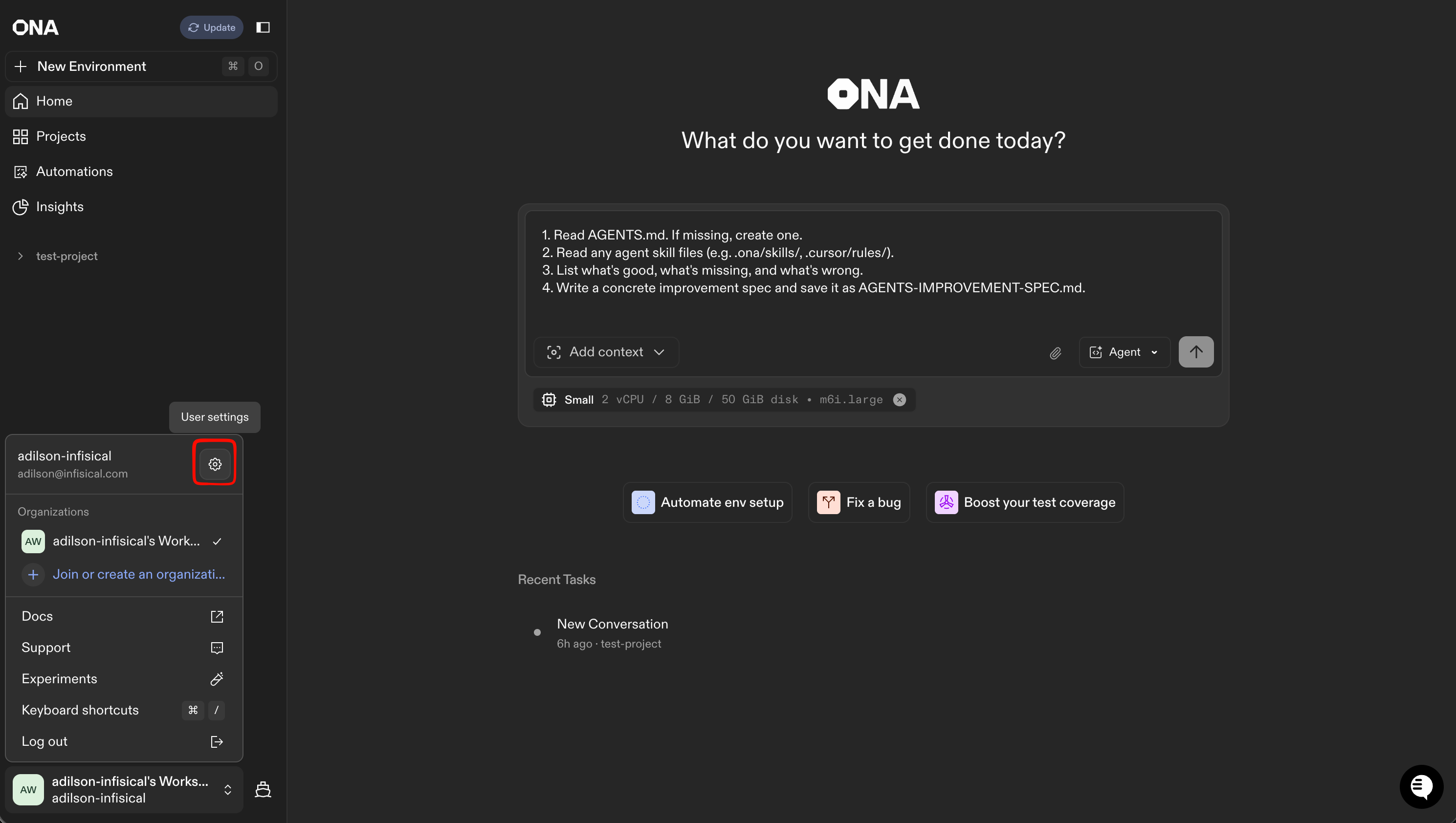
2
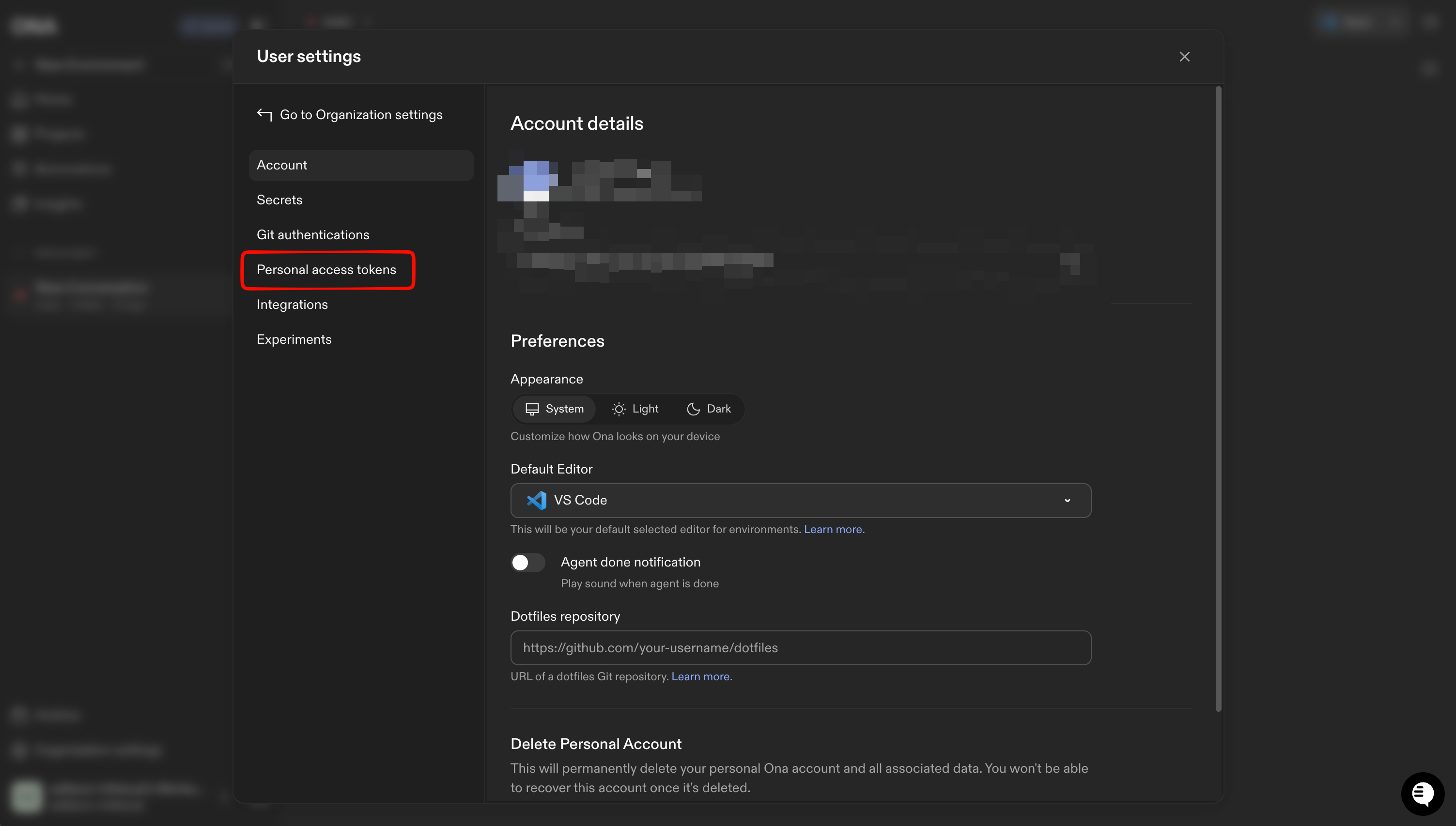
Select the Personal Access Tokens tab
3
Create the token
Click the New Token button and add a description for the token (eg, “infisical integration”). The token must have Read & Write access so that Infisical can apply changes in Ona.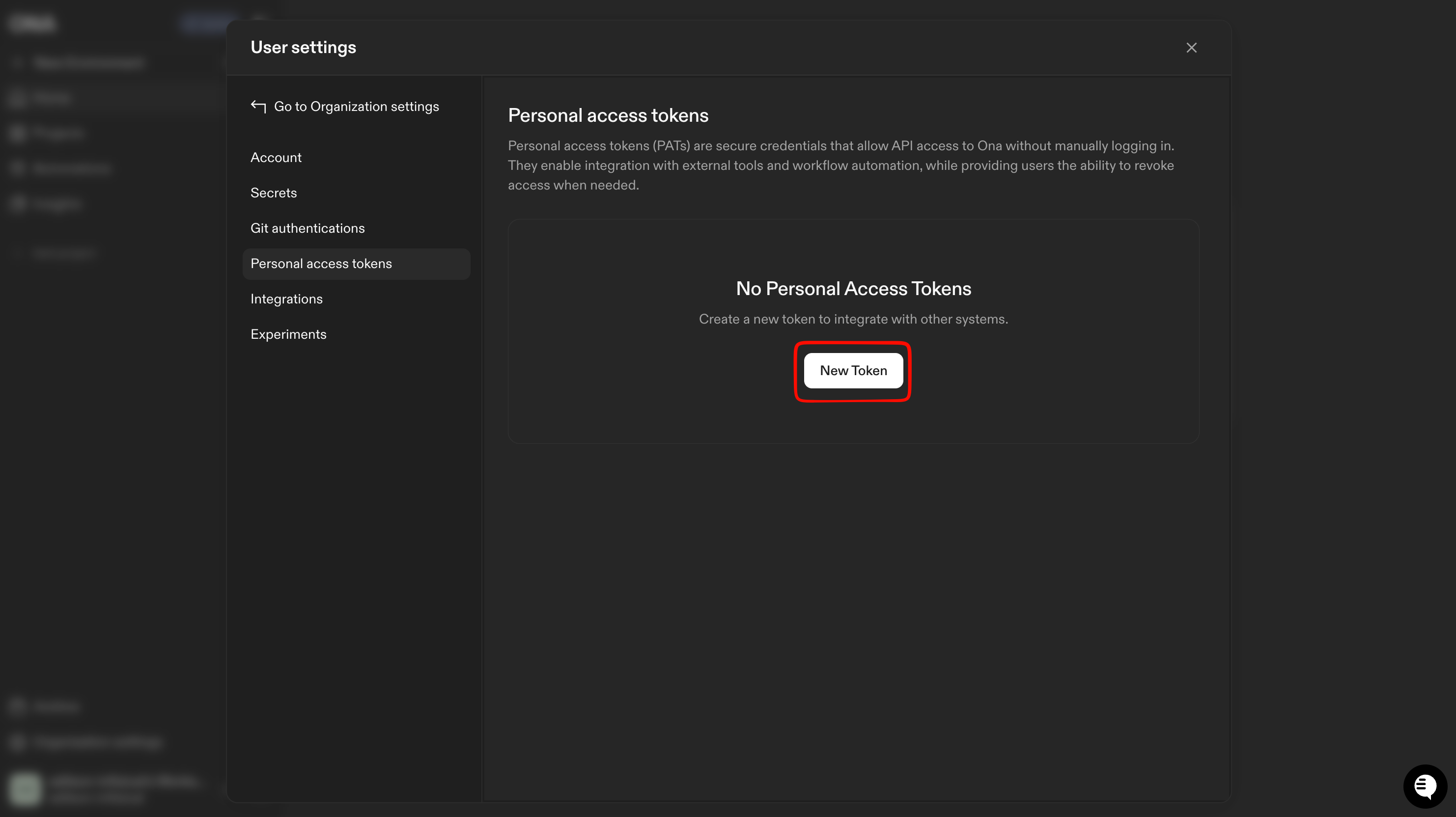
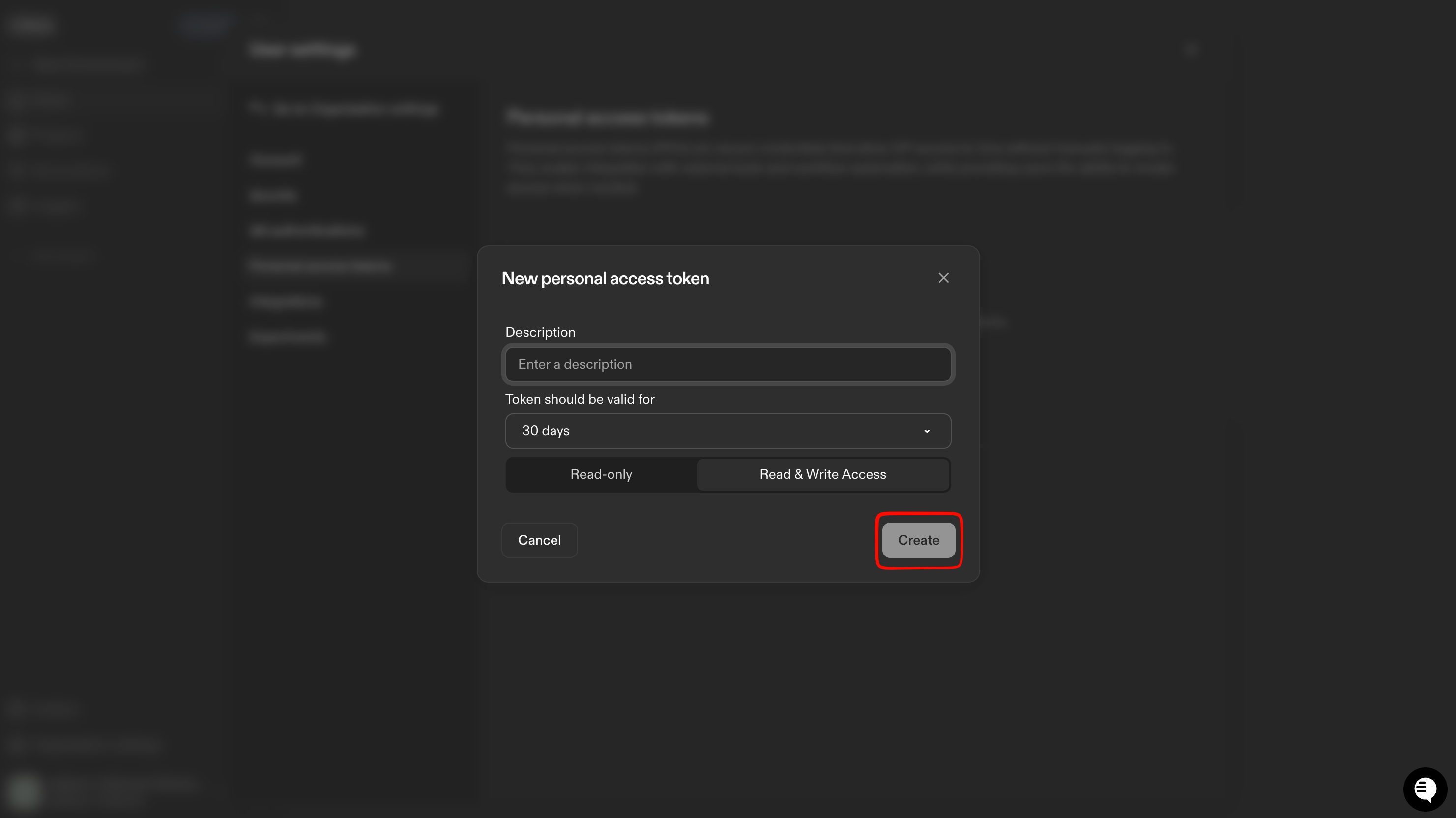
Personal access tokens have an expiration date, so you will need to manually rotate them before they expire to avoid integration downtime. Consider setting a calendar reminder for this task.
4
Copy the token
Make sure to save the token, as it won’t be shown again.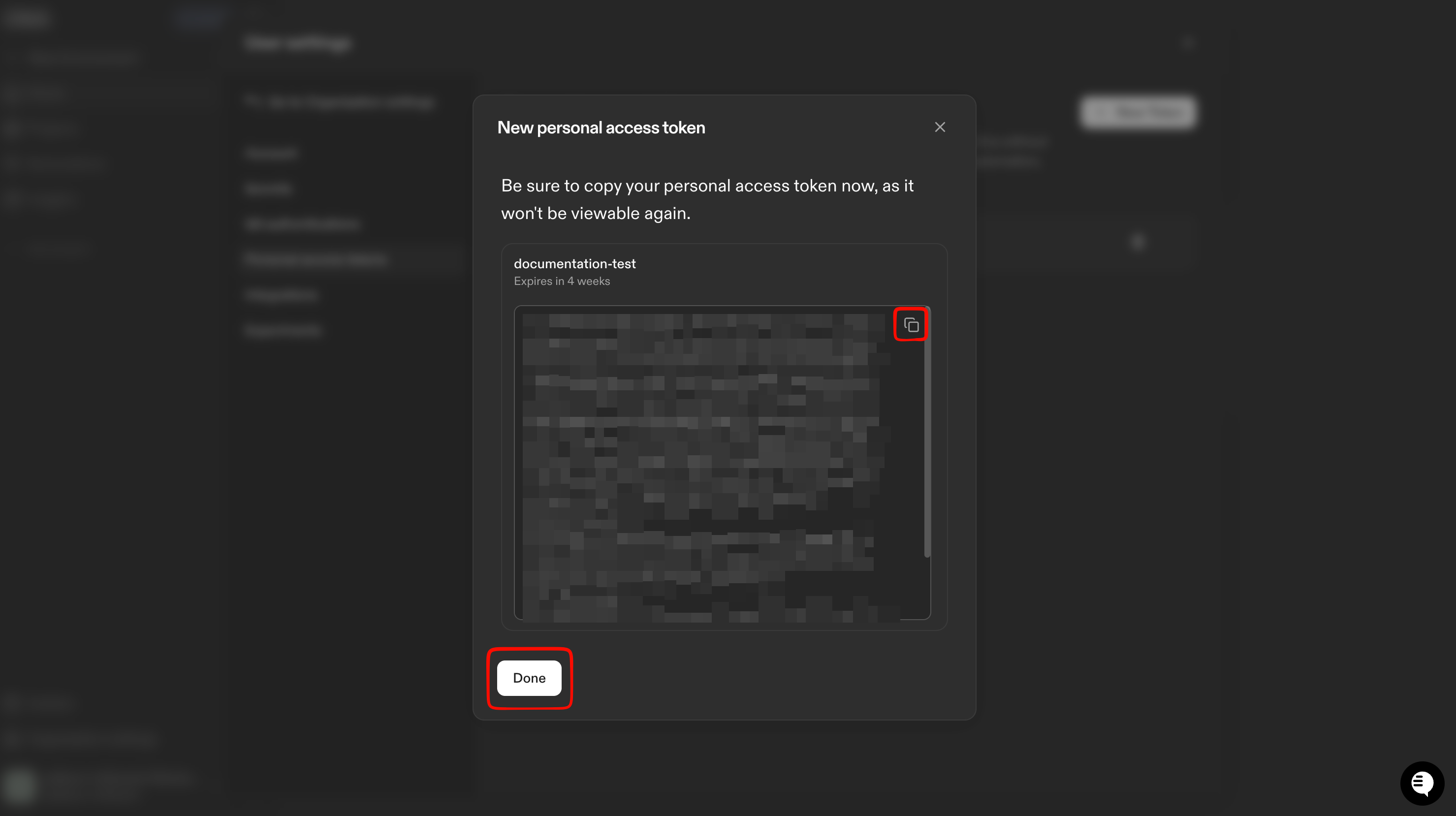
Create an Ona Connection in Infisical
- Infisical UI
- API
1
Navigate to App Connections
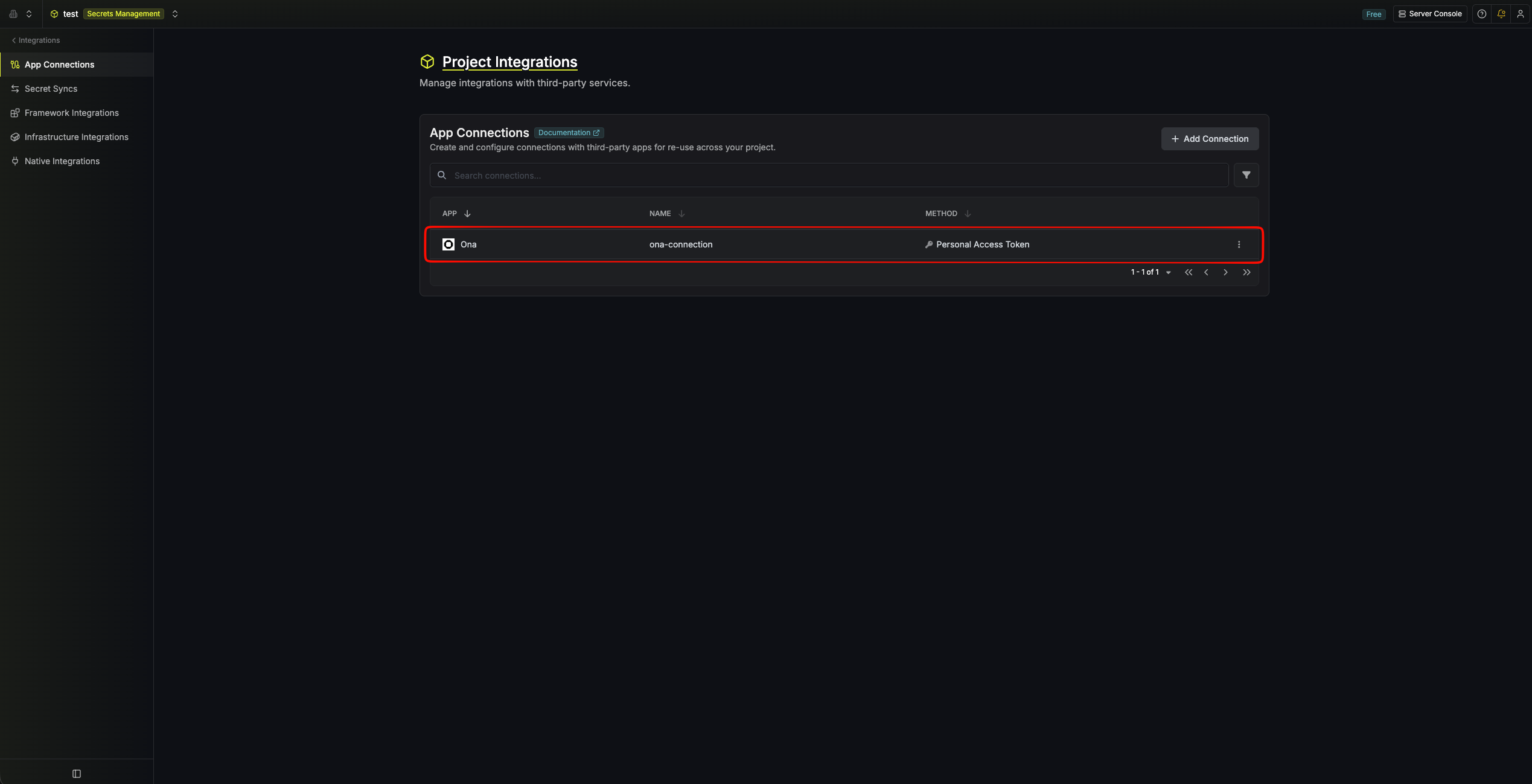
In your Infisical dashboard, open the Integrations tab for the desired project and select App Connections. Click + Add Connection.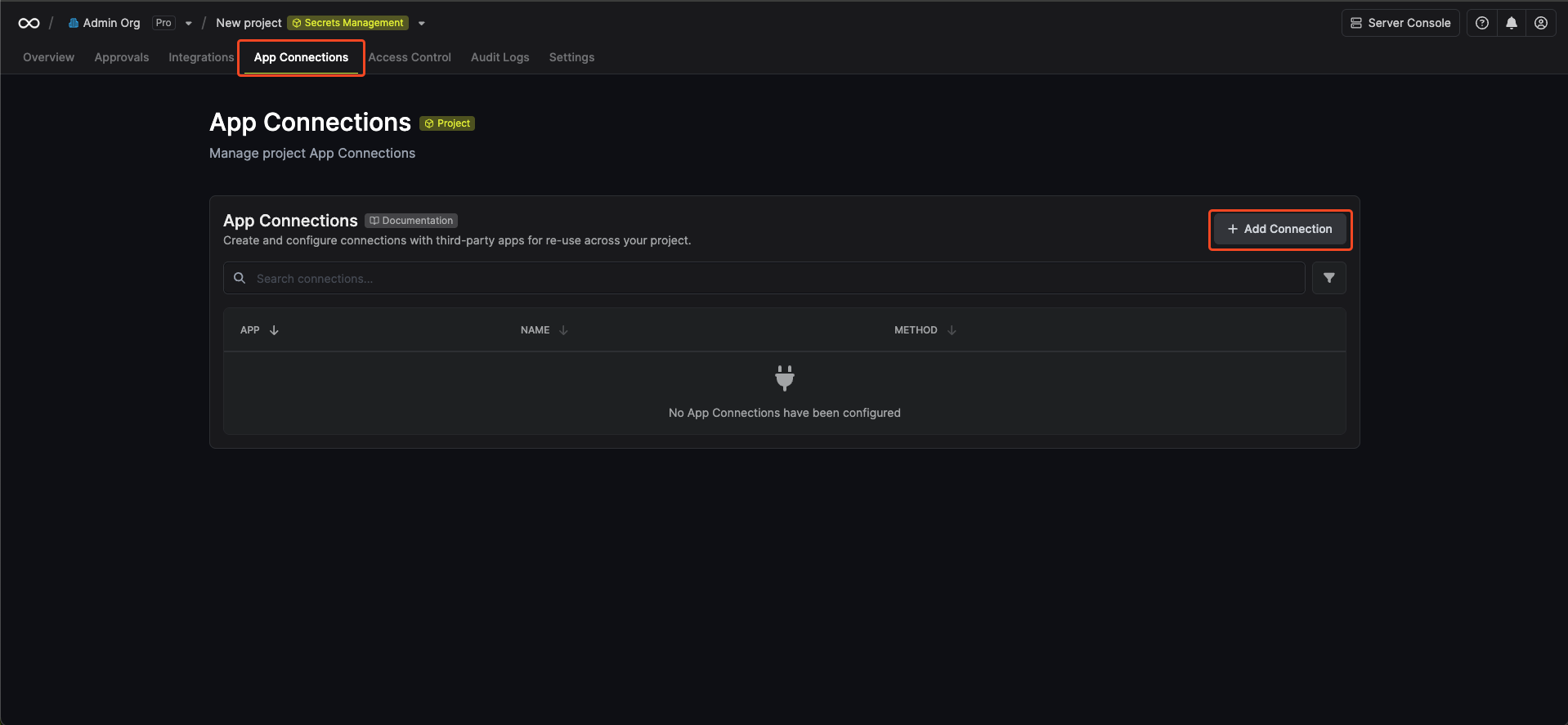
2
Select Ona Connection
Choose Ona Connection from the list of integrations.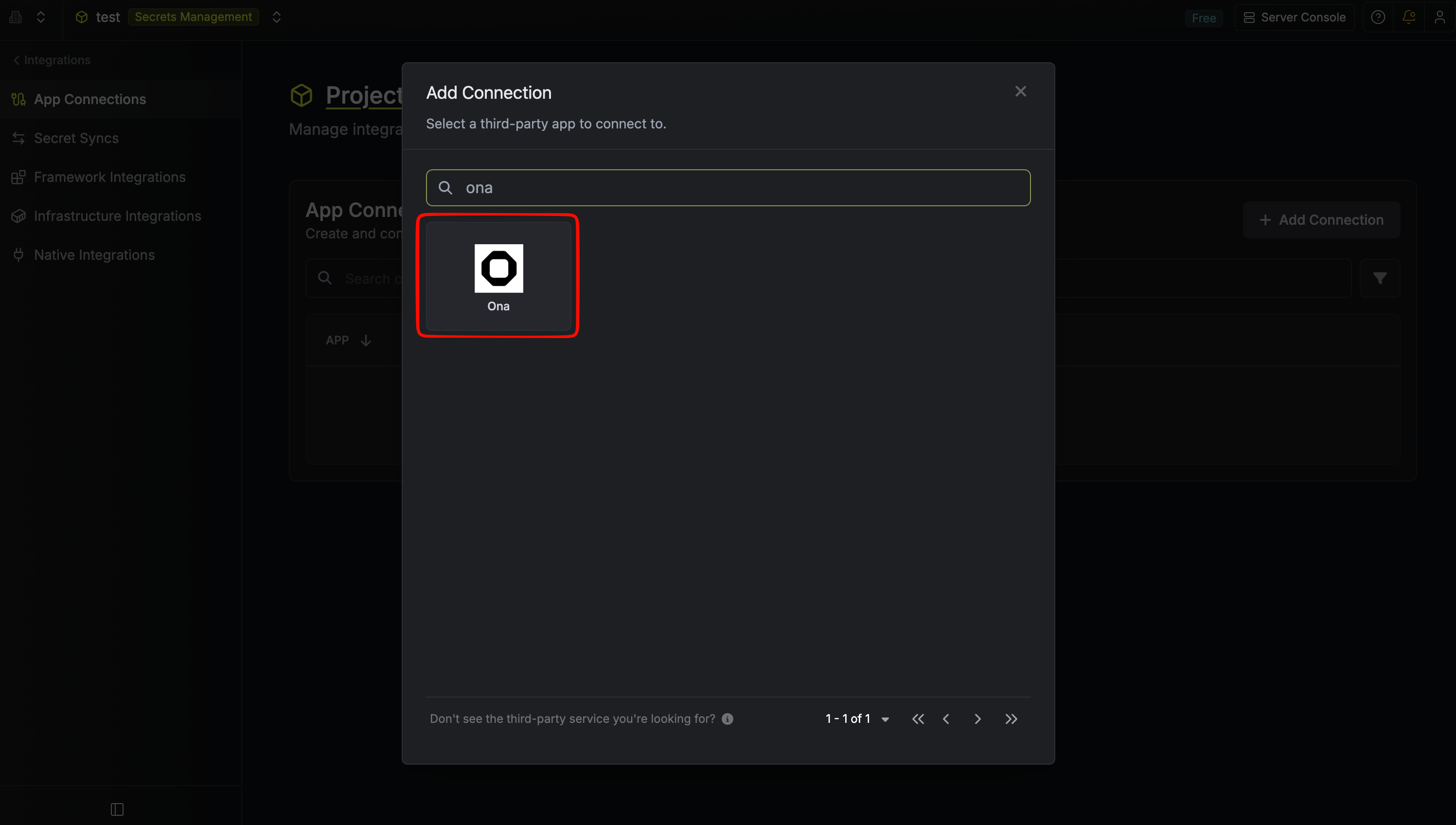
3
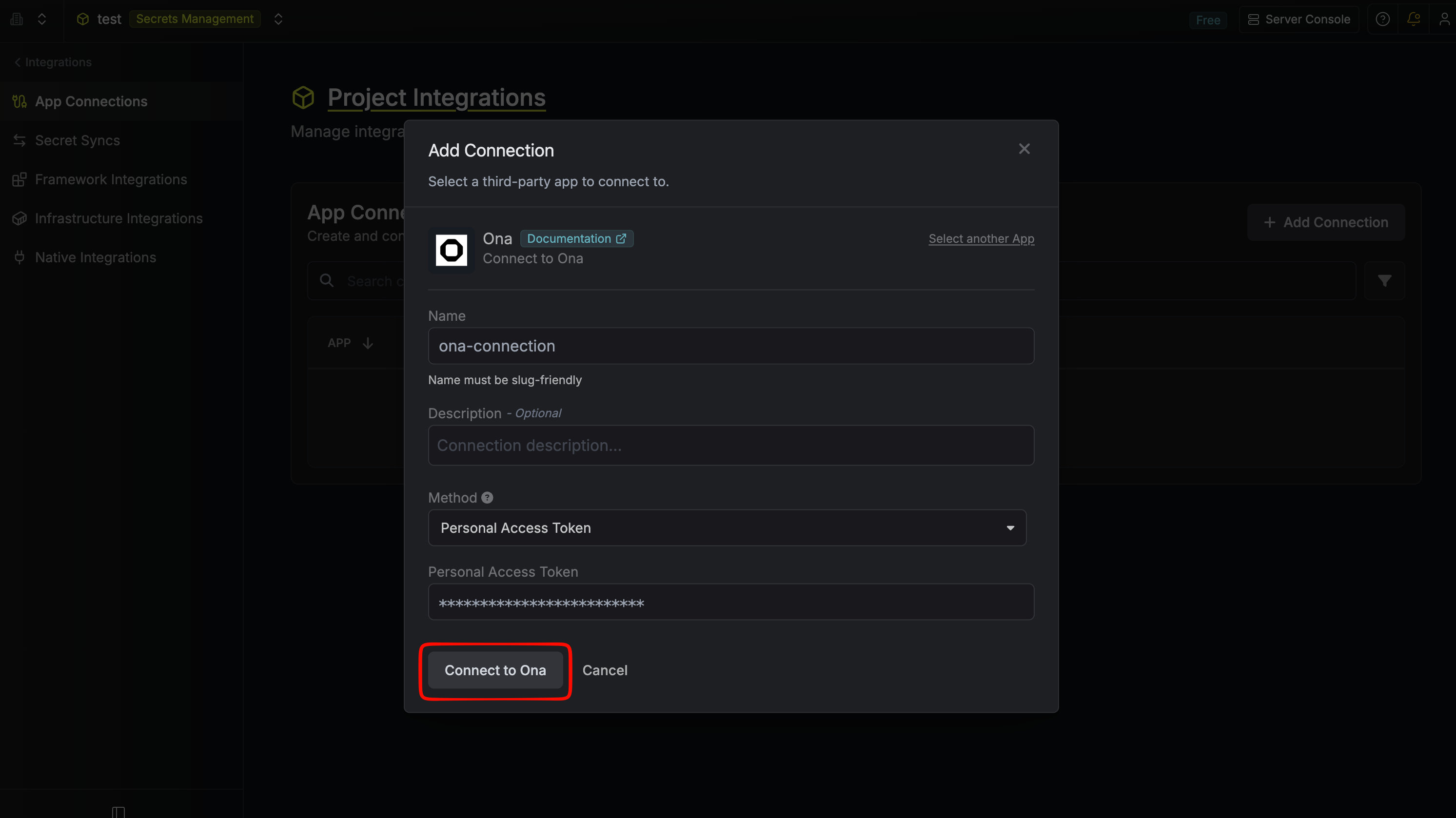
Fill out the Ona Connection form
Complete the form by providing:
- A descriptive Name for the connection.
- An optional Description.
-
The Personal Access Token you generated in Ona.
4
Connection created
After submitting the form, your Ona Connection will be created.