

Chef App Connection is a paid feature.If you’re using Infisical Cloud, then it is available under the Enterprise Tier. If you’re self-hosting Infisical,
then you should contact sales@infisical.com to purchase an enterprise license to use it.
If you don't have a starter kit
If you don't have a starter kit
1
Navigate to your Chef Server Dashboard, and click on the 'Organizations' tab
2
Click on the organization you want to connect to, and then click on the 'Starter Kit' button
3
Click on the 'Download Starter Kit' button to download the starter kit
4
Download the starter kit zip file and extract the contents
1
Open your starter kit's folder
Open your starter kit’s folder(or
chef-repo) and navigate to the .chef
folder.Please make sure you have hidden files visible in your file explorer.
2
Copy the private key
In the 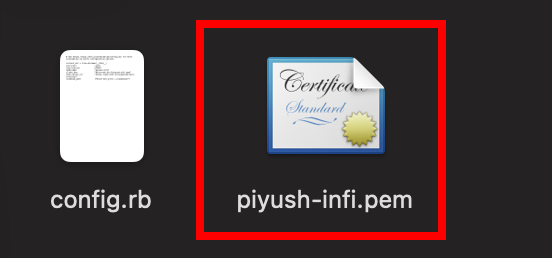 Private Key: Copy the content of the private key file.
.chef folder, you will find a [your-username].pem file. Private Key: Copy the content of the private key file.3
Open the config.rb file
Open the
config.rb file and copy the content of the file.User Name(1): The user name of the chef user.Server URL(2): The server url of the chef server.Organization Name(3): The organization name of the chef server.Create a Chef Connection in Infisical via UI
- Infisical UI
- API
1
Navigate to App Connections
In your Infisical dashboard, navigate to the Integrations tab in the desired project, then select App Connections.
2
Select Chef Connection
Click + Add Connection and choose Chef Connection from the list of integrations.
3
Fill out the Chef Connection form
Complete the form by providing:
- A descriptive name for the connection
- An optional description
- Server URL(optional): The URL of the Chef server to connect with (defaults to https://api.chef.io)
- Organization short name
- User name
- Private key: Your Chef user’s private key (.pem file)
4
Connection created
After submitting the form, your Chef Connection will be successfully created and ready to use with your Infisical project.