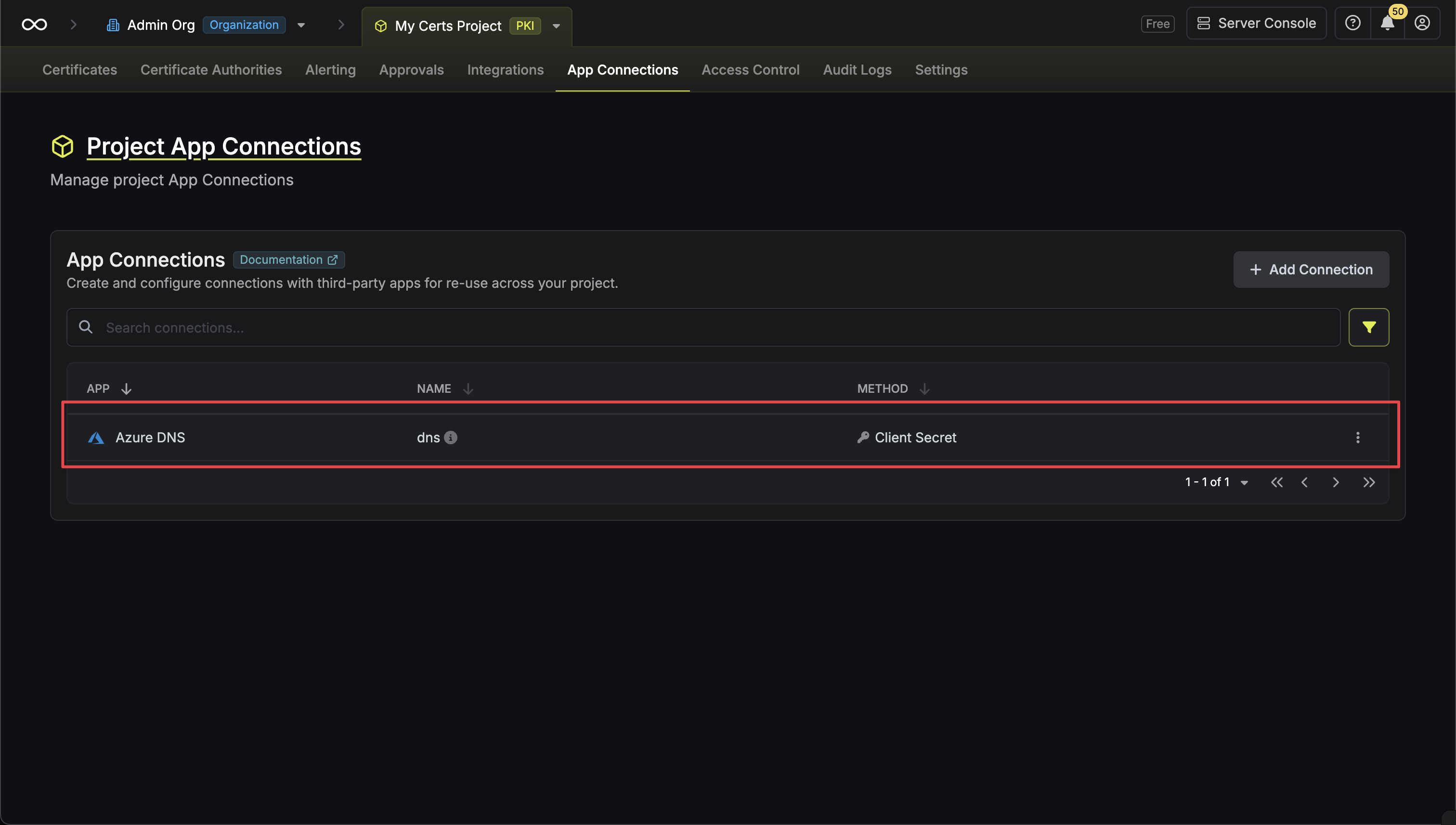
Client Secret Authentication
Client Secret Authentication
To use client secret authentication, ensure your Azure Service Principal has the required permissions to manage DNS records in your Azure DNS Zone.Prerequisites:
- Set up Azure and have an existing DNS Zone.
- An Azure Service Principal (App Registration) with a Client Secret.
1
Navigate to your DNS Zone
In the Azure Portal, navigate to your DNS Zone that you want to use for ACME DNS validation. Click on Access control (IAM) in the left sidebar, then click Add > Add role assignment.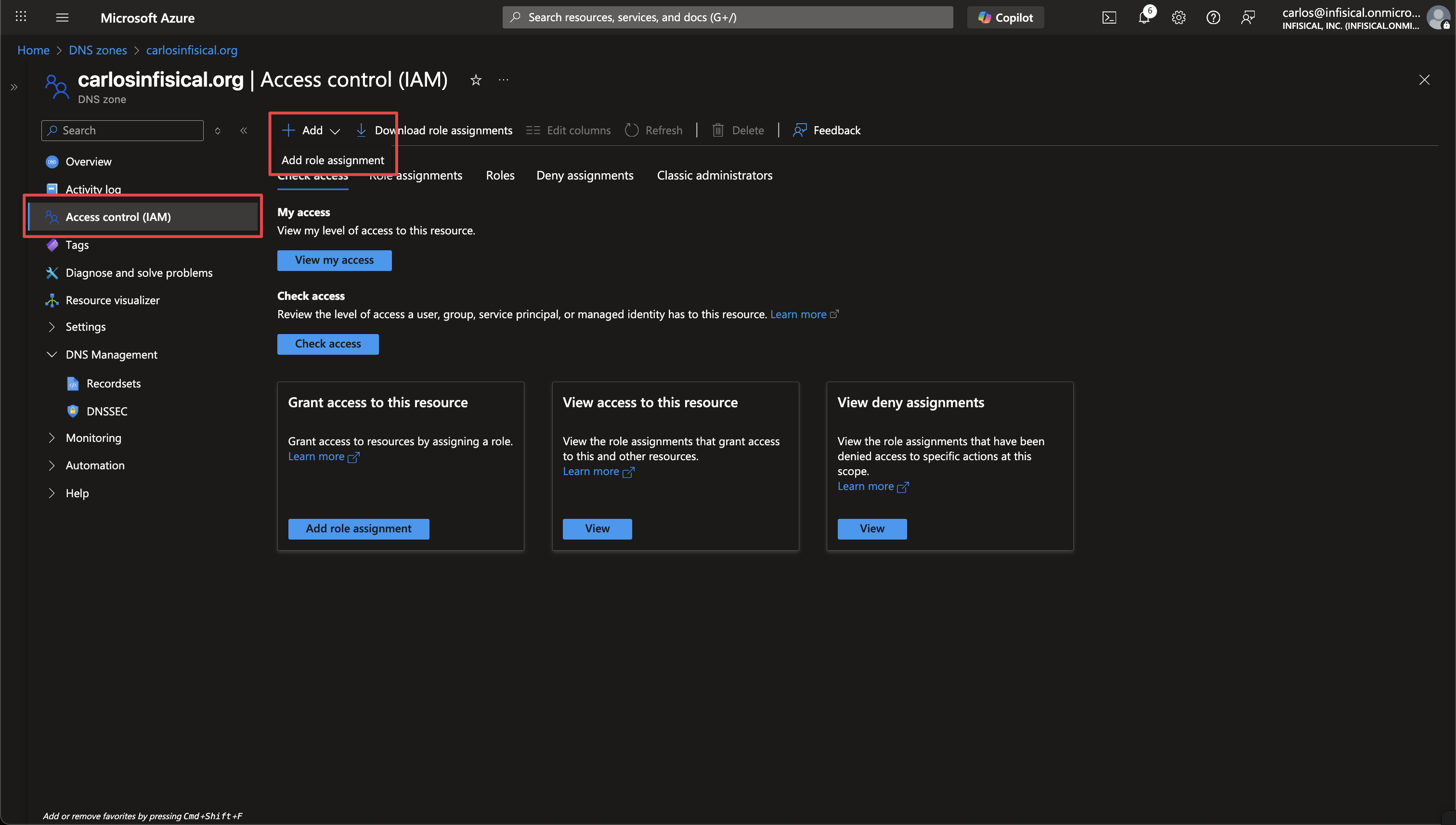
2
Assign DNS Zone Contributor Role
Search for and select the DNS Zone Contributor role, then click Next.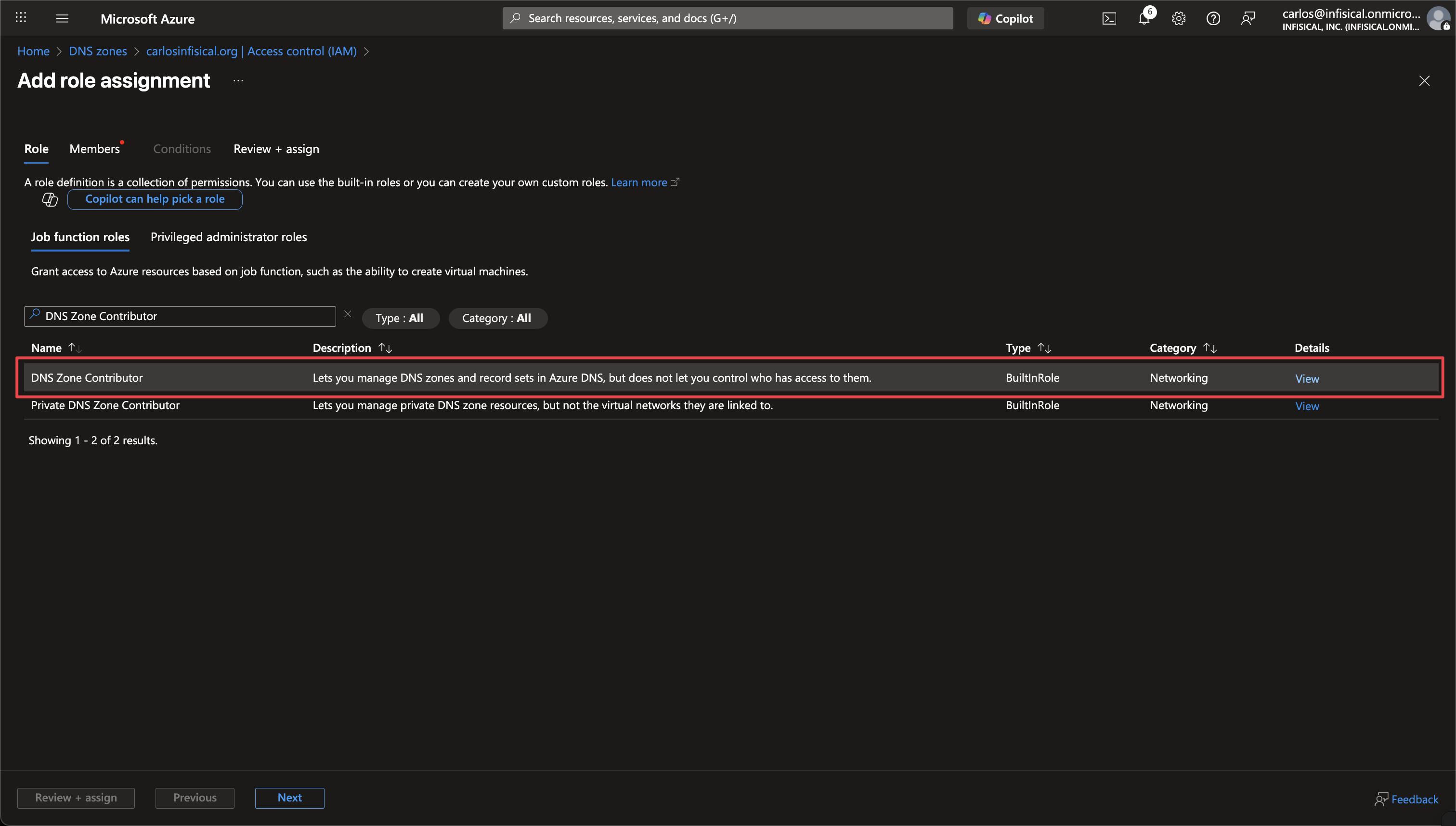
3
Select your Service Principal
Click Select members, search for your App Registration (Service Principal), select it, and click Select.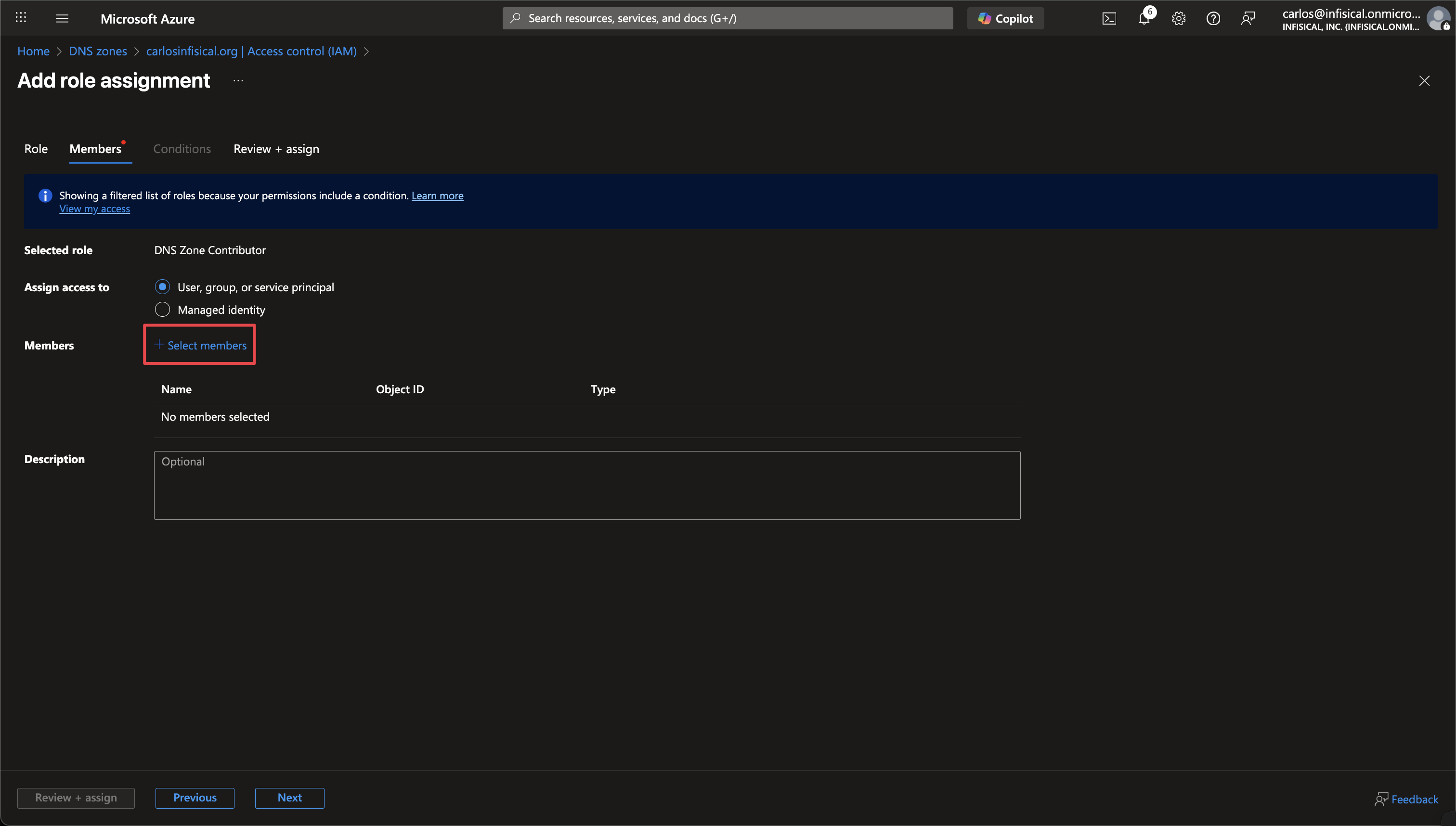 Click Review + assign to complete the role assignment.
Click Review + assign to complete the role assignment.Setup Azure DNS Connection in Infisical
1
Navigate to App Connections
Navigate to the App Connections page in the desired project.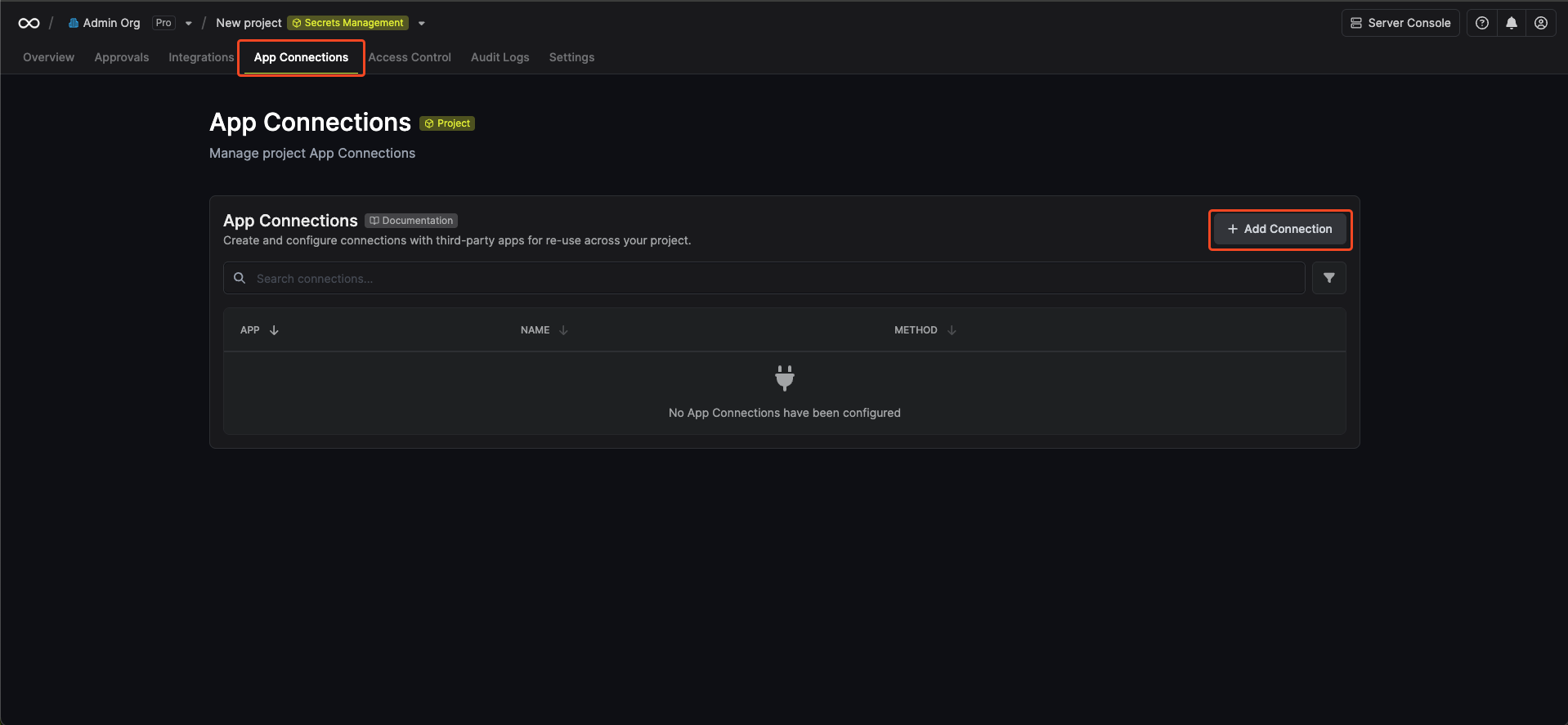
2
Add Connection
Select the Azure DNS Connection option from the connection options modal.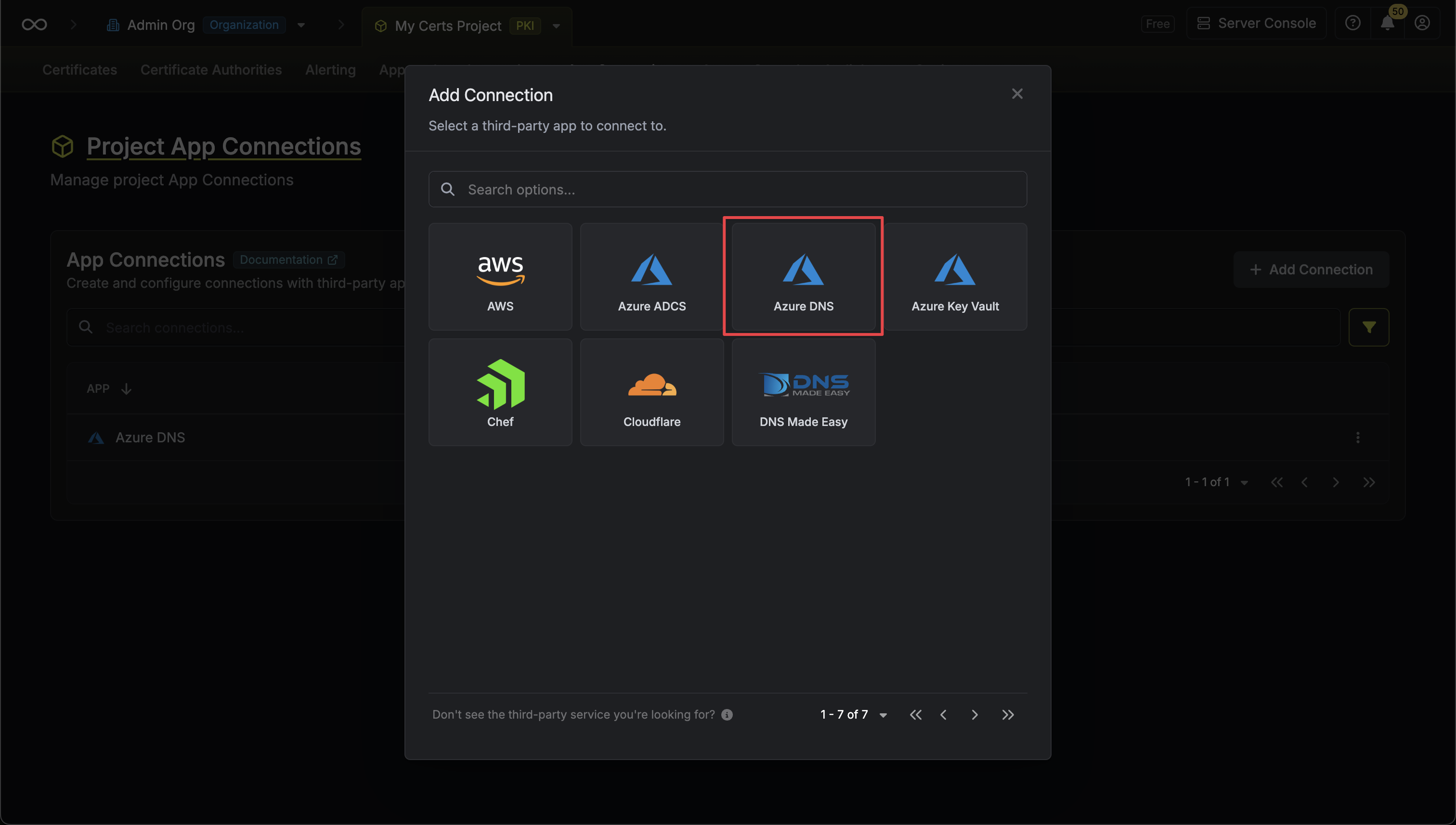
3
Create Connection
Fill in the Tenant ID, Client ID, Client Secret, and Subscription ID fields with the credentials from your Azure Service Principal.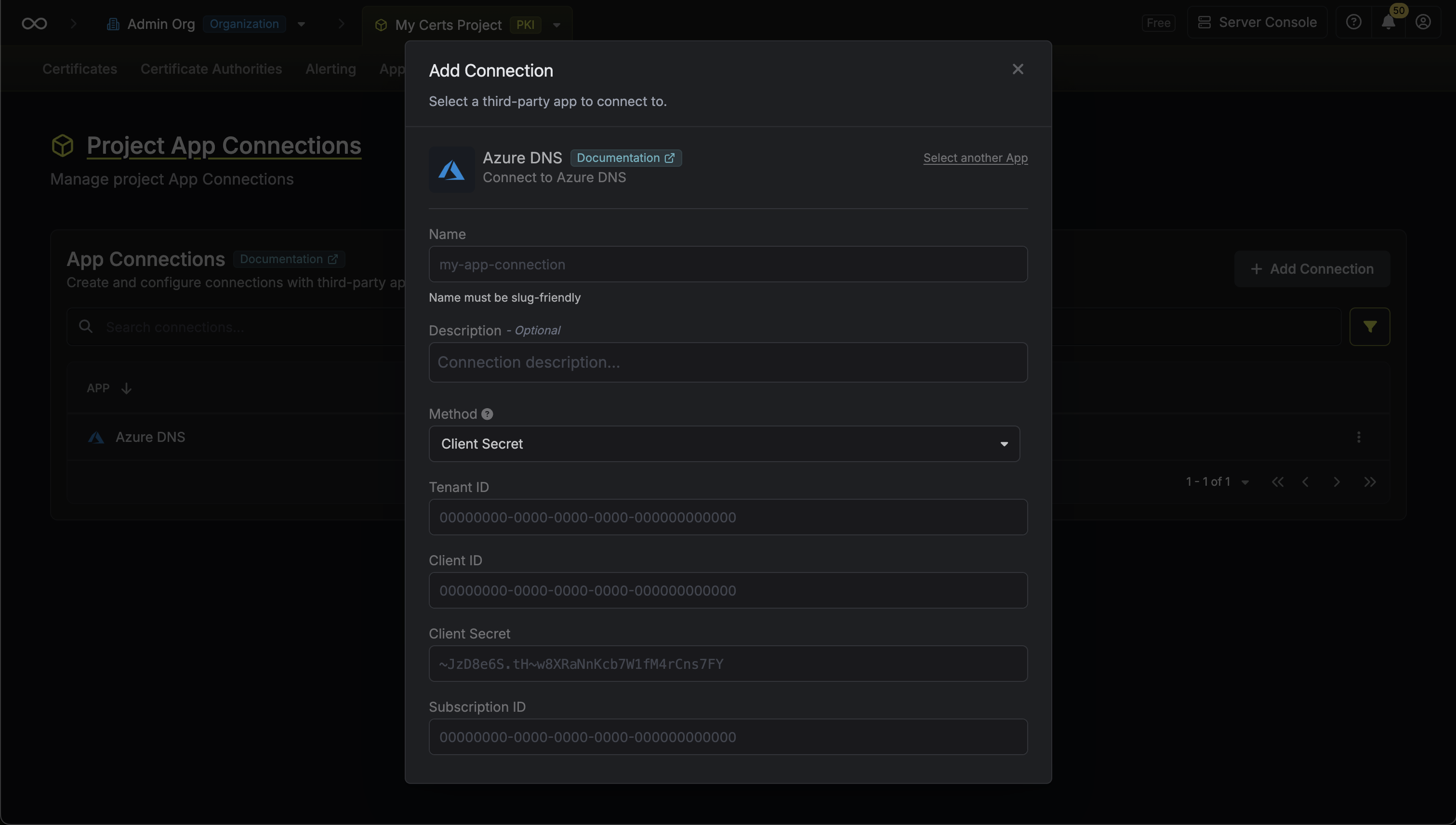
4
Connection Created
Your Azure DNS Connection is now available for use in your Infisical projects.