

Overview
Infisical’s project permissions system follows a role-based access control (RBAC) model built on a subject-action-object framework. At the project level, these permissions determine what actions users/machines can perform on various resources within a specific project. Each permission consists of:- Subject: The resource the permission applies to (e.g., secrets, members, settings)
- Action: The operation that can be performed (e.g., read, create, edit, delete)
secrets, secret-folders, secret-imports, dynamic-secrets, secret-syncs, secret-rotation, identity, app-connections, mcp-endpoints, and pam-accounts—support conditional permissions and permission inversion for more granular access control. Conditions allow you to specify criteria (like environment, secret path, tags, app connection ID, identity ID, resource name, or endpoint name) that must be met for the permission to apply.
Available Project Permissions
Below is a comprehensive list of all available project-level subjects and their supported actions.Core Platform & Access Control
Subject: role
Subject: member
Supports conditions for privilege delegation actions.
Subject: groups
Supports conditions for privilege delegation actions.
Subject: identity
Supports conditions and permission inversion.
Subject: settings
Subject: environments
Subject: tags
Subject: project
Subject: ip-allowlist
Subject: audit-logs
Subject: integrations
Subject: webhooks
Subject: service-tokens
Subject: app-connections
Supports conditions and permission inversion.
Secrets Management
Subject: secrets
Supports conditions and permission inversion.
Subject: secret-folders
Supports conditions and permission inversion.
Subject: secret-imports
Supports conditions and permission inversion.
Subject: secret-event-subscriptions
Subject: secret-rollback
Subject: commits
Subject: secret-approval
Subject: secret-approval-request
Project admins and users with Secret Approval Requests (
secret-approval-request) Read can view all approval requests; others only see requests where they are committer or approver. Secret values in requests follow secrets.readValue for the secret’s environment/path, or reviewer access.Subject: secret-rotation
Supports conditions and permission inversion.
Subject: secret-syncs
Supports conditions and permission inversion.
Subject: dynamic-secrets
Supports conditions and permission inversion.
Subject: insights
Key Management Service (KMS)
Subject: kms
Subject: cmek
Public Key Infrastructure (PKI)
Subject: certificate-authorities
Subject: certificates
Subject: certificate-profiles
Subject: certificate-policies
Subject: pki-alerts
Subject: pki-collections
Subject: pki-discovery
Subject: pki-certificate-installations
Secret Scanning
Subject: secret-scanning-data-sources
Subject: secret-scanning-findings
Subject: secret-scanning-configs
Agent Sentinel
Subject: mcp-endpoints
Supports conditions and permission inversion.
Privileged Access Management (PAM)
Subject: pam-resources
Supports conditions and permission inversion.
Subject: pam-accounts
Supports conditions and permission inversion.
Subject: pam-insights
Condition Operators
When defining conditions for permissions, you can use the following operators to match values:When using
$glob, note that * does not match across / boundaries. Use ** to match across multiple path segments.Condition Keys Reference
The following condition keys can be used to restrict permissions. Each key is available only for specific subjects as indicated in the tables above.Usage Examples
These permission objects are used when creating or updating custom project roles via the API. Each permission in thepermissions array defines what actions a role can perform on which resources.
Creating a role with production-only secret access
Create a custom role that can only read secrets in the production environment:Creating a role with path-scoped access
Create a role that can only manage secrets under/app/config/:
Creating a role for PAM access to specific resources
Create a role that grants PAM access only to specific database resources:Auditing a User’s Effective Permissions
Because a member can receive access from direct roles, group-inherited roles, and additional privileges at the same time, it isn’t always obvious what they can actually do. The Permission Audit view resolves all sources into a single, effective answer per subject and action. Open Access Control → Users, click a member, then click Permission Audit in the page header.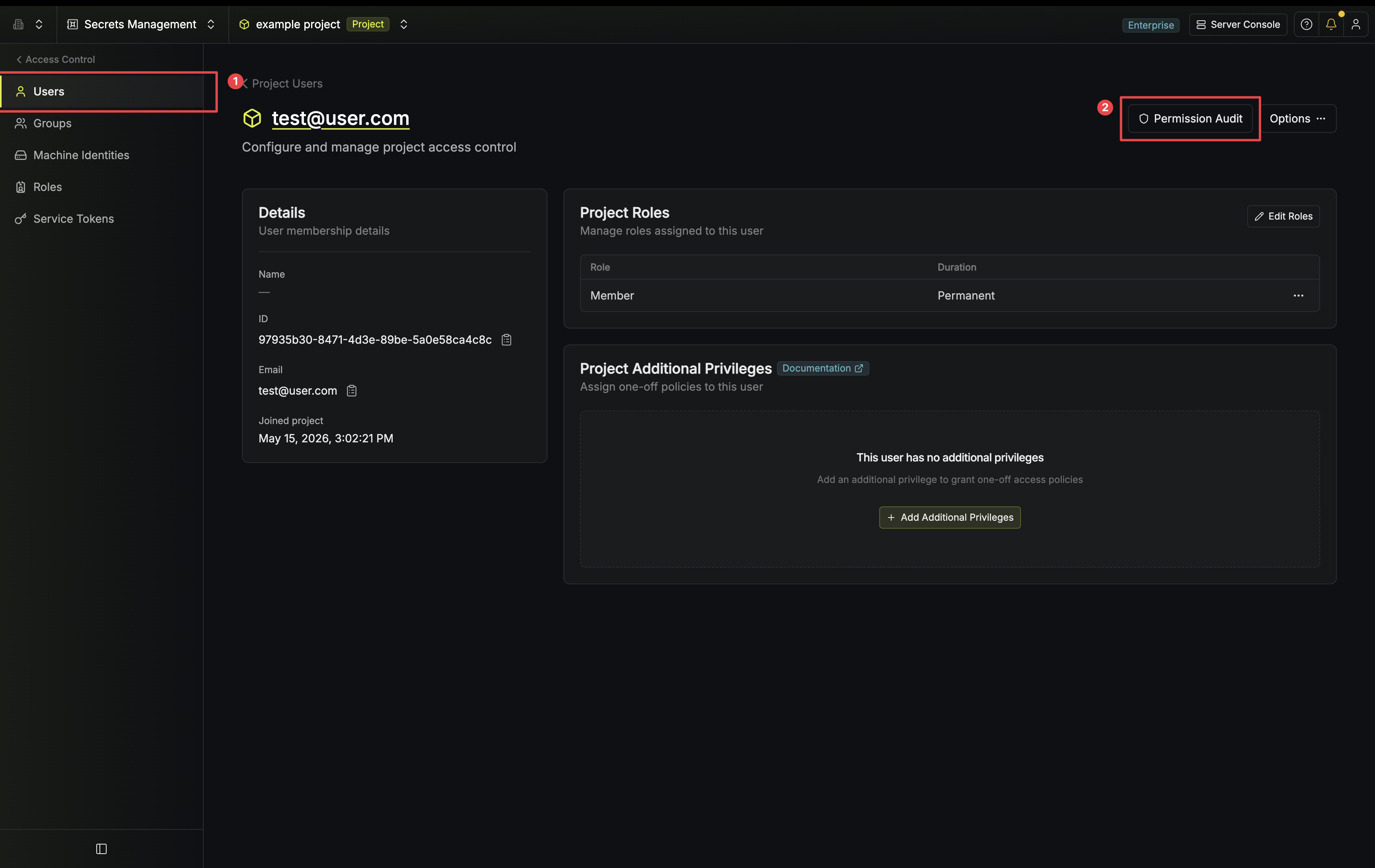
Open a member from Access Control → Users and click Permission Audit.
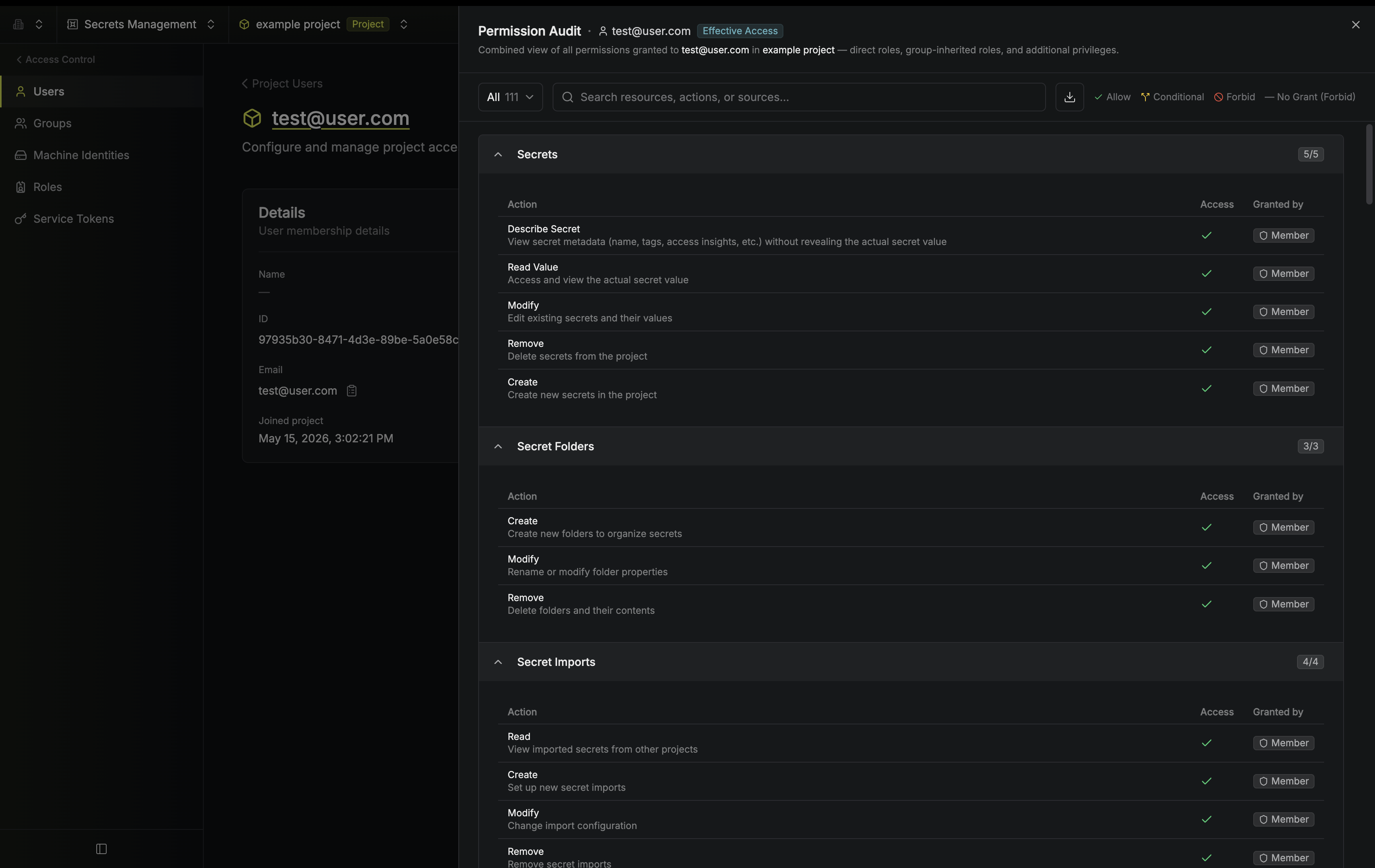
Effective access for a member, grouped by resource with per-action state and source attribution.