> ## Documentation Index
> Fetch the complete documentation index at: https://infisical-devin-1781641701-docs-github-pat-fine-grained.mintlify.site/llms.txt
> Use this file to discover all available pages before exploring further.
# GCP Connection
> Learn how to configure a GCP Connection for Infisical.
Infisical supports [service account impersonation](https://cloud.google.com/iam/docs/service-account-impersonation) to connect with your GCP projects.
Using the GCP integration on a self-hosted instance of Infisical requires configuring a service account on GCP and
configuring your instance to use it.
Enable the IAM Service Account Credentials API for the project containing the service account that will be impersonated. You can do this from the Google Cloud Console or via the command line.
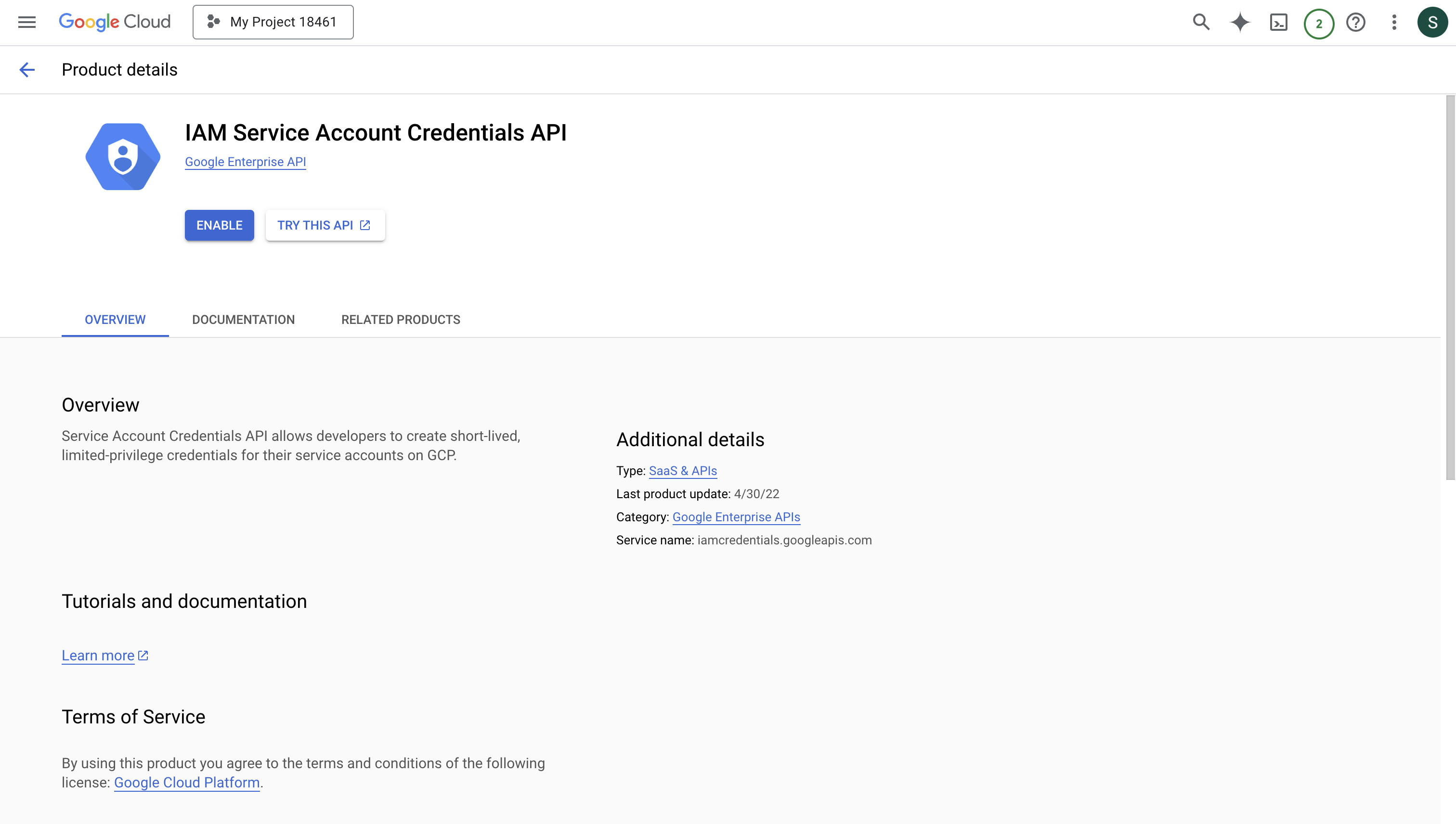 To enable via command line, run the following command, replacing `projectId` with your GCP project ID:
```bash theme={null}
gcloud services enable iamcredentials.googleapis.com --project=projectId
```
Verify the API is enabled by running:
```bash theme={null}
gcloud services list --enabled --project=projectId | grep iamcredentials
```
To enable via command line, run the following command, replacing `projectId` with your GCP project ID:
```bash theme={null}
gcloud services enable iamcredentials.googleapis.com --project=projectId
```
Verify the API is enabled by running:
```bash theme={null}
gcloud services list --enabled --project=projectId | grep iamcredentials
```
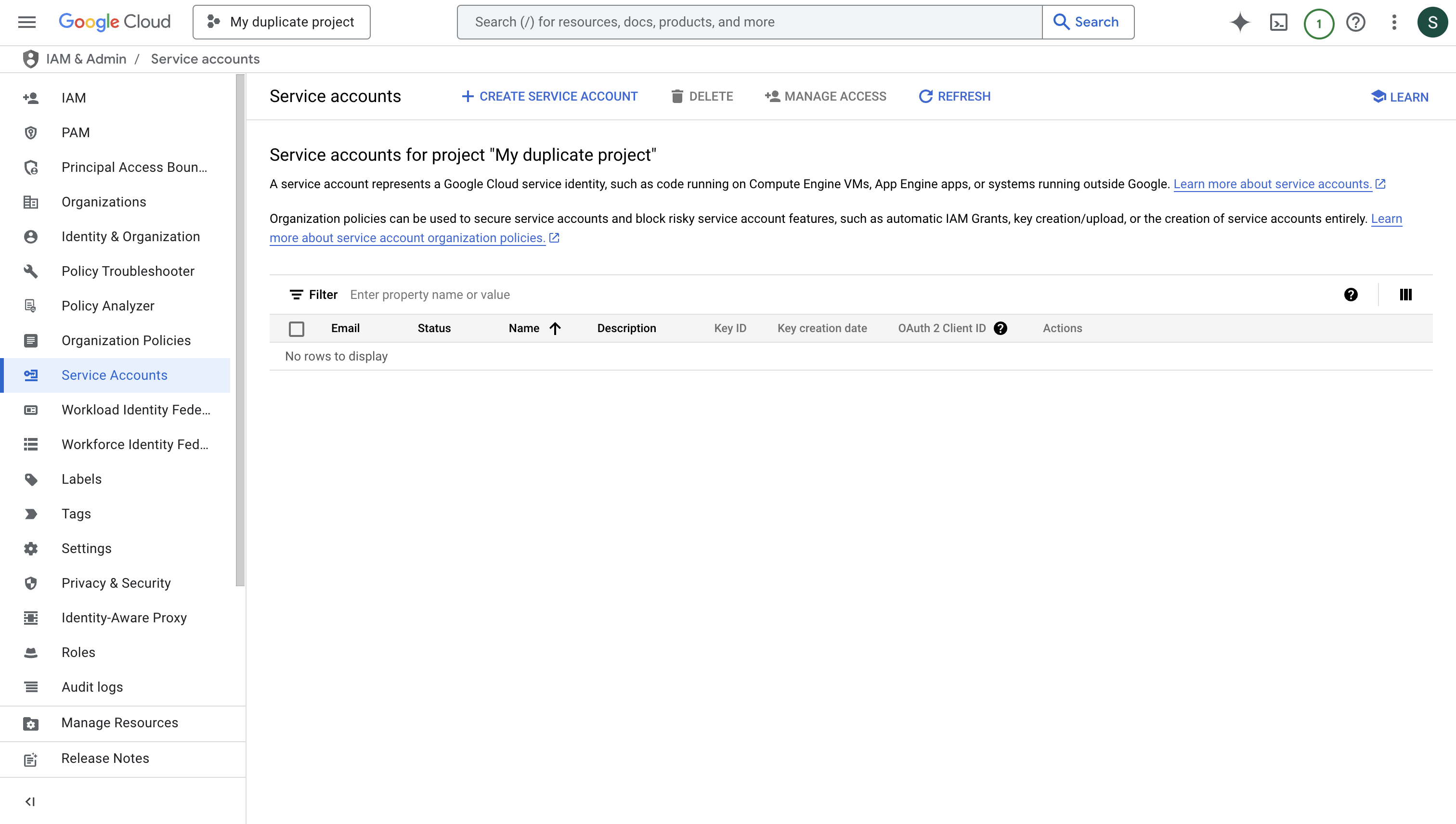 Create a new service account that will be used to impersonate other GCP service accounts for your app connections.
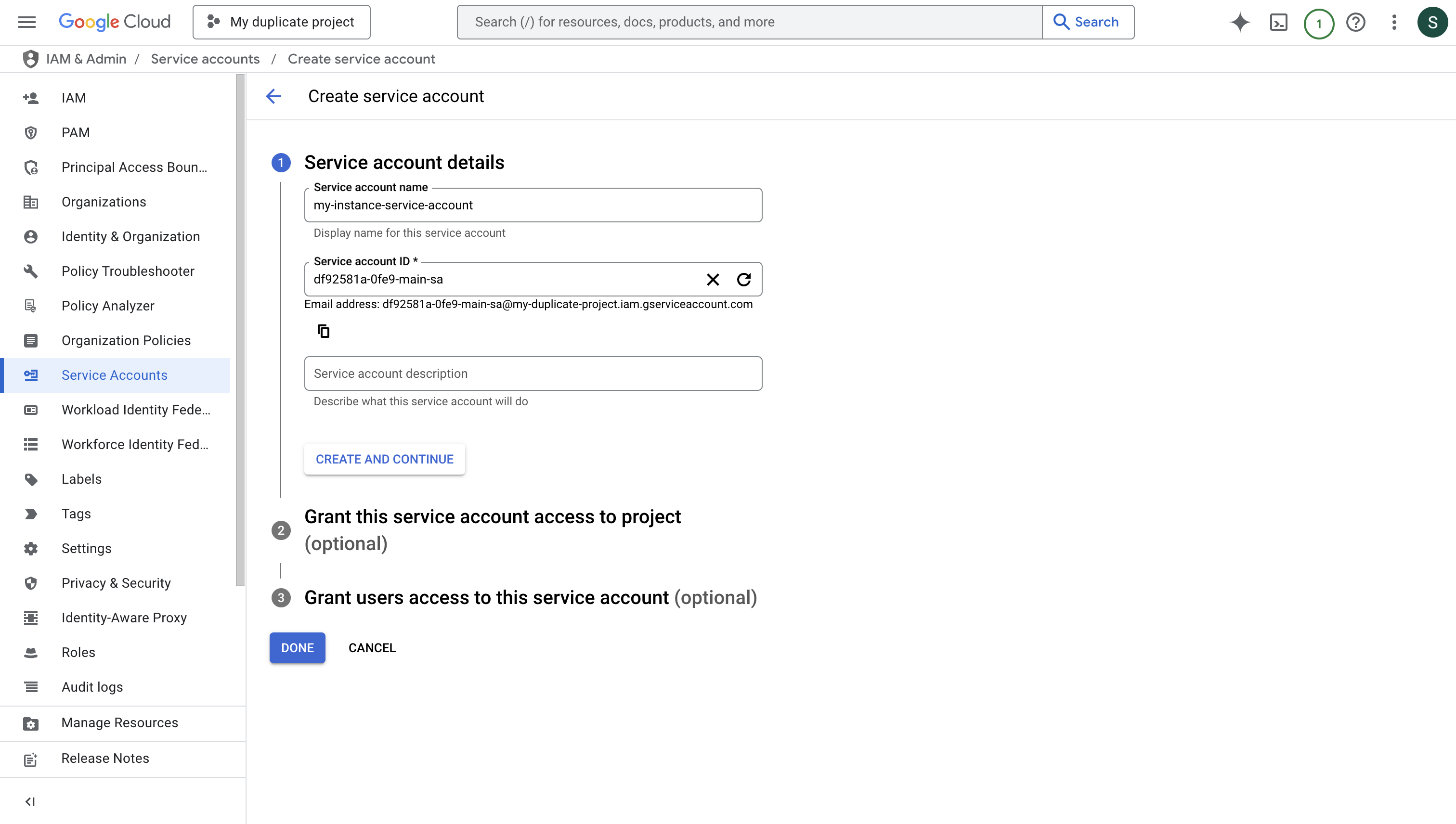 Press "DONE" after creating the service account.
Download the JSON key file for your service account. This will be used to authenticate your instance with GCP.
Press "DONE" after creating the service account.
Download the JSON key file for your service account. This will be used to authenticate your instance with GCP.
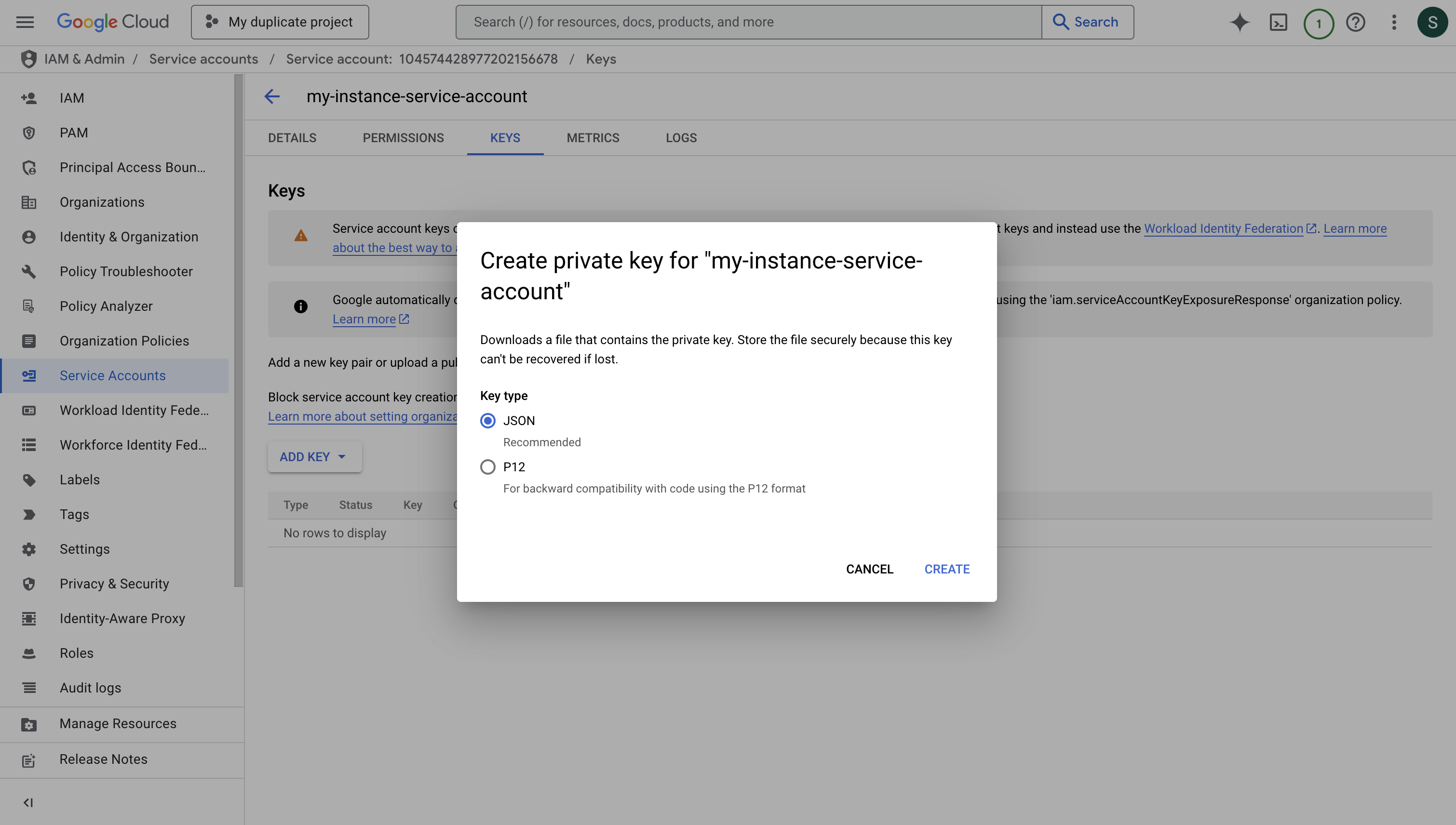 1. Copy the entire contents of the downloaded JSON key file.
2. Set it as a string value for the `INF_APP_CONNECTION_GCP_SERVICE_ACCOUNT_CREDENTIAL` environment variable.
3. Restart your Infisical instance to apply the changes.
4. You can now use GCP integration with service account impersonation.
## Configure Service Account for Infisical
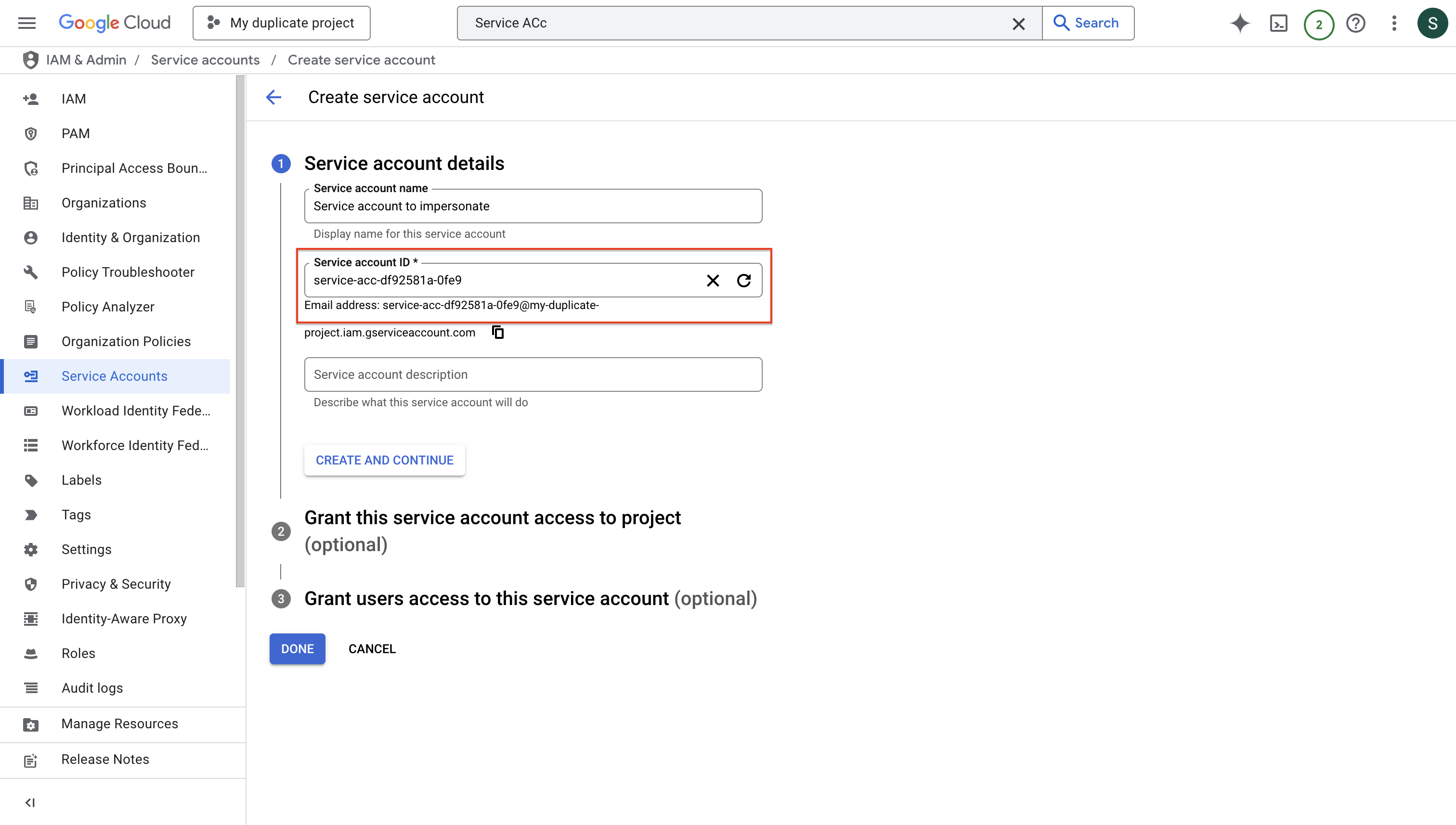
Create a new service account with an ID that follows this requirement:
Your service account ID must end with the first two sections of your Infisical organization ID.
Example:
* Infisical organization ID: `df92581a-0fe9-42b5-b526-0a1e88ec8085`
* Required service account ID suffix: `df92581a-0fe9`
1. Copy the entire contents of the downloaded JSON key file.
2. Set it as a string value for the `INF_APP_CONNECTION_GCP_SERVICE_ACCOUNT_CREDENTIAL` environment variable.
3. Restart your Infisical instance to apply the changes.
4. You can now use GCP integration with service account impersonation.
## Configure Service Account for Infisical
Create a new service account with an ID that follows this requirement:
Your service account ID must end with the first two sections of your Infisical organization ID.
Example:
* Infisical organization ID: `df92581a-0fe9-42b5-b526-0a1e88ec8085`
* Required service account ID suffix: `df92581a-0fe9`
 Add the required permissions for secret syncs:
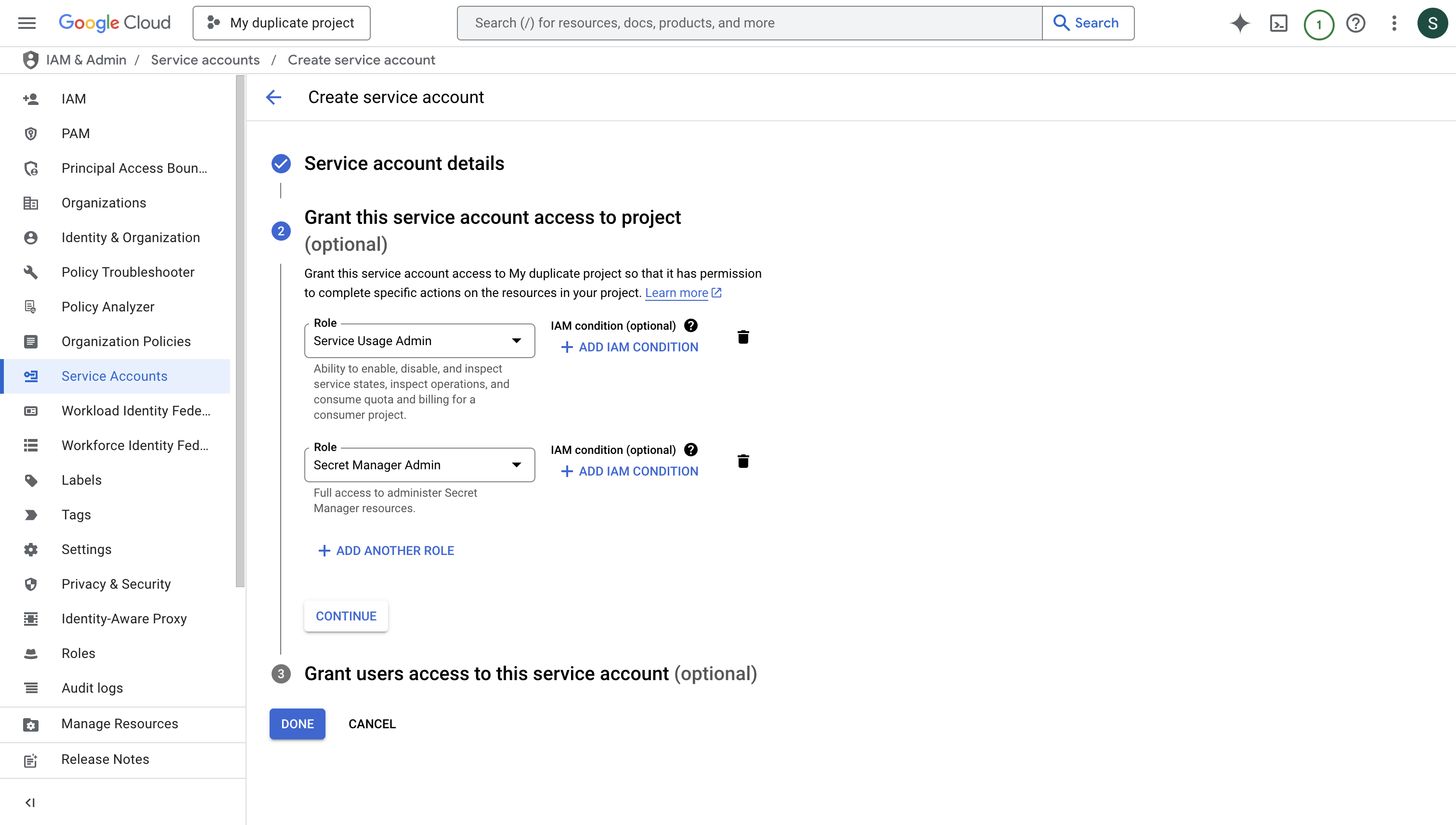 After configuring the appropriate roles, press "DONE".
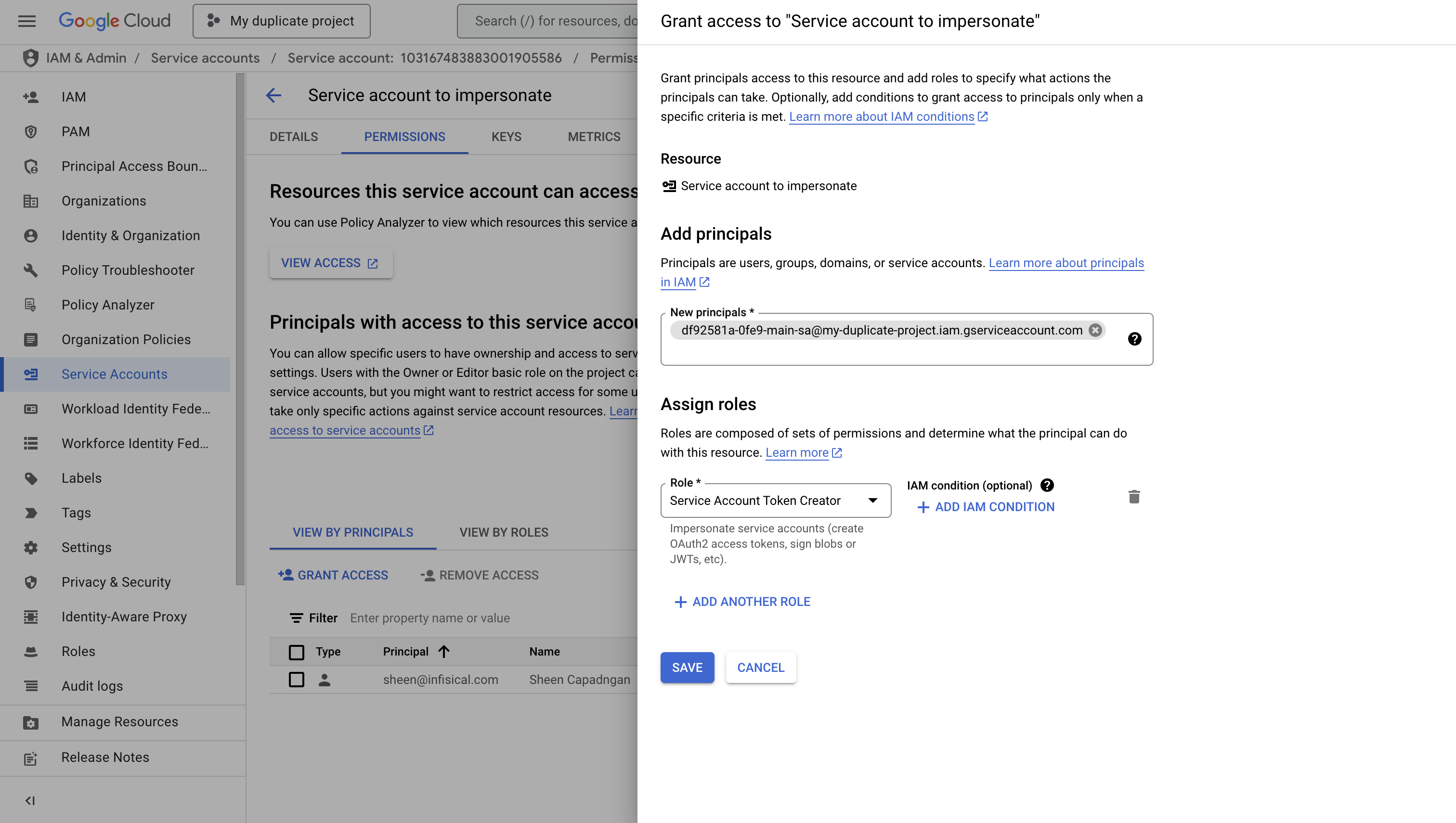
To enable service account impersonation, you'll need to grant the **Service Account Token Creator** role to the Infisical instance's service account. This configuration allows Infisical to securely impersonate the new service account.
* Navigate to the IAM & Admin > Service Accounts section in your Google Cloud Console
* Select the newly created service account
* Click on the "PERMISSIONS" tab
* Click "Grant Access" to add a new principal
If you're using Infisical Cloud US, use the following service account: [infisical-us@infisical-us.iam.gserviceaccount.com](mailto:infisical-us@infisical-us.iam.gserviceaccount.com)
If you're using Infisical Cloud EU, use the following service account: [infisical-eu@infisical-eu.iam.gserviceaccount.com](mailto:infisical-eu@infisical-eu.iam.gserviceaccount.com)
After configuring the appropriate roles, press "DONE".
To enable service account impersonation, you'll need to grant the **Service Account Token Creator** role to the Infisical instance's service account. This configuration allows Infisical to securely impersonate the new service account.
* Navigate to the IAM & Admin > Service Accounts section in your Google Cloud Console
* Select the newly created service account
* Click on the "PERMISSIONS" tab
* Click "Grant Access" to add a new principal
If you're using Infisical Cloud US, use the following service account: [infisical-us@infisical-us.iam.gserviceaccount.com](mailto:infisical-us@infisical-us.iam.gserviceaccount.com)
If you're using Infisical Cloud EU, use the following service account: [infisical-eu@infisical-eu.iam.gserviceaccount.com](mailto:infisical-eu@infisical-eu.iam.gserviceaccount.com)
 ## Setup GCP Connection in Infisical
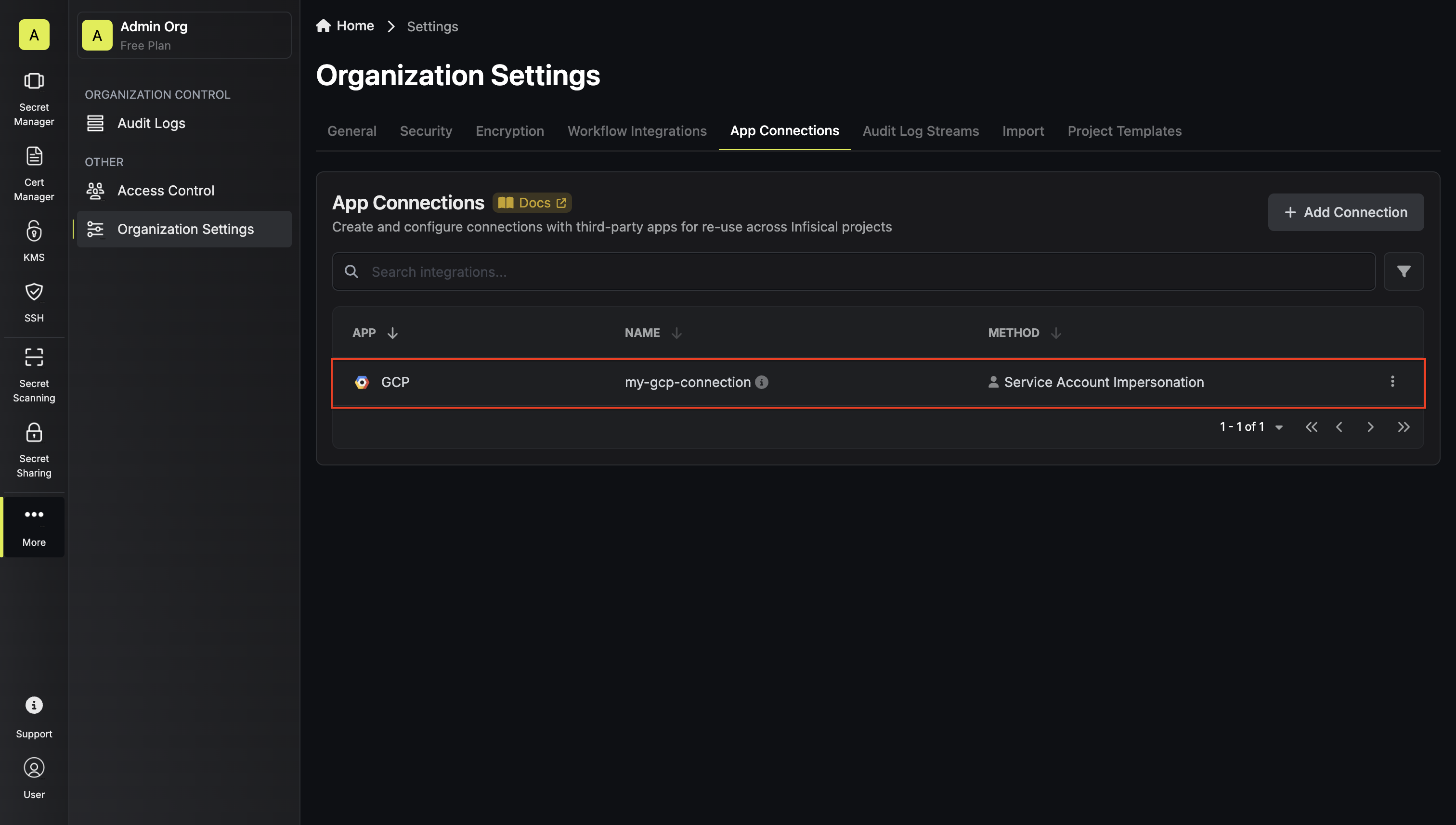
Navigate to the **Integrations** tab in the desired project, then select **App Connections**.
## Setup GCP Connection in Infisical
Navigate to the **Integrations** tab in the desired project, then select **App Connections**. 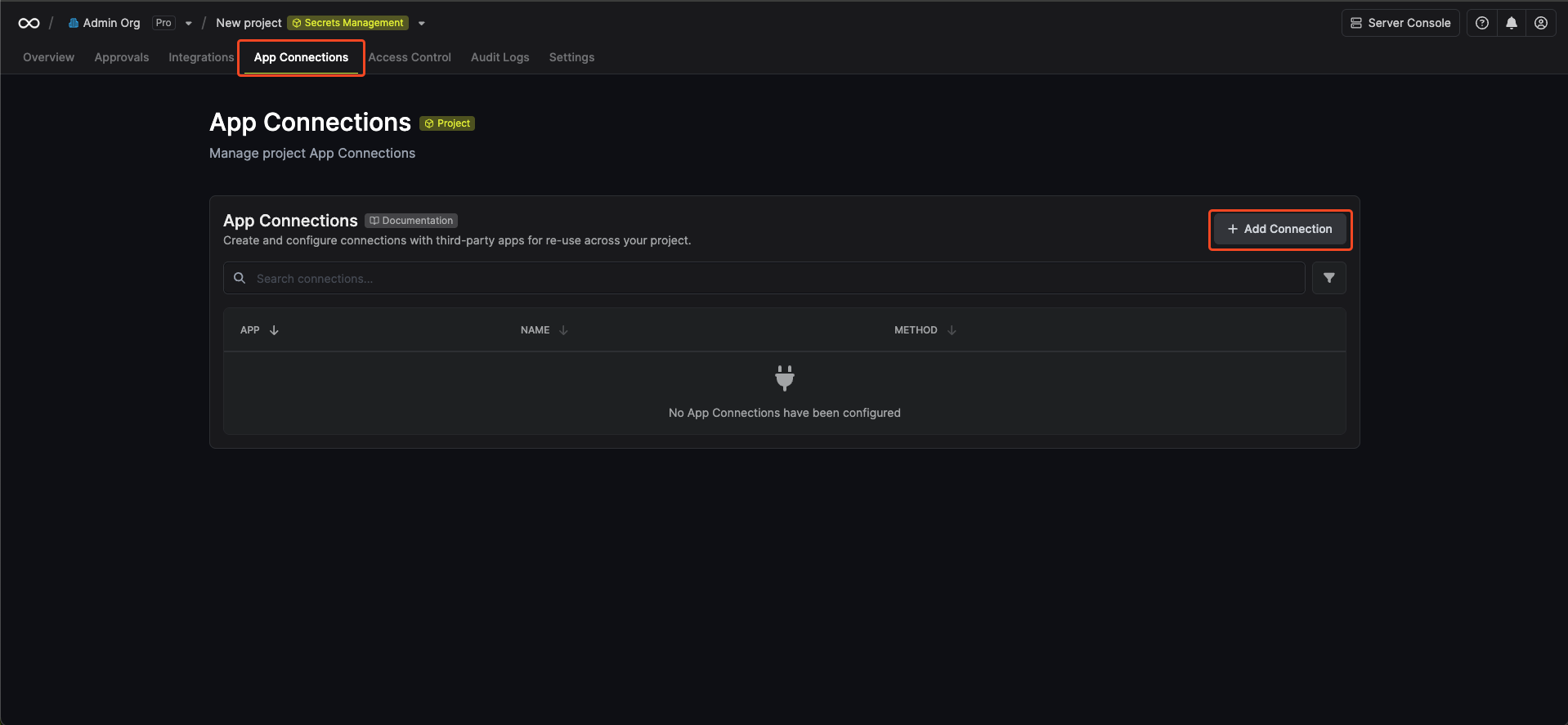 Select the **GCP Connection** option from the connection options modal.
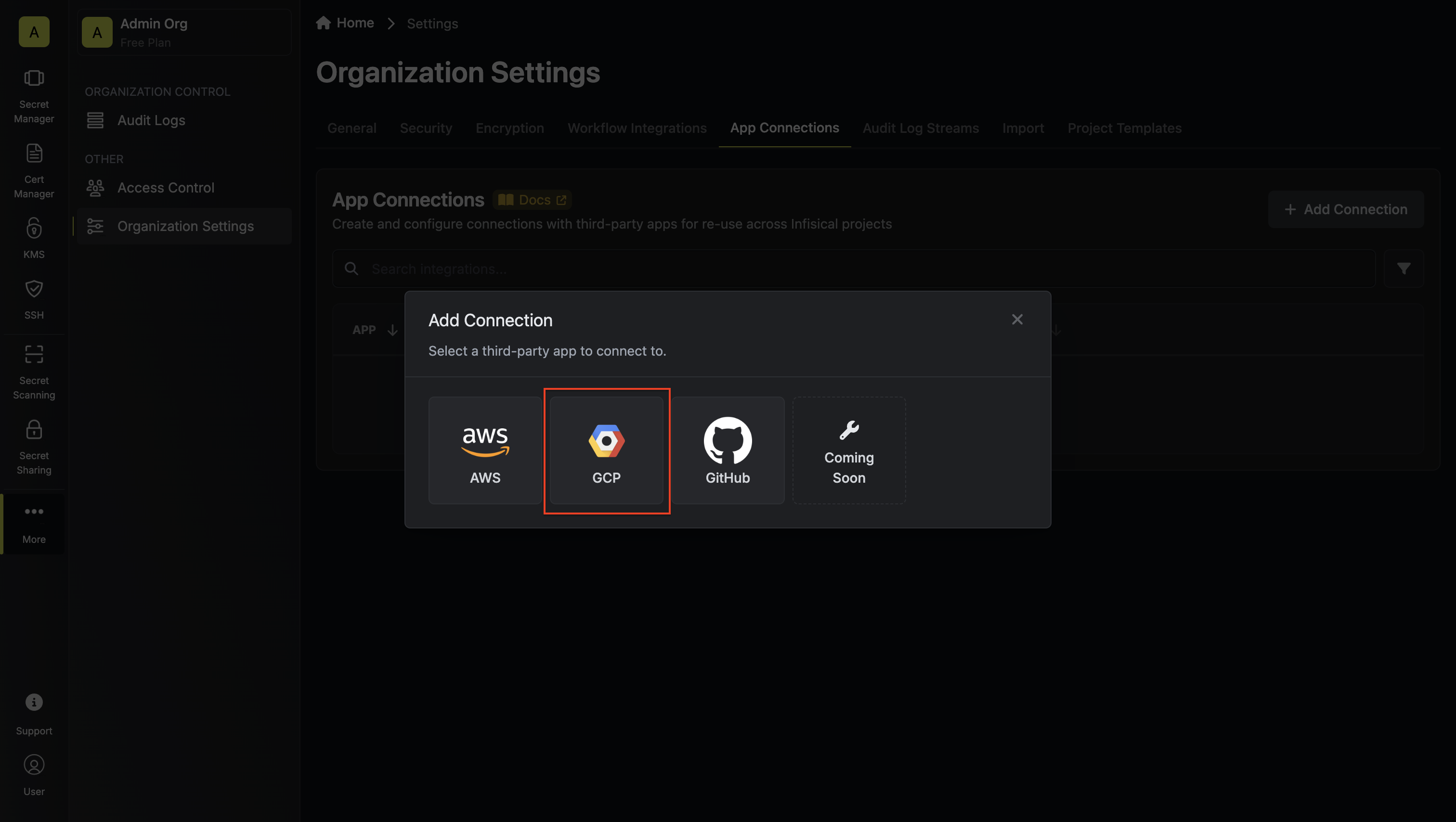 Select the **Service Account Impersonation** method and click **Connect to
GCP**.
Select the **Service Account Impersonation** method and click **Connect to
GCP**. 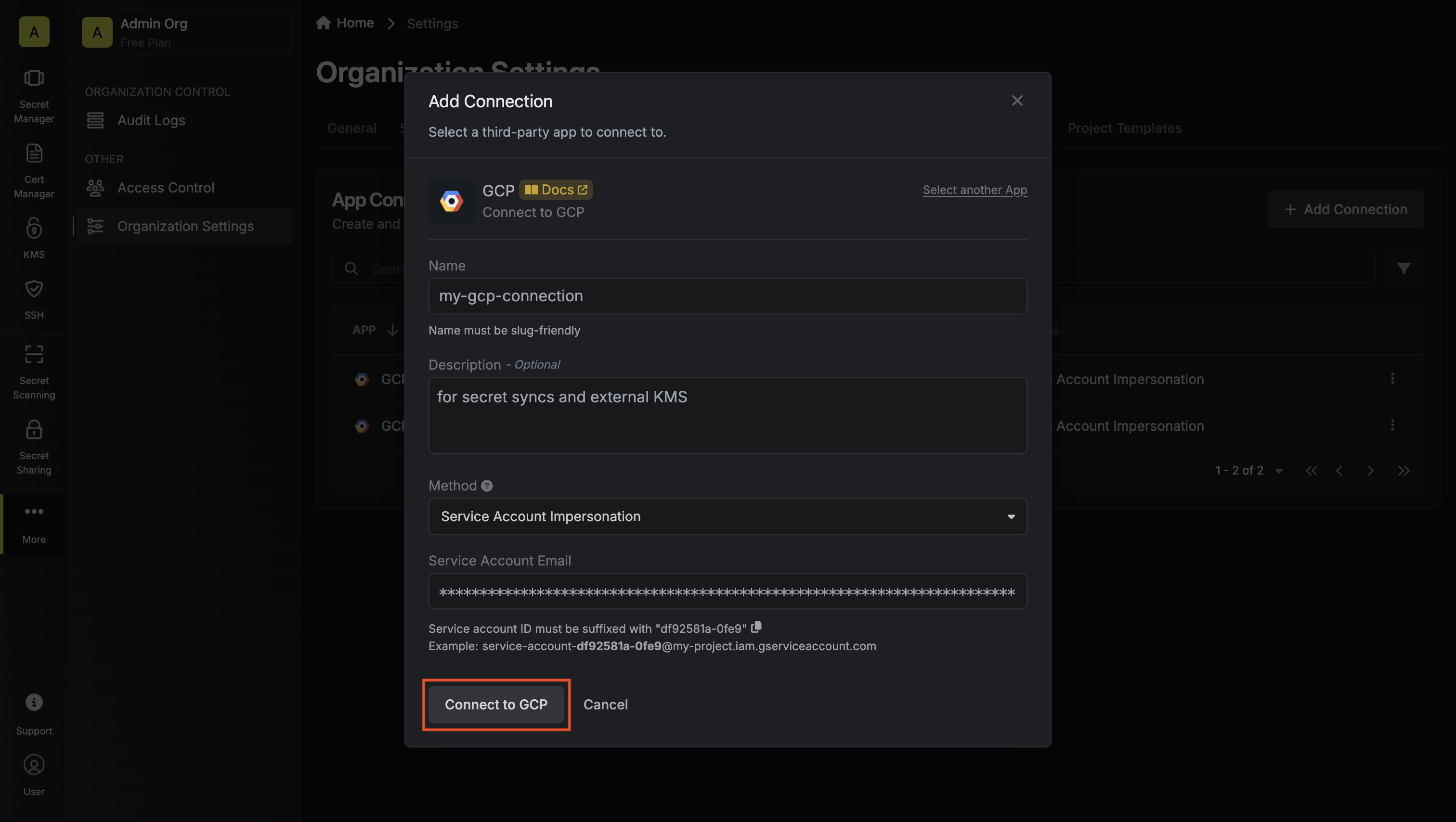 Your **GCP Connection** is now available for use.