> ## Documentation Index
> Fetch the complete documentation index at: https://infisical-devin-1781641701-docs-github-pat-fine-grained.mintlify.site/llms.txt
> Use this file to discover all available pages before exploring further.
# PingOne OIDC
> Learn how to configure PingOne OIDC for Infisical SSO.
PingOne OIDC SSO is a paid feature. If you're using Infisical Cloud, then it is
available under the **Pro Tier**. If you're self-hosting Infisical, then you
should contact [sales@infisical.com](mailto:sales@infisical.com) to purchase a self-hosted license to use
it.
SSO authentication requires [Email Domain Verification](/documentation/platform/email-domain).
You must verify your organization's email domain before users can log in via SSO.
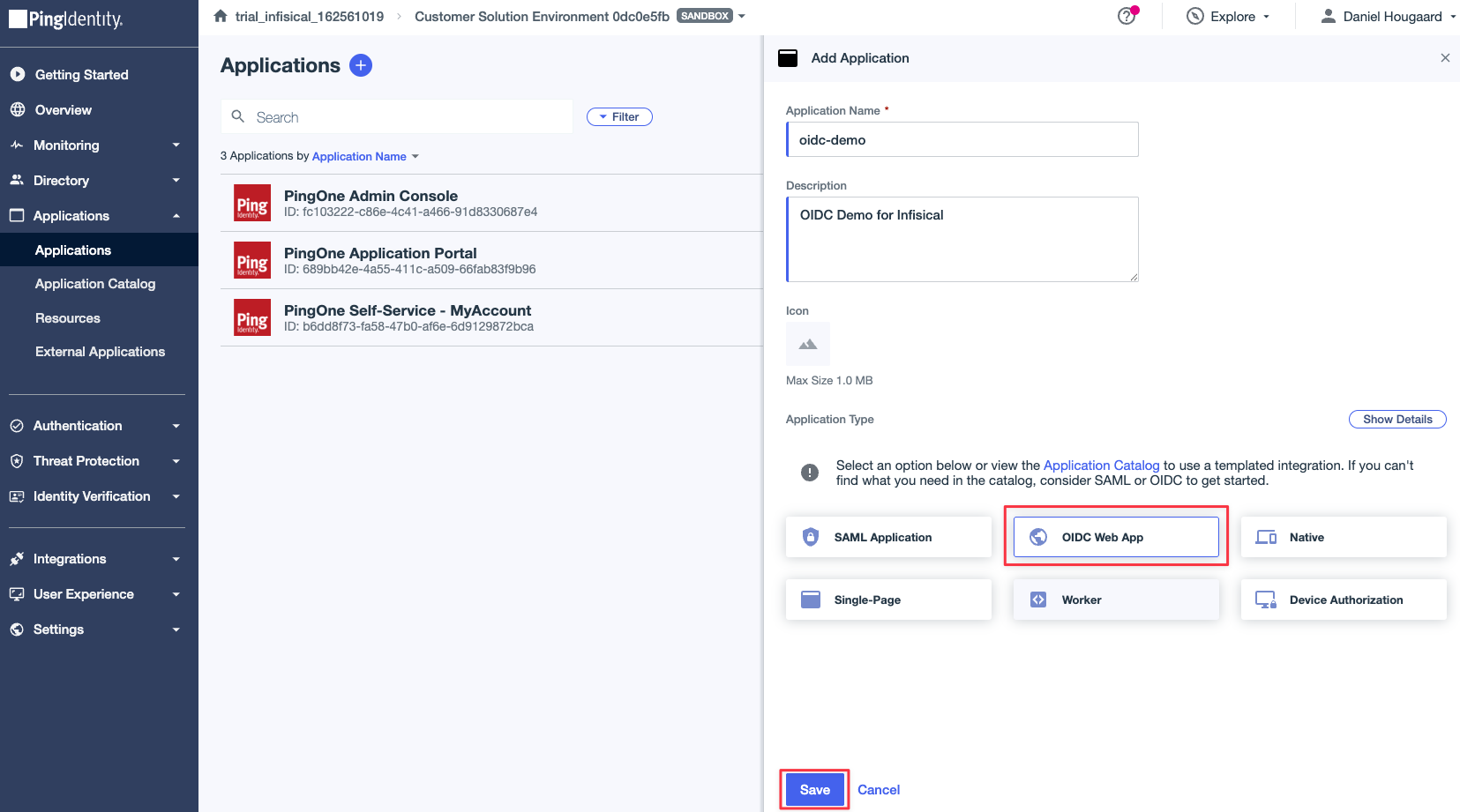
1.1. From the Application's Page, create a new OIDC Web App application.
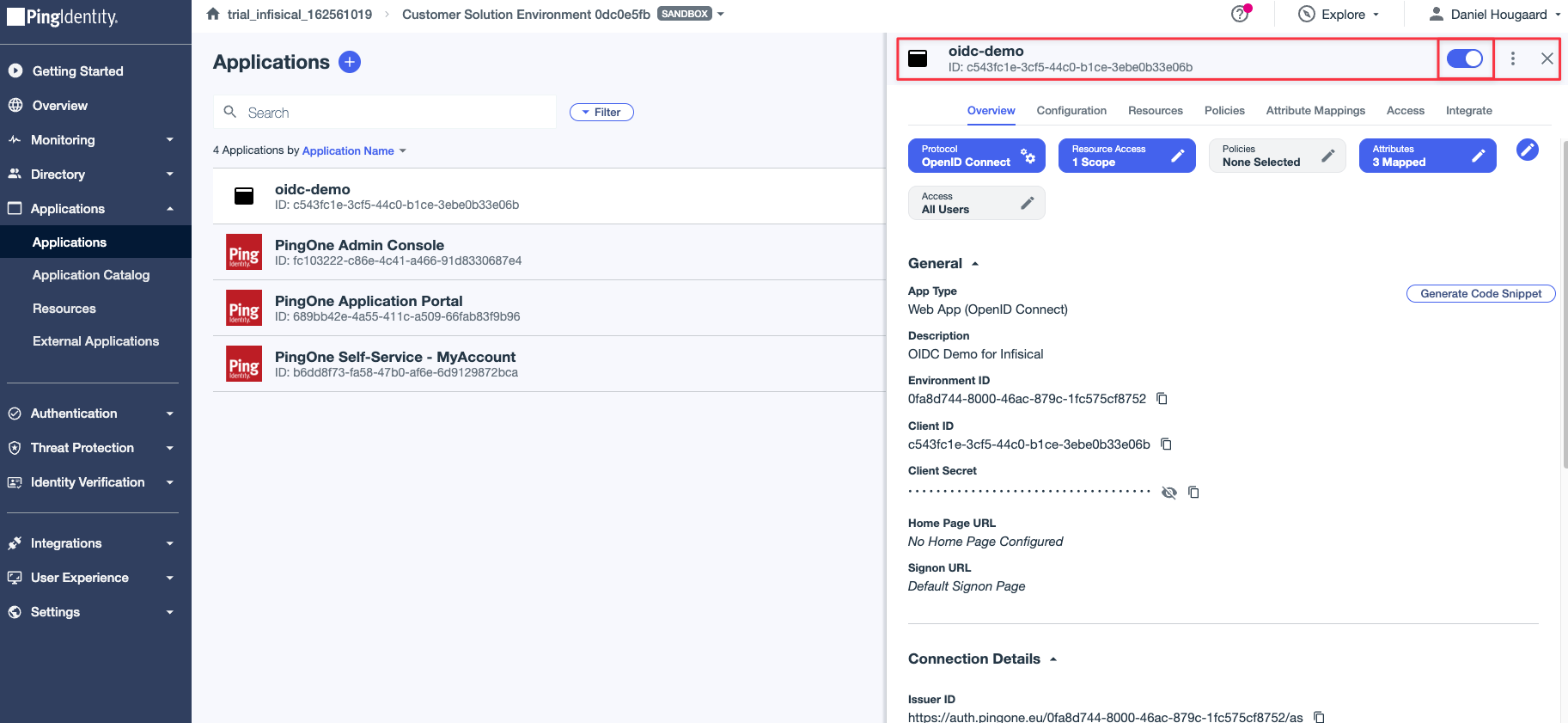
 1.2. Enable the application by pressing the "Enable" toggle.
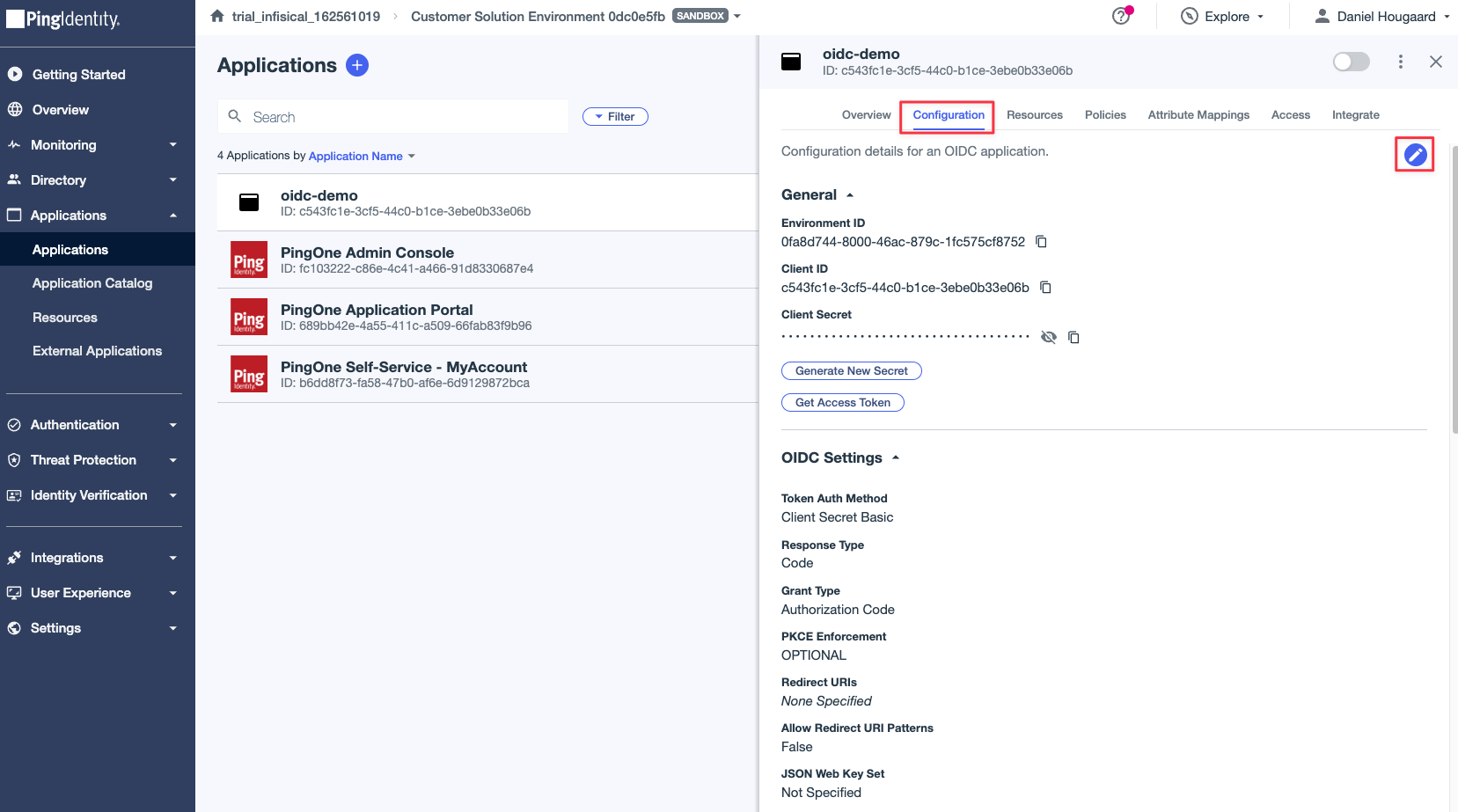
 1.3. In the Application "Configuration" tab, press the "Edit" pencil icon to configure the application callback URI.
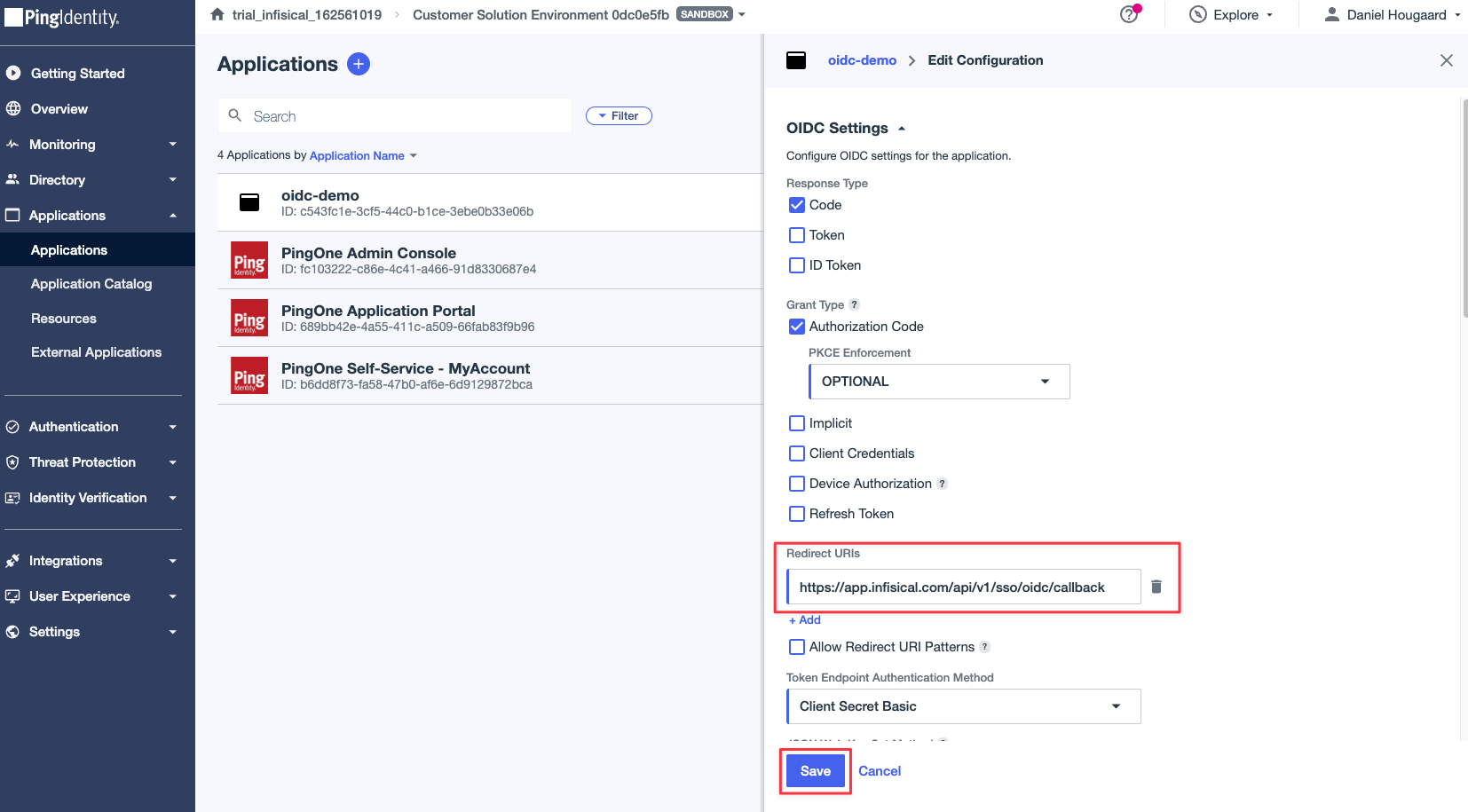
 1.4 Set the Redirect URL to `https://app.infisical.com/api/v1/sso/oidc/callback` and press the "Save" button.
 If you're self-hosting Infisical, then you will want to replace [https://app.infisical.com](https://app.infisical.com) with your own domain.
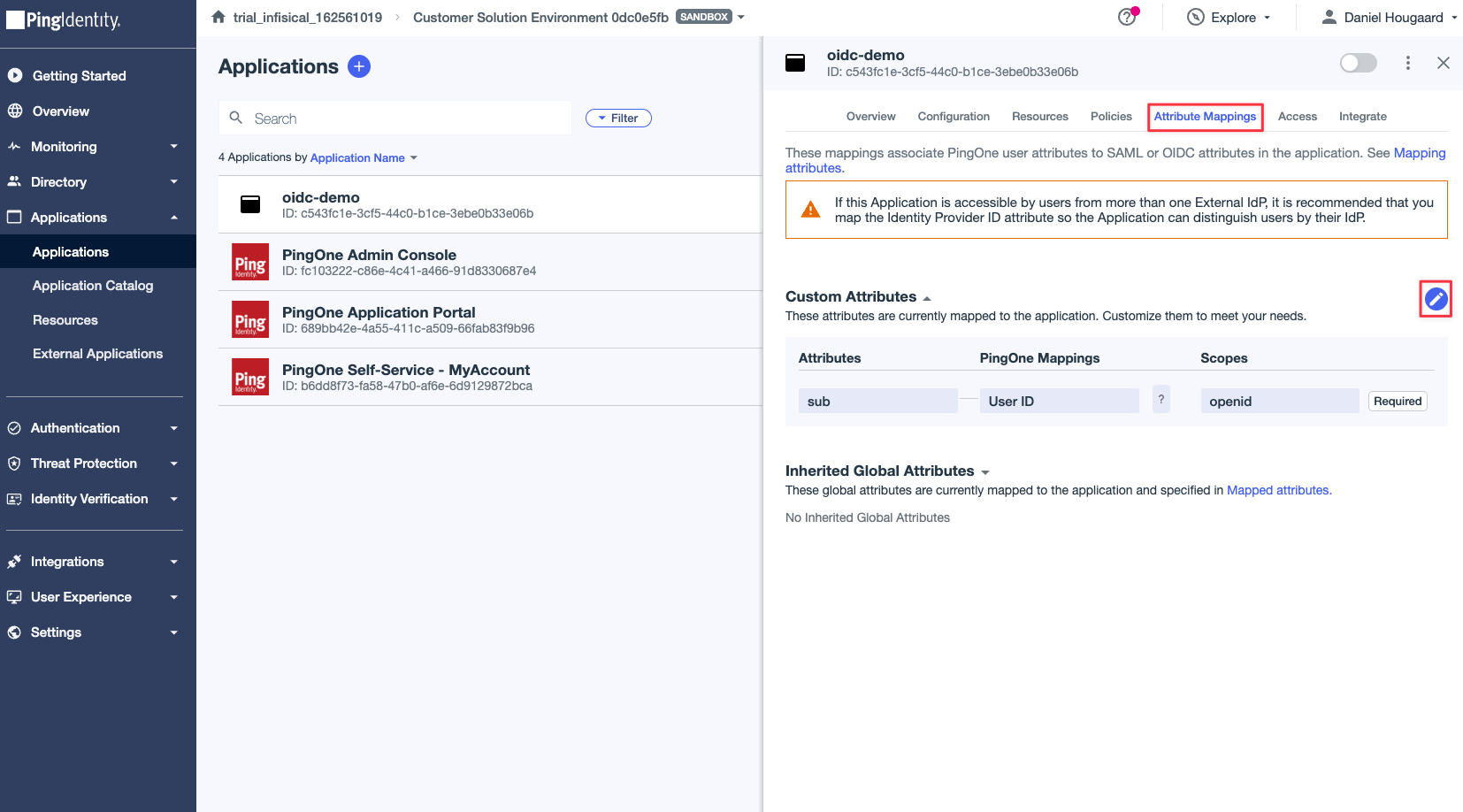
1.5 After configuring the redirect URL, go to the "Attribute Mappings" tab and press the "Edit" pencil icon to configure the attribute mappings.
If you're self-hosting Infisical, then you will want to replace [https://app.infisical.com](https://app.infisical.com) with your own domain.
1.5 After configuring the redirect URL, go to the "Attribute Mappings" tab and press the "Edit" pencil icon to configure the attribute mappings.
 1.6 Map the following attributes:
* `email` -> `Email Address`
* `name` -> `Username`
1.6 Map the following attributes:
* `email` -> `Email Address`
* `name` -> `Username`
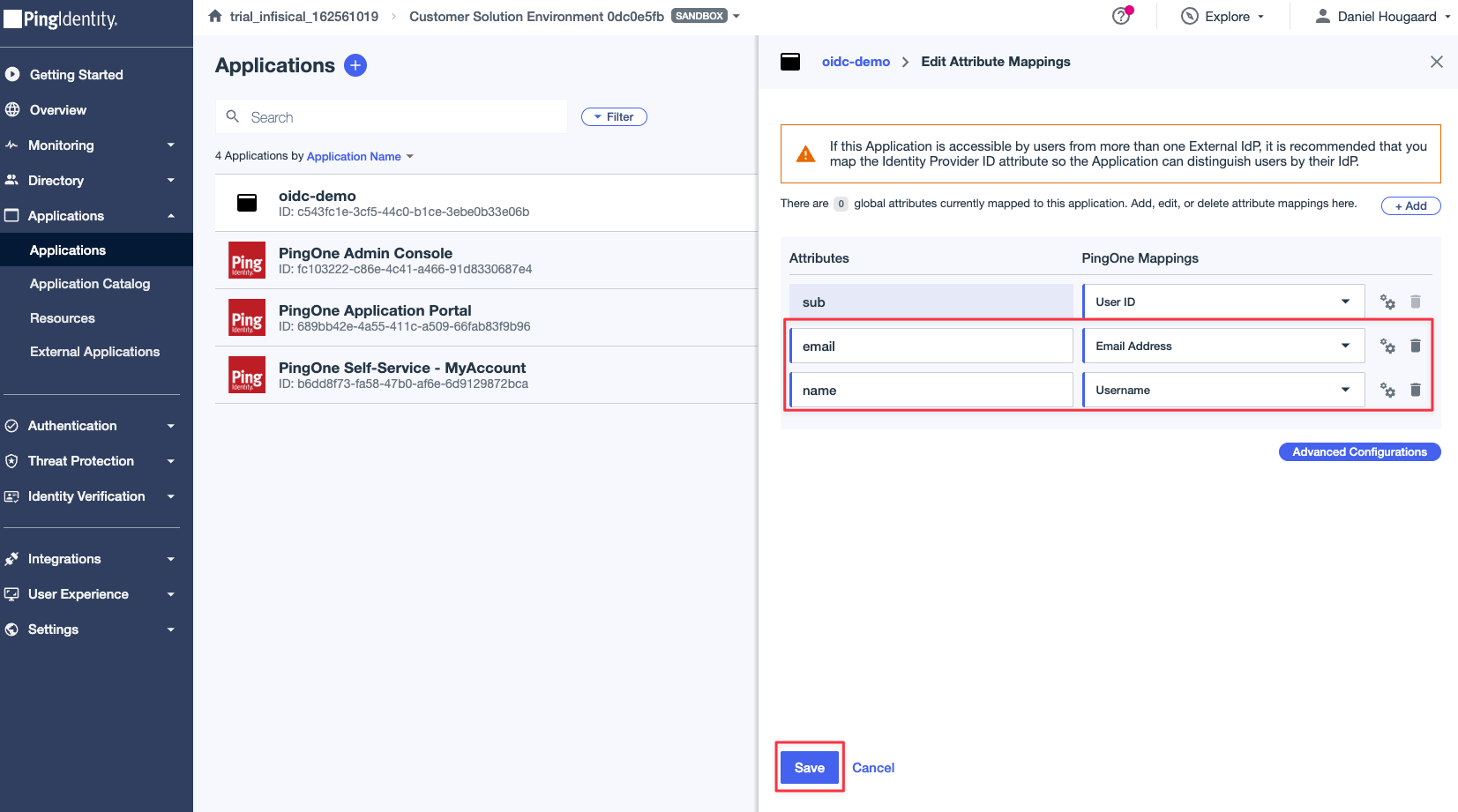 Once done, press the "Save" button.
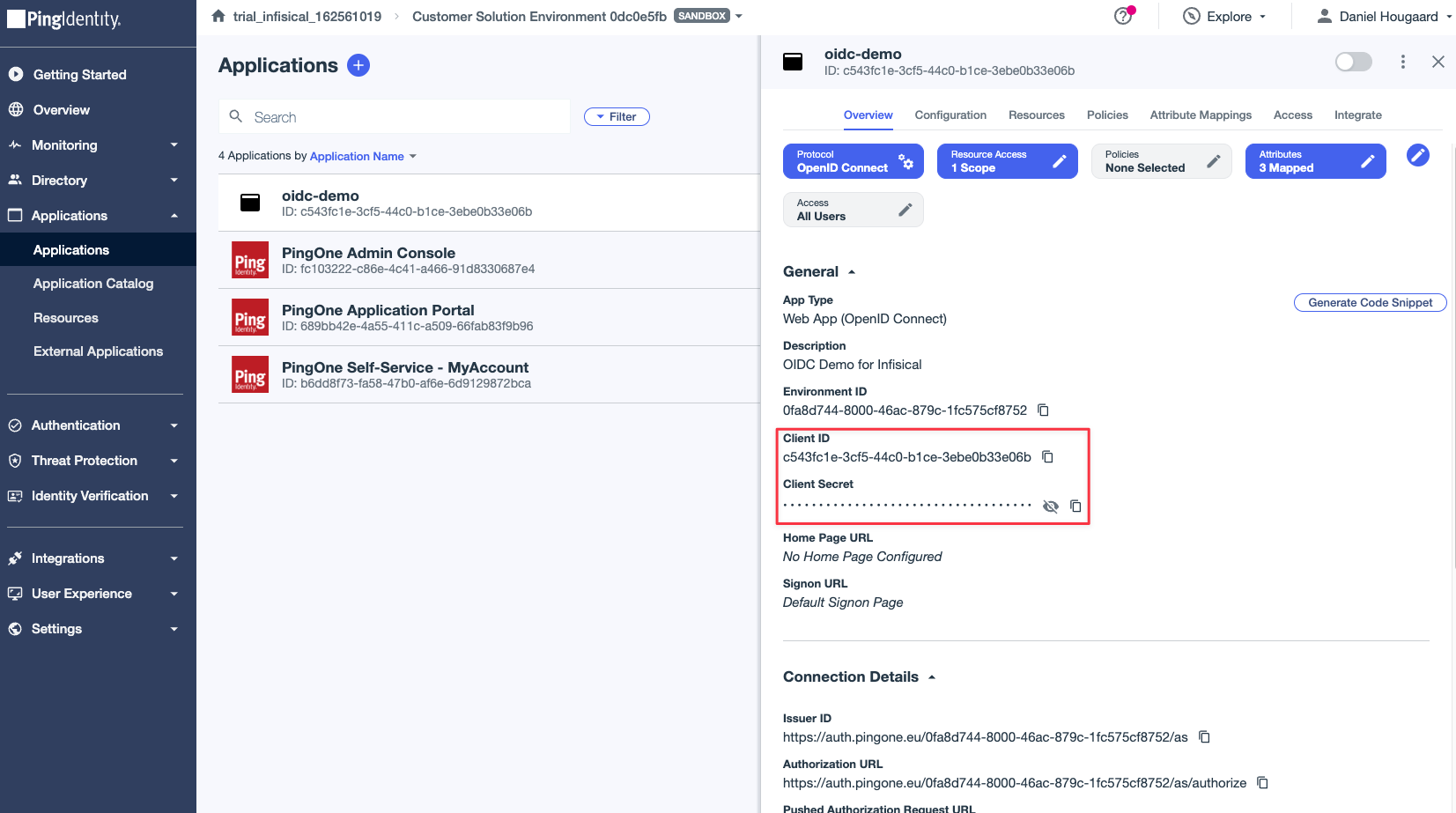
2.1. Open the "Overview" tab and copy the **Client ID** and **Client Secret**.
Once done, press the "Save" button.
2.1. Open the "Overview" tab and copy the **Client ID** and **Client Secret**.
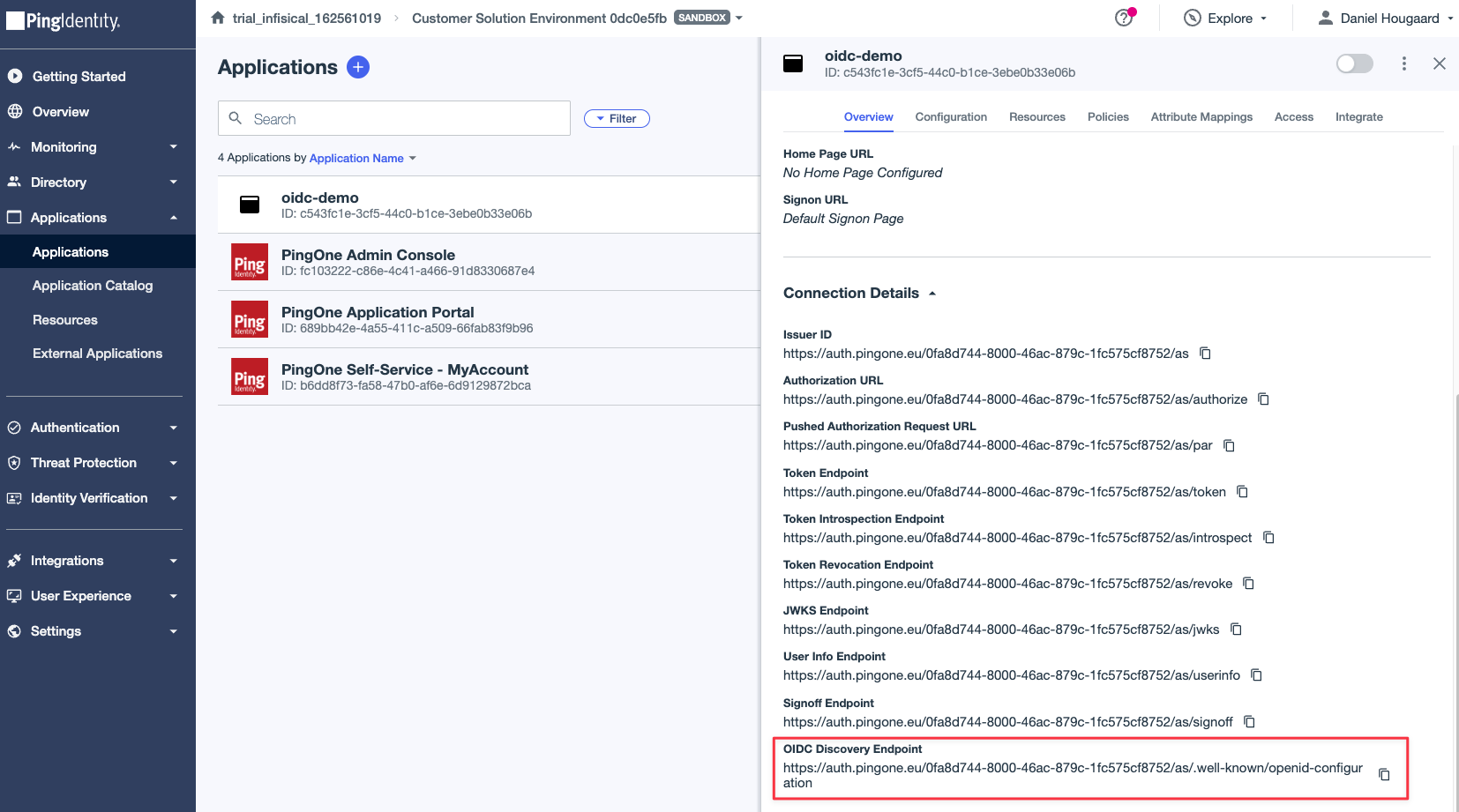
 2.2. Still in the "Overview" tab, scroll down to the Connection Details section and retrieve the **OIDC Discovery Endpoint**.
 Keep these values handy as we will need them in the next steps.
3.1. Back in Infisical, head to the **Single Sign-On (SSO)** page and select the **General** tab. Click **Connect** for **OIDC**.
Keep these values handy as we will need them in the next steps.
3.1. Back in Infisical, head to the **Single Sign-On (SSO)** page and select the **General** tab. Click **Connect** for **OIDC**.
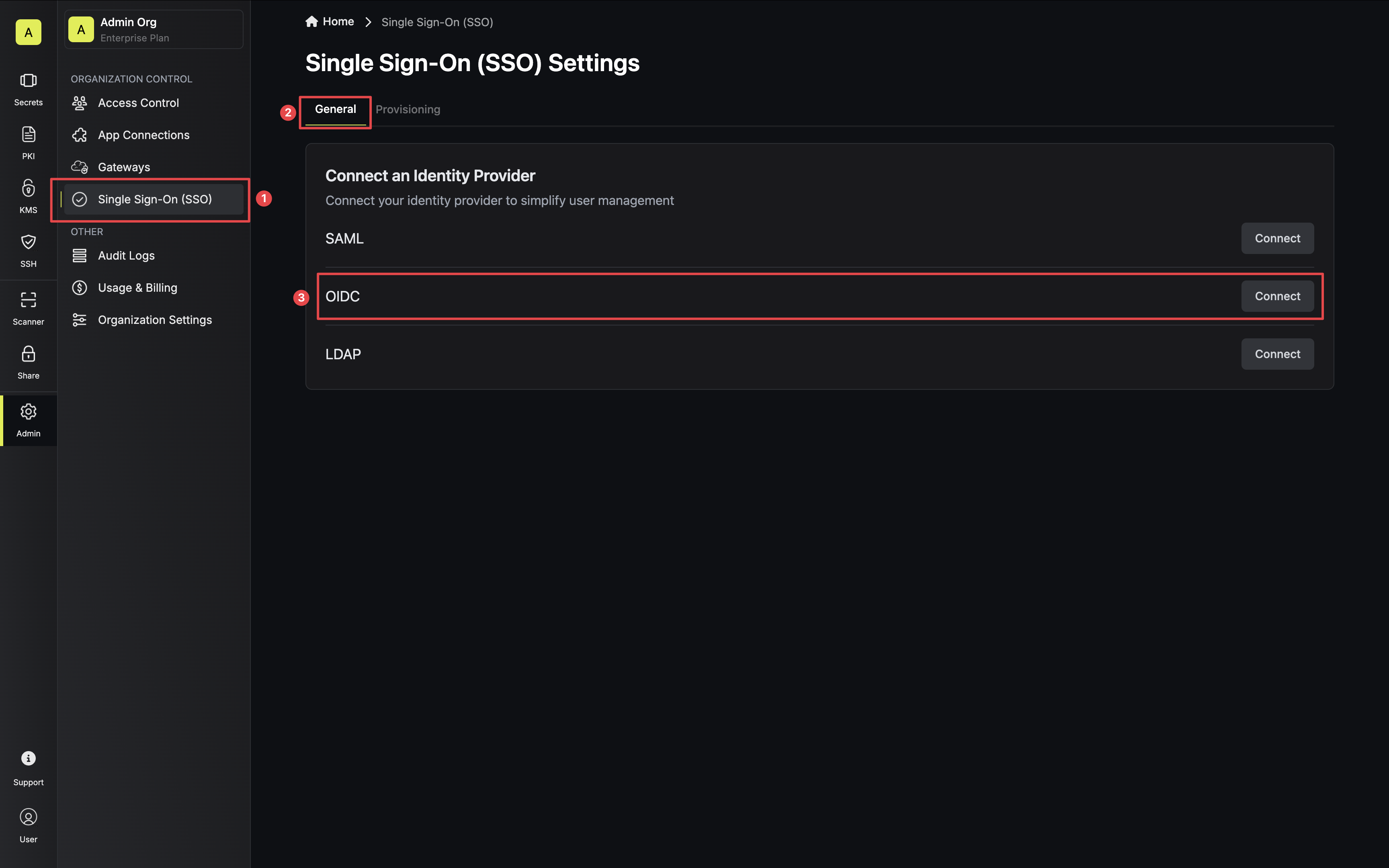 3.2. For configuration type, select **Discovery URL**. Then, set **Discovery Document URL**, **Client ID**, and **Client Secret** from step 2.1 and 2.2.
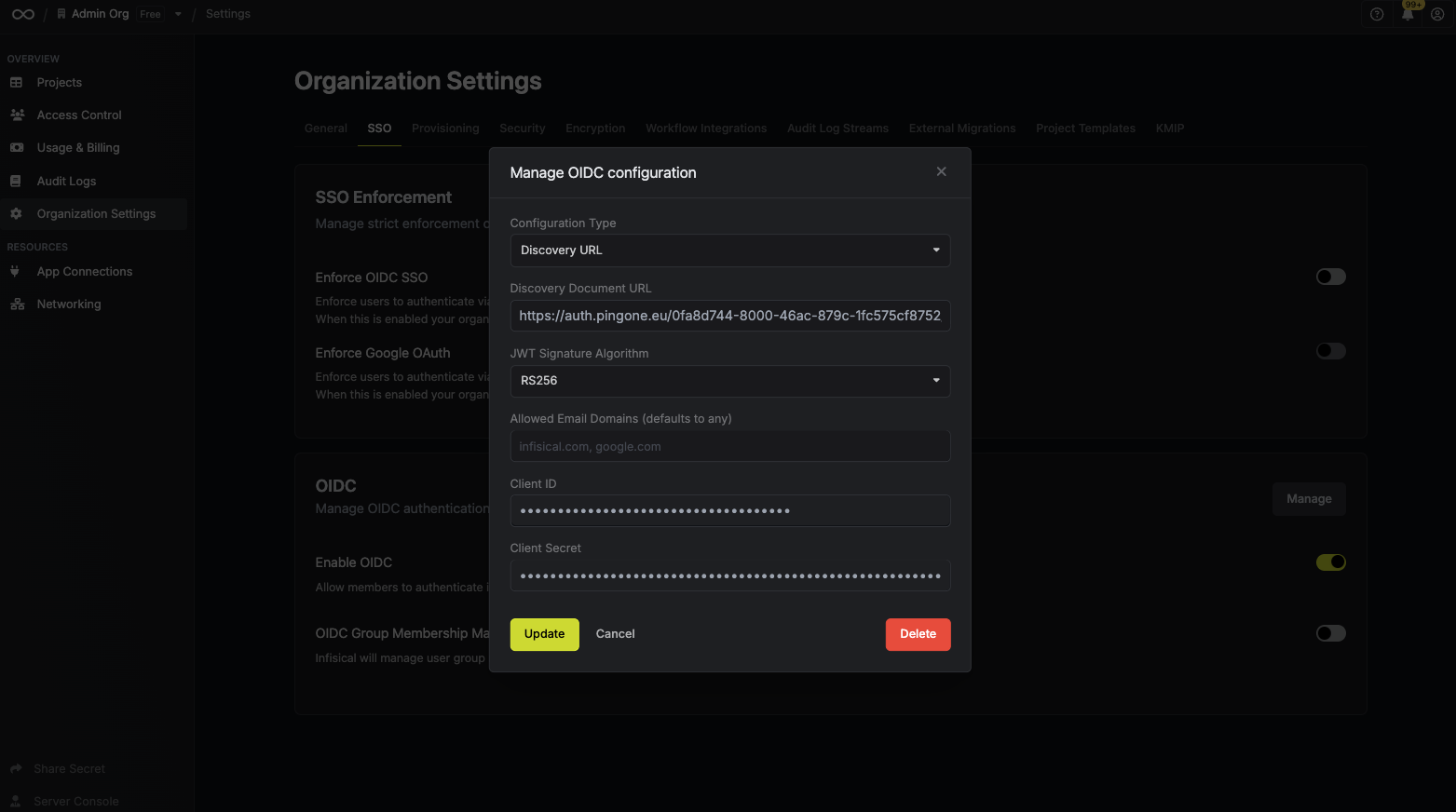 Currently, the following JWT signature algorithms are supported: RS256, RS512, HS256, and EdDSA
Once you've done that, press **Update** to complete the required configuration.
Enabling OIDC allows members in your organization to log into Infisical via PingOne
Currently, the following JWT signature algorithms are supported: RS256, RS512, HS256, and EdDSA
Once you've done that, press **Update** to complete the required configuration.
Enabling OIDC allows members in your organization to log into Infisical via PingOne
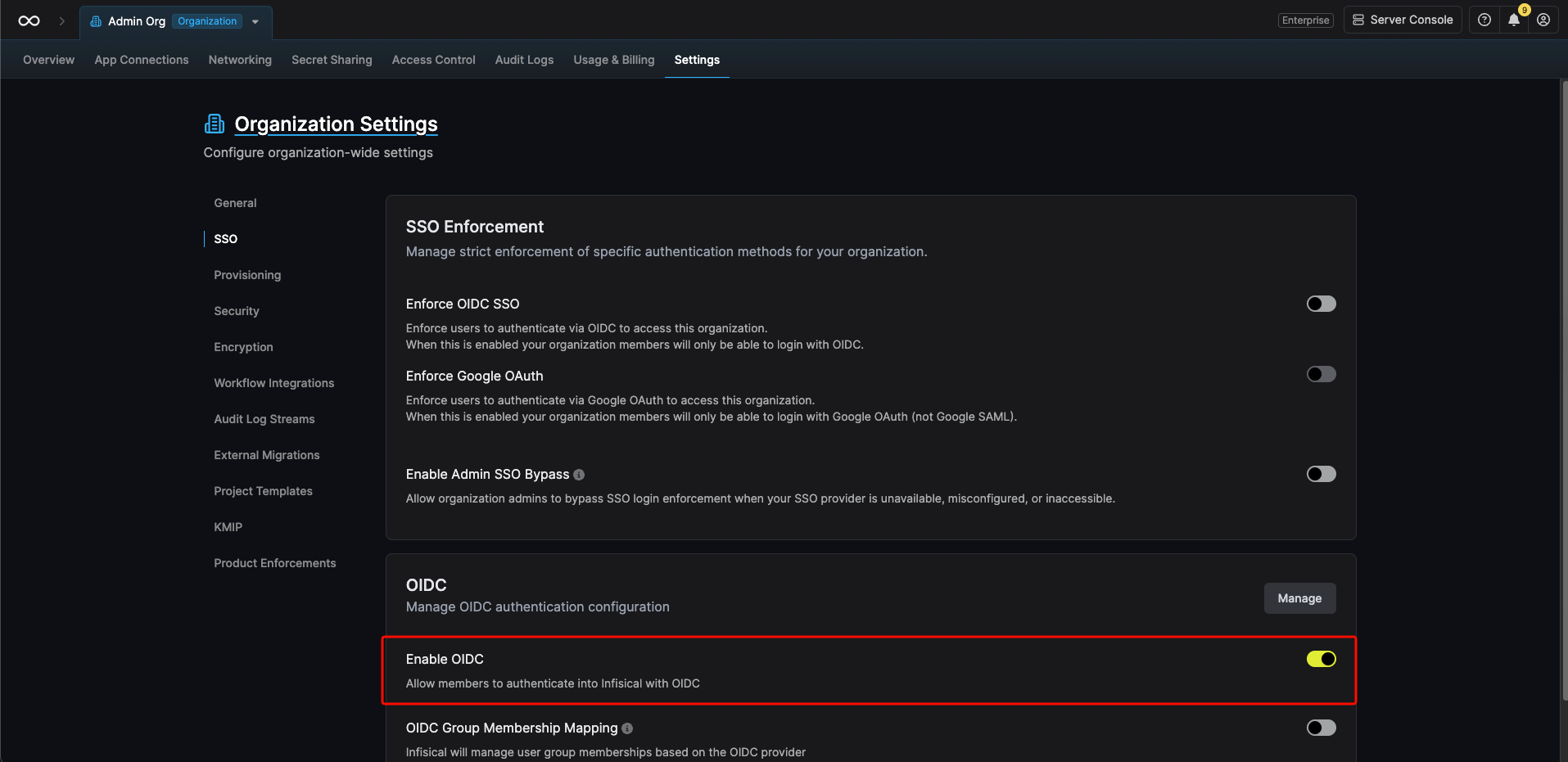 Enforcing OIDC SSO ensures that members in your organization can only access Infisical
by logging into the organization via PingOne.
To enforce OIDC SSO, you're required to test out the OpenID connection by successfully authenticating at least one PingOne user with Infisical.
Once you've completed this requirement, you can toggle the **Enforce OIDC SSO** button to enforce OIDC SSO.
We recommend ensuring that your account is provisioned using the application in PingOne
prior to enforcing OIDC SSO to prevent any unintended issues.
In case of a lockout, an organization admin can use the [Admin Login Portal](https://infisical.com/docs/documentation/platform/sso/overview#admin-login-portal) in the `/login/admin` path e.g. [https://app.infisical.com/login/admin](https://app.infisical.com/login/admin).
If you are only using one organization on your Infisical instance, you can configure a default organization in the [Server Admin Console](../admin-panel/server-admin#default-organization) to expedite OIDC login.
If you're configuring OIDC SSO on a self-hosted instance of Infisical, make
sure to set the `AUTH_SECRET` and `SITE_URL` environment variable for it to
work:
* `AUTH_SECRET`: A secret key used for signing and verifying JWT. This
can be a random 32-byte base64 string generated with `openssl rand -base64
32`.
* `SITE_URL`: The absolute URL of your self-hosted instance of Infisical including the protocol (e.g. [https://app.infisical.com](https://app.infisical.com))
Enforcing OIDC SSO ensures that members in your organization can only access Infisical
by logging into the organization via PingOne.
To enforce OIDC SSO, you're required to test out the OpenID connection by successfully authenticating at least one PingOne user with Infisical.
Once you've completed this requirement, you can toggle the **Enforce OIDC SSO** button to enforce OIDC SSO.
We recommend ensuring that your account is provisioned using the application in PingOne
prior to enforcing OIDC SSO to prevent any unintended issues.
In case of a lockout, an organization admin can use the [Admin Login Portal](https://infisical.com/docs/documentation/platform/sso/overview#admin-login-portal) in the `/login/admin` path e.g. [https://app.infisical.com/login/admin](https://app.infisical.com/login/admin).
If you are only using one organization on your Infisical instance, you can configure a default organization in the [Server Admin Console](../admin-panel/server-admin#default-organization) to expedite OIDC login.
If you're configuring OIDC SSO on a self-hosted instance of Infisical, make
sure to set the `AUTH_SECRET` and `SITE_URL` environment variable for it to
work:
* `AUTH_SECRET`: A secret key used for signing and verifying JWT. This
can be a random 32-byte base64 string generated with `openssl rand -base64
32`.
* `SITE_URL`: The absolute URL of your self-hosted instance of Infisical including the protocol (e.g. [https://app.infisical.com](https://app.infisical.com))