> ## Documentation Index
> Fetch the complete documentation index at: https://infisical-devin-1781641701-docs-github-pat-fine-grained.mintlify.site/llms.txt
> Use this file to discover all available pages before exploring further.
# GitLab SSO
> Learn how to configure GitLab SSO for Infisical.
Using GitLab SSO on a self-hosted instance of Infisical requires configuring an OAuth application in GitLab and registering your instance with it.
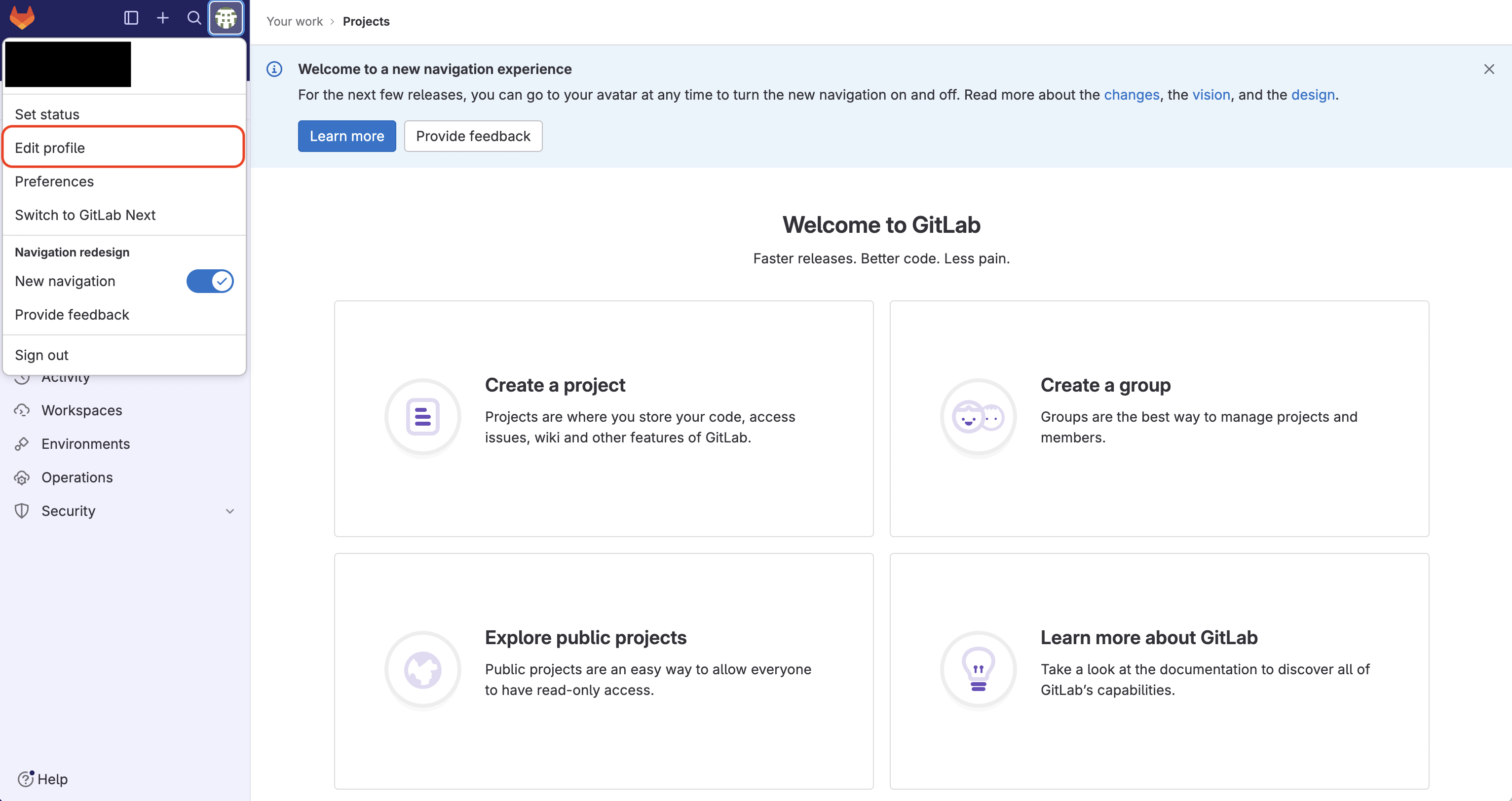
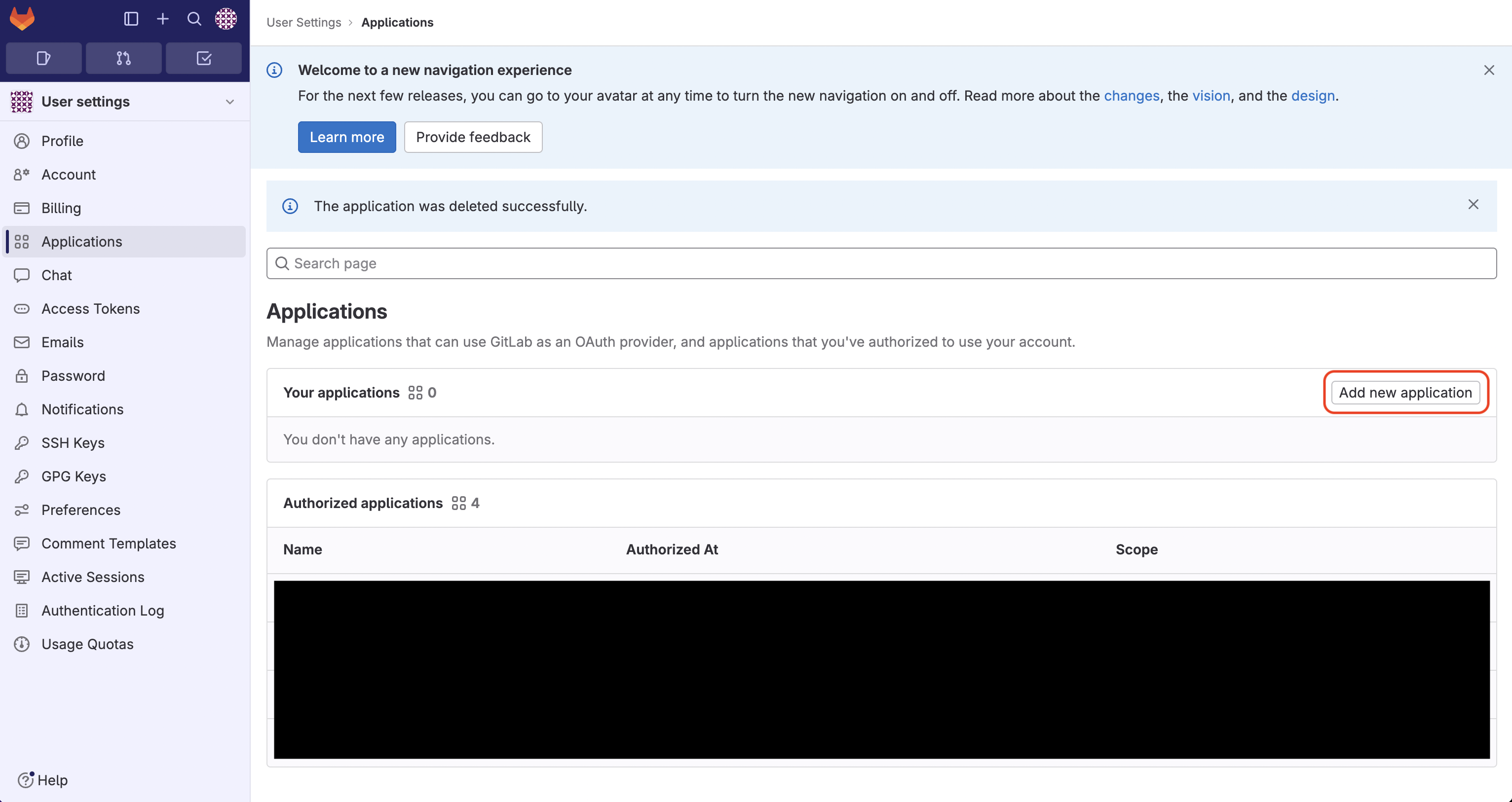
Navigate to your user Settings > Applications to create a new GitLab application.
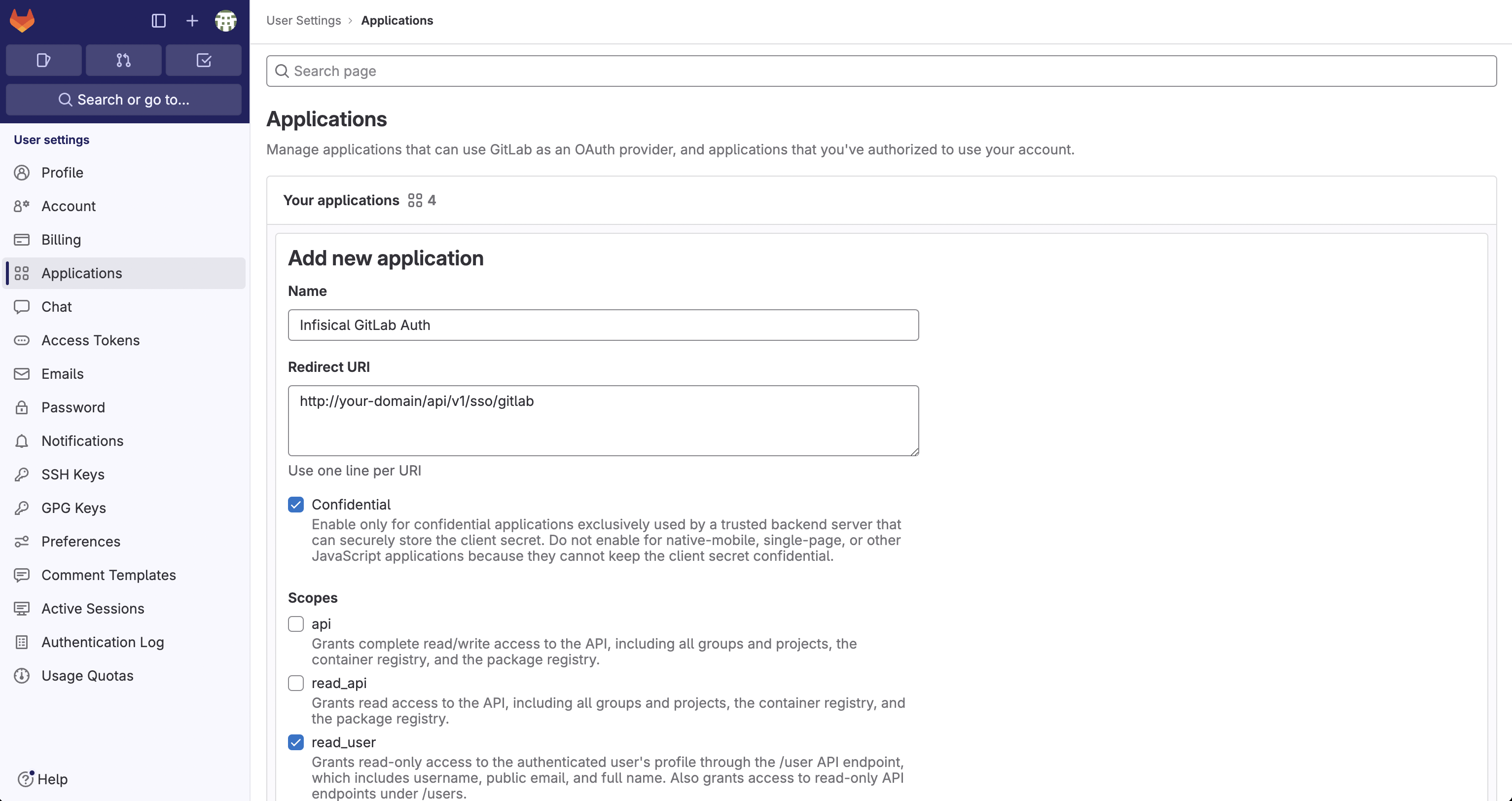
 Create the application. As part of the form, set the **Redirect URI** to `https://your-domain.com/api/v1/sso/gitlab`.
Note that only `read_user` is required as part of the **Scopes** configuration.
Create the application. As part of the form, set the **Redirect URI** to `https://your-domain.com/api/v1/sso/gitlab`.
Note that only `read_user` is required as part of the **Scopes** configuration.
 If you have a GitLab group, you can create an OAuth application under it
in your group Settings > Applications.
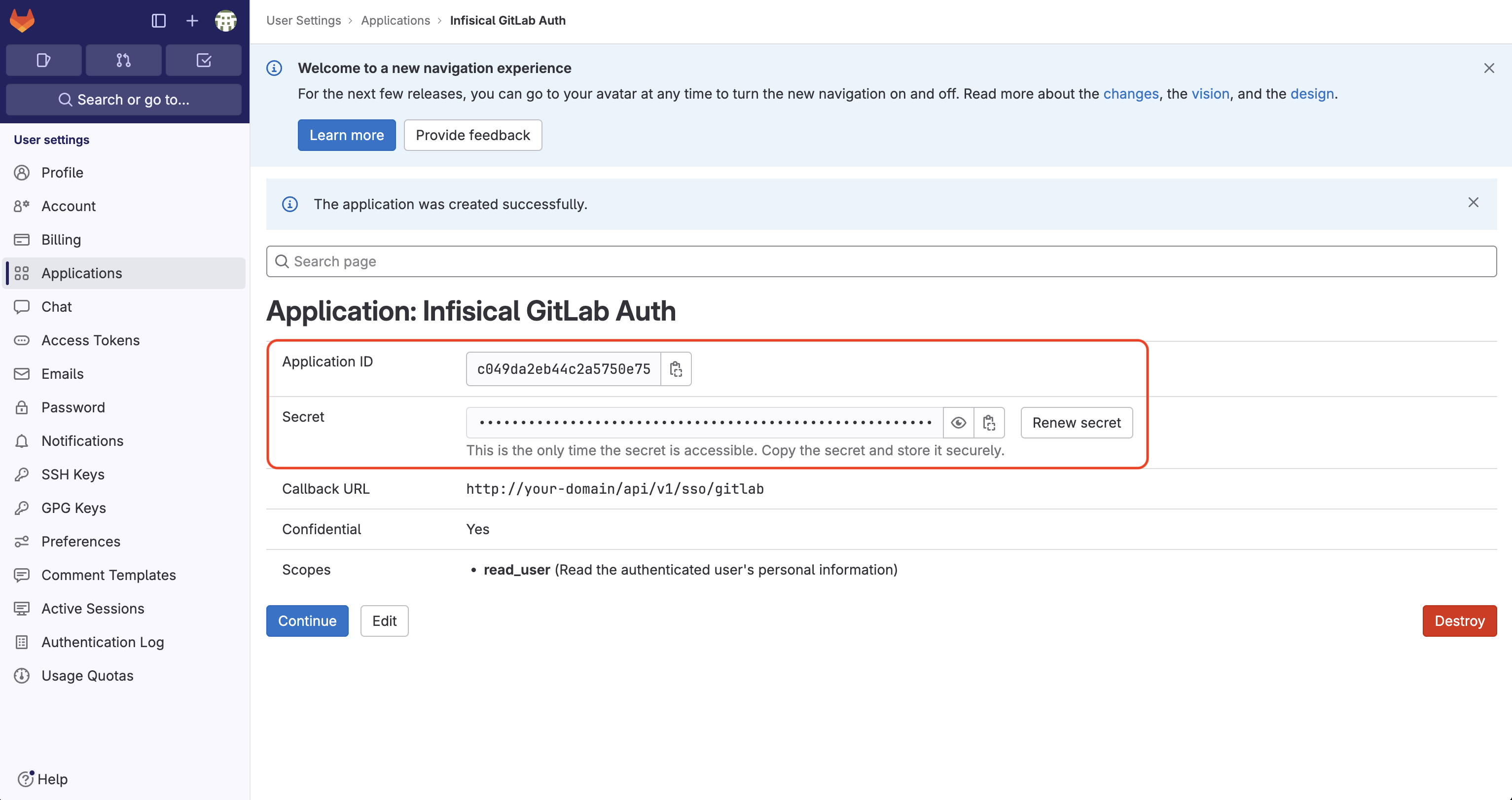
Obtain the **Application ID** and **Secret** for your GitLab application.
If you have a GitLab group, you can create an OAuth application under it
in your group Settings > Applications.
Obtain the **Application ID** and **Secret** for your GitLab application.
 Back in your Infisical instance, make sure to set the following environment variables:
* `CLIENT_ID_GITLAB_LOGIN`: The **Client ID** of your GitLab application.
* `CLIENT_SECRET_GITLAB_LOGIN`: The **Secret** of your GitLab application.
* (optional) `URL_GITLAB_LOGIN`: The URL of your self-hosted instance of GitLab where the OAuth application is registered. If no URL is passed in, this will default to `https://gitlab.com`.
* `AUTH_SECRET`: A secret key used for signing and verifying JWT. This can be a random 32-byte base64 string generated with `openssl rand -base64 32`.
* `SITE_URL`: The URL of your self-hosted instance of Infisical - should be an absolute URL including the protocol (e.g. [https://app.infisical.com](https://app.infisical.com))
Once added, restart your Infisical instance and log in with GitLab.
## FAQ
It is likely that you have misconfigured your self-hosted instance of Infisical. You should:
* Check that you have set the `CLIENT_ID_GITLAB_LOGIN`, `CLIENT_SECRET_GITLAB_LOGIN`,
`AUTH_SECRET`, and `SITE_URL` environment variables.
* Check that the **Redirect URI** specified in GitLab matches the `SITE_URL` environment variable.
For example, if the former is `https://app.infisical.com/api/v1/sso/gitlab` then the latter should be `https://app.infisical.com`.
Back in your Infisical instance, make sure to set the following environment variables:
* `CLIENT_ID_GITLAB_LOGIN`: The **Client ID** of your GitLab application.
* `CLIENT_SECRET_GITLAB_LOGIN`: The **Secret** of your GitLab application.
* (optional) `URL_GITLAB_LOGIN`: The URL of your self-hosted instance of GitLab where the OAuth application is registered. If no URL is passed in, this will default to `https://gitlab.com`.
* `AUTH_SECRET`: A secret key used for signing and verifying JWT. This can be a random 32-byte base64 string generated with `openssl rand -base64 32`.
* `SITE_URL`: The URL of your self-hosted instance of Infisical - should be an absolute URL including the protocol (e.g. [https://app.infisical.com](https://app.infisical.com))
Once added, restart your Infisical instance and log in with GitLab.
## FAQ
It is likely that you have misconfigured your self-hosted instance of Infisical. You should:
* Check that you have set the `CLIENT_ID_GITLAB_LOGIN`, `CLIENT_SECRET_GITLAB_LOGIN`,
`AUTH_SECRET`, and `SITE_URL` environment variables.
* Check that the **Redirect URI** specified in GitLab matches the `SITE_URL` environment variable.
For example, if the former is `https://app.infisical.com/api/v1/sso/gitlab` then the latter should be `https://app.infisical.com`.