> ## Documentation Index
> Fetch the complete documentation index at: https://infisical-devin-1781641701-docs-github-pat-fine-grained.mintlify.site/llms.txt
> Use this file to discover all available pages before exploring further.
# Project Templates
> Learn how to manage and apply project templates
## Concept
Project Templates streamline your ability to set up projects by providing customizable templates to configure projects quickly with a predefined set of environments and roles.
Project Templates is a paid feature.
If you're using Infisical Cloud, then it is available under the **Enterprise Tier**. If you're self-hosting Infisical,
then you should contact [sales@infisical.com](mailto:sales@infisical.com) to purchase an enterprise license to use it.
## Workflow
The typical workflow for using Project Templates consists of the following steps:
1. Creating a project template: As part of this step, you will configure a set of environments and roles to be created when applying this template to a project.
2. Using a project template: When creating new projects, optionally specify a project template to provision the project with the configured roles and environments.
Note that this workflow can be executed via the Infisical UI or through the API.
## Guide to Creating a Project Template
In the following steps, we'll explore how to set up a project template.
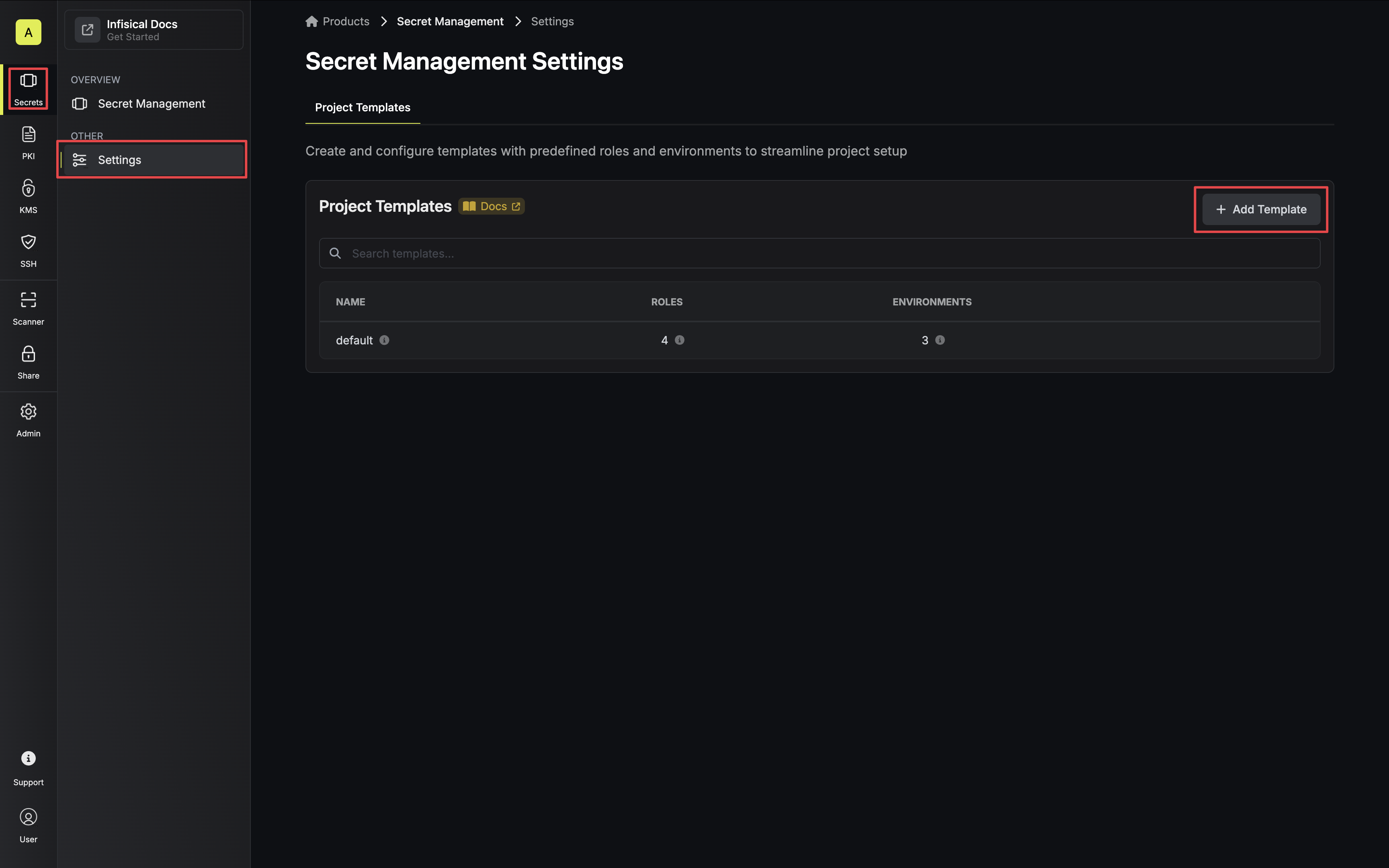
Navigate to the **Project Templates** tab on the Feature Settings page for the project type you want to create a template for and tap on the **Add Template** button.
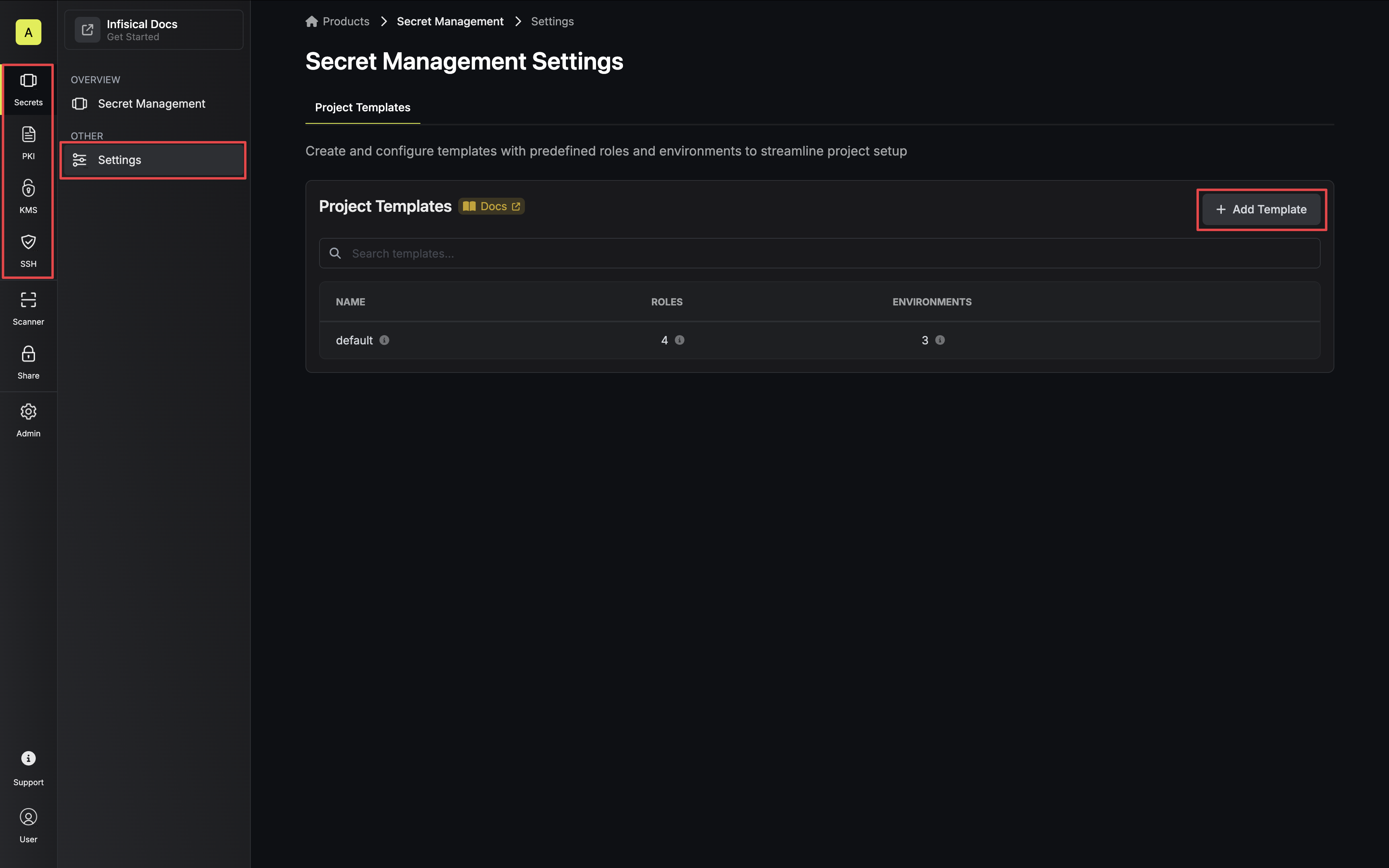
 Specify your template details. Here's some guidance on each field:
* Name: A slug-friendly name for the template.
* Description: An optional description of the intended usage of this template.
Specify your template details. Here's some guidance on each field:
* Name: A slug-friendly name for the template.
* Description: An optional description of the intended usage of this template.
 Once your template is created, you'll be directed to the configuration section.
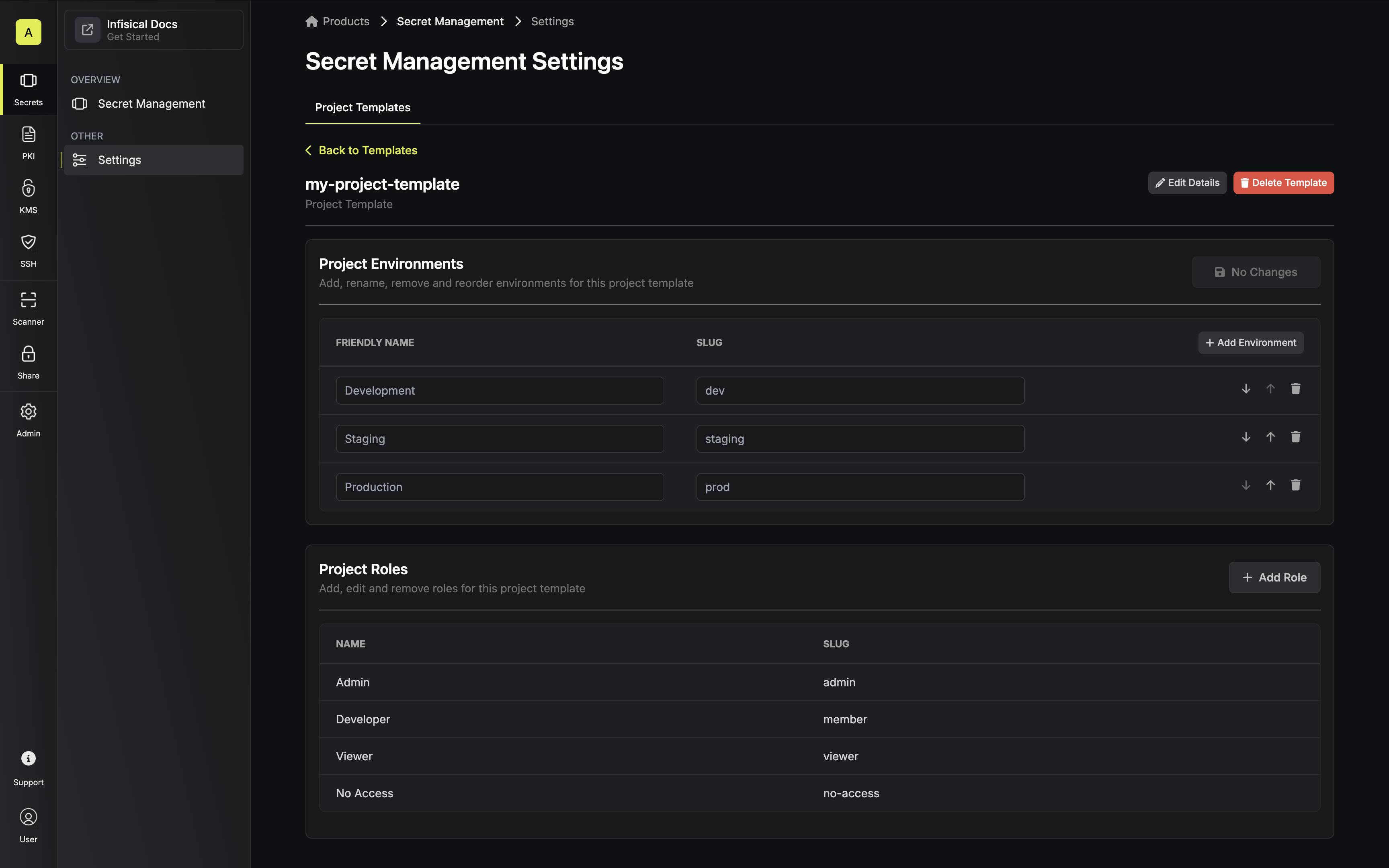 Customize the environments and roles to your needs.
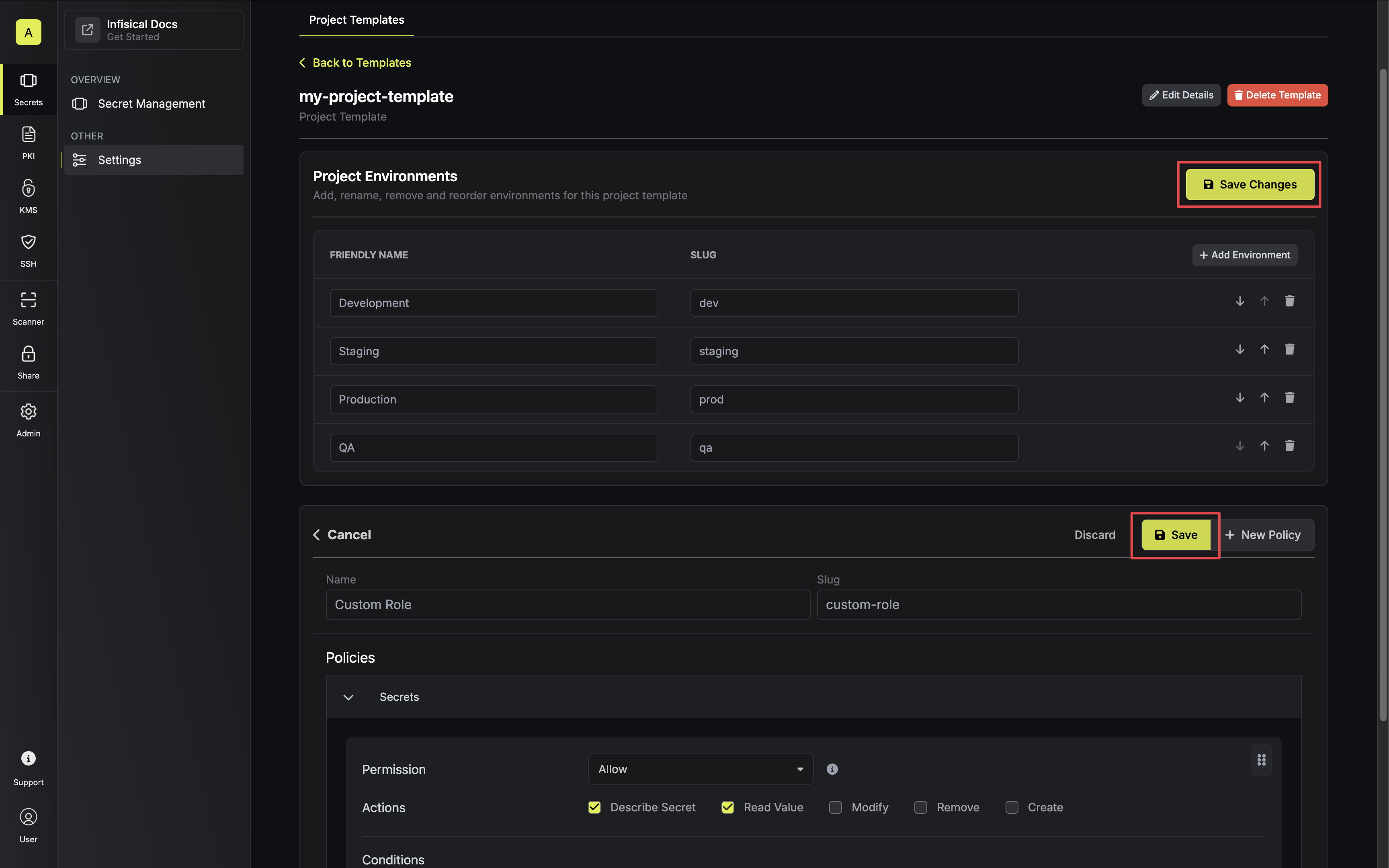 Be sure to save your environment and role changes.
To create a project template, make an API request to the [Create Project Template](/api-reference/endpoints/project-templates/create) API endpoint.
### Sample request
```bash Request theme={null}
curl --request POST \
--url https://app.infisical.com/api/v1/project-templates \
--header 'Content-Type: application/json' \
--data '{
"name": "my-project-template",
"type": "secret-manager",
"description": "...",
"environments": "[...]",
"roles": "[...]",
}'
```
### Sample response
```bash Response theme={null}
{
"projectTemplate": {
"id": "",
"name": "my-project-template",
"description": "...",
"environments": "[...]",
"roles": "[...]",
"orgId": "",
"createdAt": "2023-11-07T05:31:56Z",
"updatedAt": "2023-11-07T05:31:56Z",
}
}
```
## Guide to Using a Project Template
In the following steps, we'll explore how to use a project template when creating a project.
When creating a new project, select the desired template from the dropdown menu in the create project modal.
Be sure to save your environment and role changes.
To create a project template, make an API request to the [Create Project Template](/api-reference/endpoints/project-templates/create) API endpoint.
### Sample request
```bash Request theme={null}
curl --request POST \
--url https://app.infisical.com/api/v1/project-templates \
--header 'Content-Type: application/json' \
--data '{
"name": "my-project-template",
"type": "secret-manager",
"description": "...",
"environments": "[...]",
"roles": "[...]",
}'
```
### Sample response
```bash Response theme={null}
{
"projectTemplate": {
"id": "",
"name": "my-project-template",
"description": "...",
"environments": "[...]",
"roles": "[...]",
"orgId": "",
"createdAt": "2023-11-07T05:31:56Z",
"updatedAt": "2023-11-07T05:31:56Z",
}
}
```
## Guide to Using a Project Template
In the following steps, we'll explore how to use a project template when creating a project.
When creating a new project, select the desired template from the dropdown menu in the create project modal.
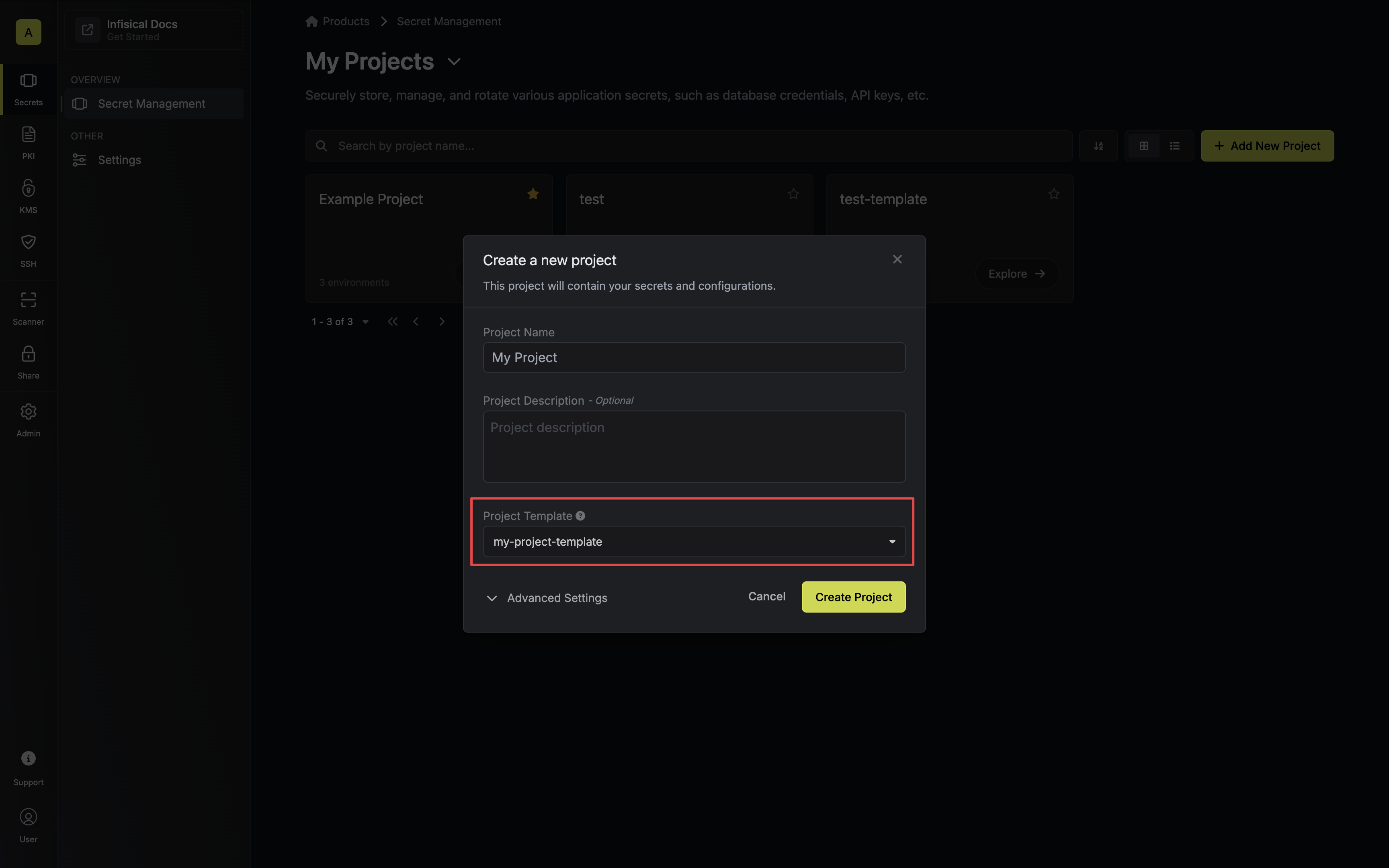 Your project will be provisioned with the configured template roles and environments.
To use a project template, make an API request to the [Create Project](/api-reference/endpoints/projects/create-project) API endpoint with the specified template name included.
### Sample request
```bash Request theme={null}
curl --request POST \
--url https://app.infisical.com/api/v1/projects \
--header 'Authorization: Bearer ' \
--header 'Content-Type: application/json' \
--data '{
"projectName": "My Project",
"template": "", // defaults to "default"
}'
```
### Sample response
```bash Response theme={null}
{
"project": {
"id": "",
"environments": "[...]", // configured environments
...
}
}
```
Note that configured roles are not included in the project response.
## FAQ
No. Project templates only apply at the time of project creation.
Your project will be provisioned with the configured template roles and environments.
To use a project template, make an API request to the [Create Project](/api-reference/endpoints/projects/create-project) API endpoint with the specified template name included.
### Sample request
```bash Request theme={null}
curl --request POST \
--url https://app.infisical.com/api/v1/projects \
--header 'Authorization: Bearer ' \
--header 'Content-Type: application/json' \
--data '{
"projectName": "My Project",
"template": "", // defaults to "default"
}'
```
### Sample response
```bash Response theme={null}
{
"project": {
"id": "",
"environments": "[...]", // configured environments
...
}
}
```
Note that configured roles are not included in the project response.
## FAQ
No. Project templates only apply at the time of project creation.