> ## Documentation Index
> Fetch the complete documentation index at: https://infisical-devin-1781641701-docs-github-pat-fine-grained.mintlify.site/llms.txt
> Use this file to discover all available pages before exploring further.
# SSH Web Access
> Connect to SSH servers directly from your browser with an interactive terminal.
The SSH web access terminal provides a browser-based interactive shell for SSH servers. It is designed for quick interactive sessions — running commands, debugging, and administrative tasks.
## Connecting
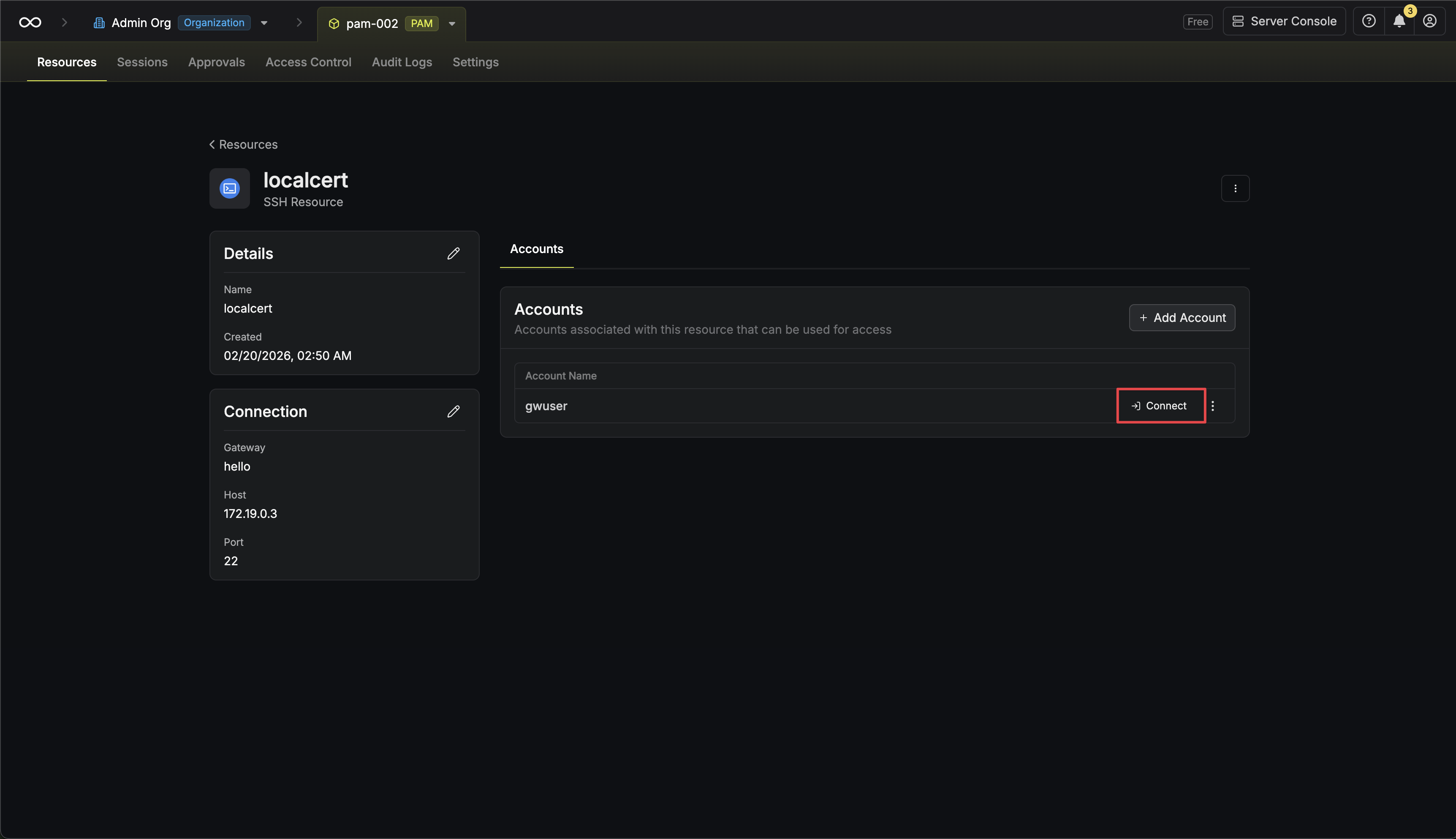
Go to the **Resources** tab in your PAM project, open the SSH resource, and find the account you want to access. Click the **Connect** button next to the account.
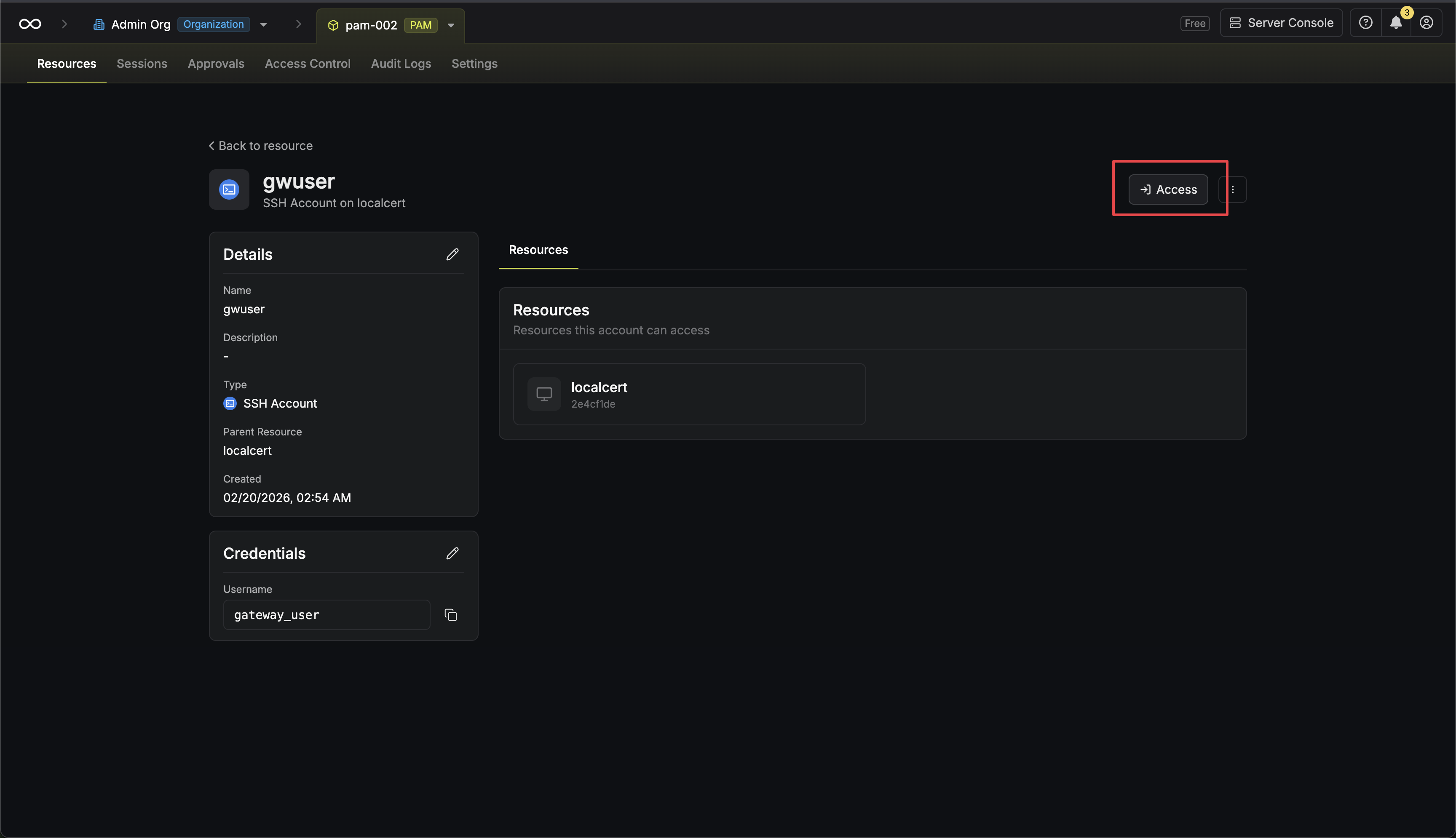
 Alternatively, if you are on the account page, click the **Access** button.
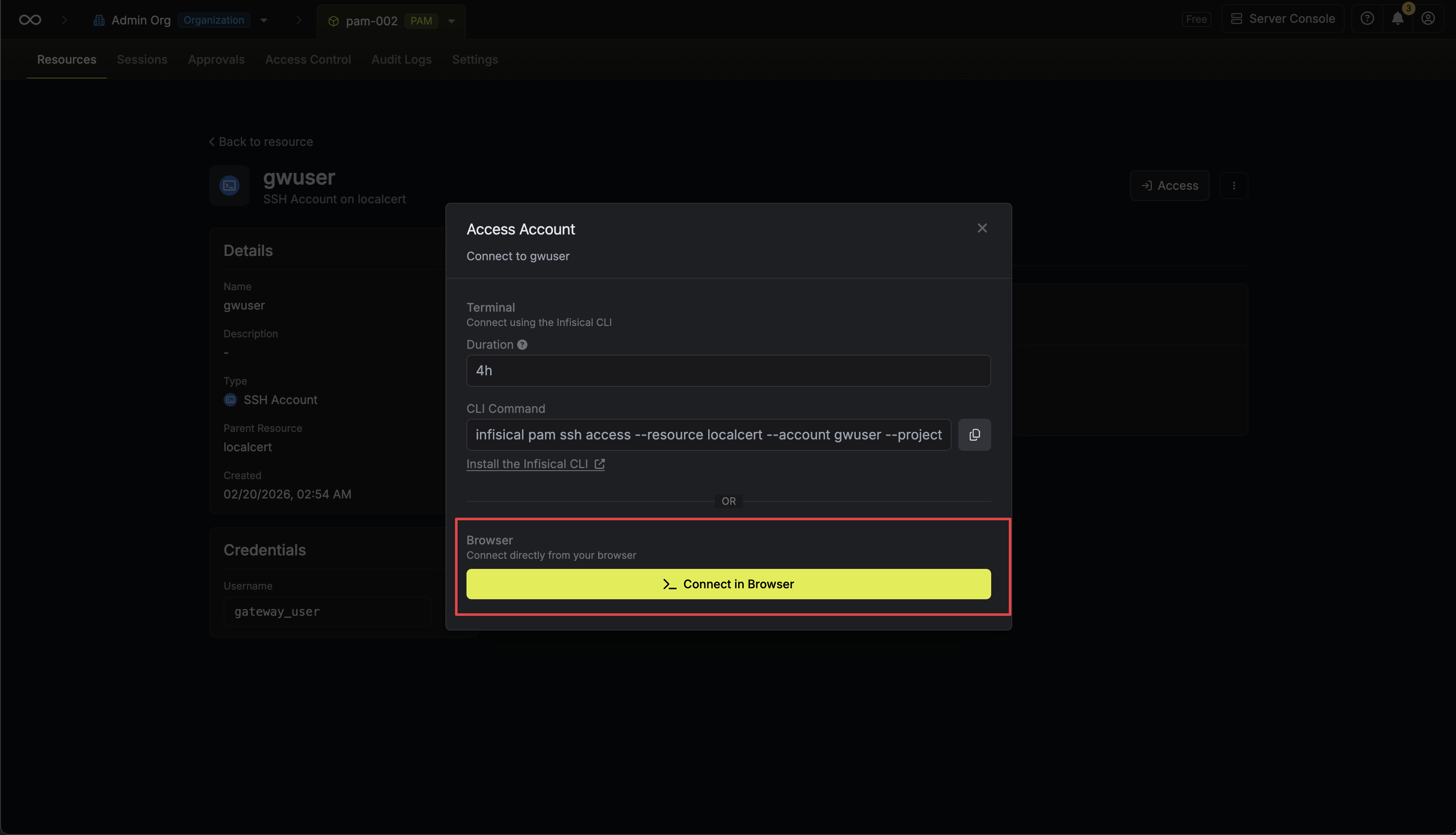
 In the connect modal, click **Connect in Browser** to open the web access terminal.
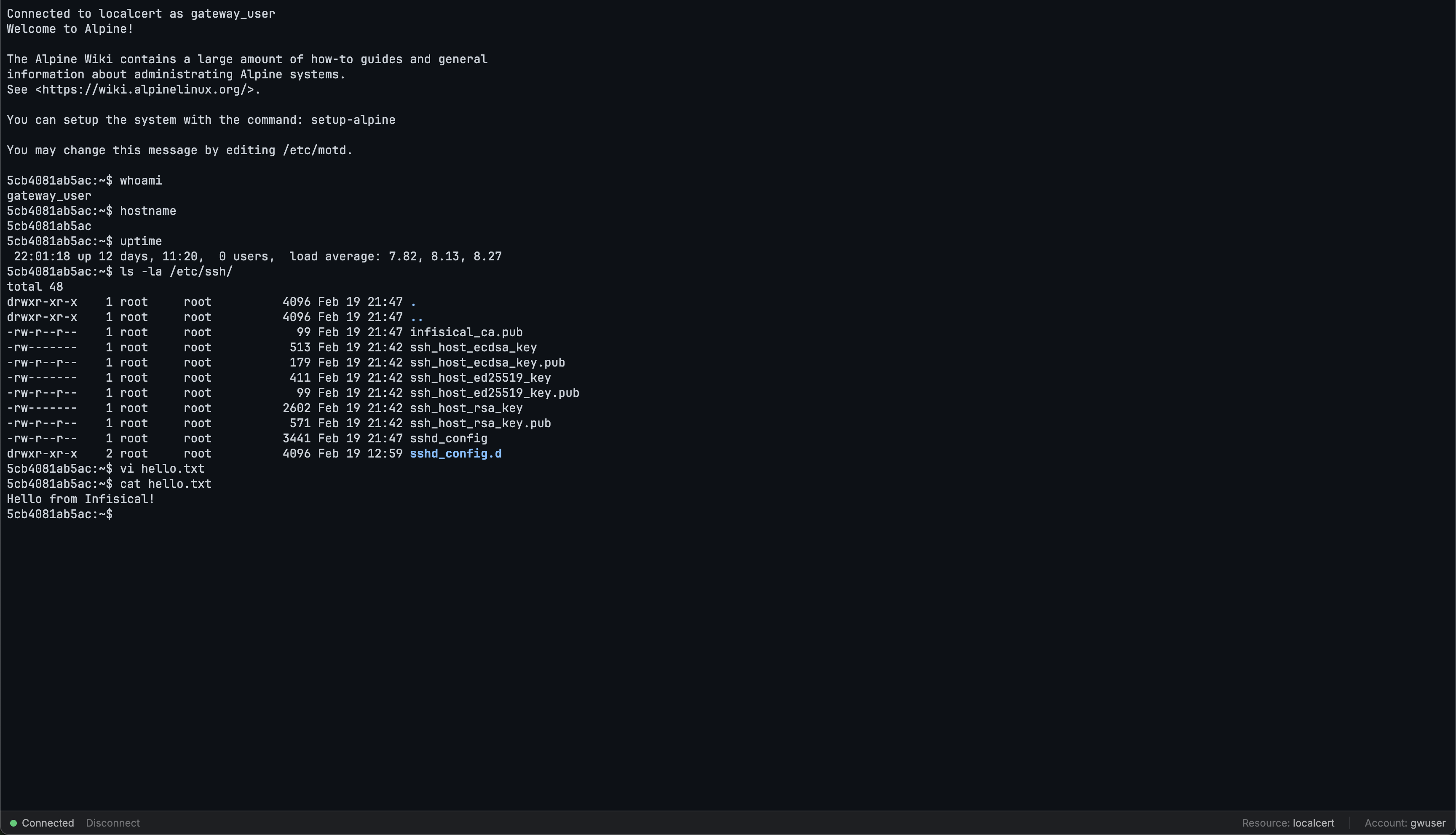
 Click the **Disconnect** button from the web access terminal status bar or type `exit` or `logout`.
 ## Usage
Once connected, you have a full interactive shell.
## Authentication Methods
All three SSH [authentication methods](/documentation/platform/pam/getting-started/resources/ssh#authentication-methods) are supported:
* **Password** — username and password
* **SSH Key** — public/private key pair
* **Certificate** — SSH certificates
Credentials are injected automatically from the PAM account configuration. You never need to enter or see them.
## FAQ
Yes. Unlike the PostgreSQL web access terminal which is a custom SQL REPL, the SSH terminal is a real SSH shell session proxied through the Infisical Gateway. You get a full interactive shell with all the capabilities of a native SSH connection.
## Usage
Once connected, you have a full interactive shell.
## Authentication Methods
All three SSH [authentication methods](/documentation/platform/pam/getting-started/resources/ssh#authentication-methods) are supported:
* **Password** — username and password
* **SSH Key** — public/private key pair
* **Certificate** — SSH certificates
Credentials are injected automatically from the PAM account configuration. You never need to enter or see them.
## FAQ
Yes. Unlike the PostgreSQL web access terminal which is a custom SQL REPL, the SSH terminal is a real SSH shell session proxied through the Infisical Gateway. You get a full interactive shell with all the capabilities of a native SSH connection.