> ## Documentation Index
> Fetch the complete documentation index at: https://infisical-devin-1781641701-docs-github-pat-fine-grained.mintlify.site/llms.txt
> Use this file to discover all available pages before exploring further.
# Role-based Access Controls
> Learn how to use RBAC to manage user permissions.
Infisical's Role-based Access Controls (RBAC) enable the usage of predefined and custom roles that define a set of permissions for user and machine identities. Roles make it possible to restrict access to resources and the range of actions that can be performed.
In general, access controls can be split up across [organizations](/documentation/platform/organization) and [projects](/documentation/platform/project).
## Organization-level access controls
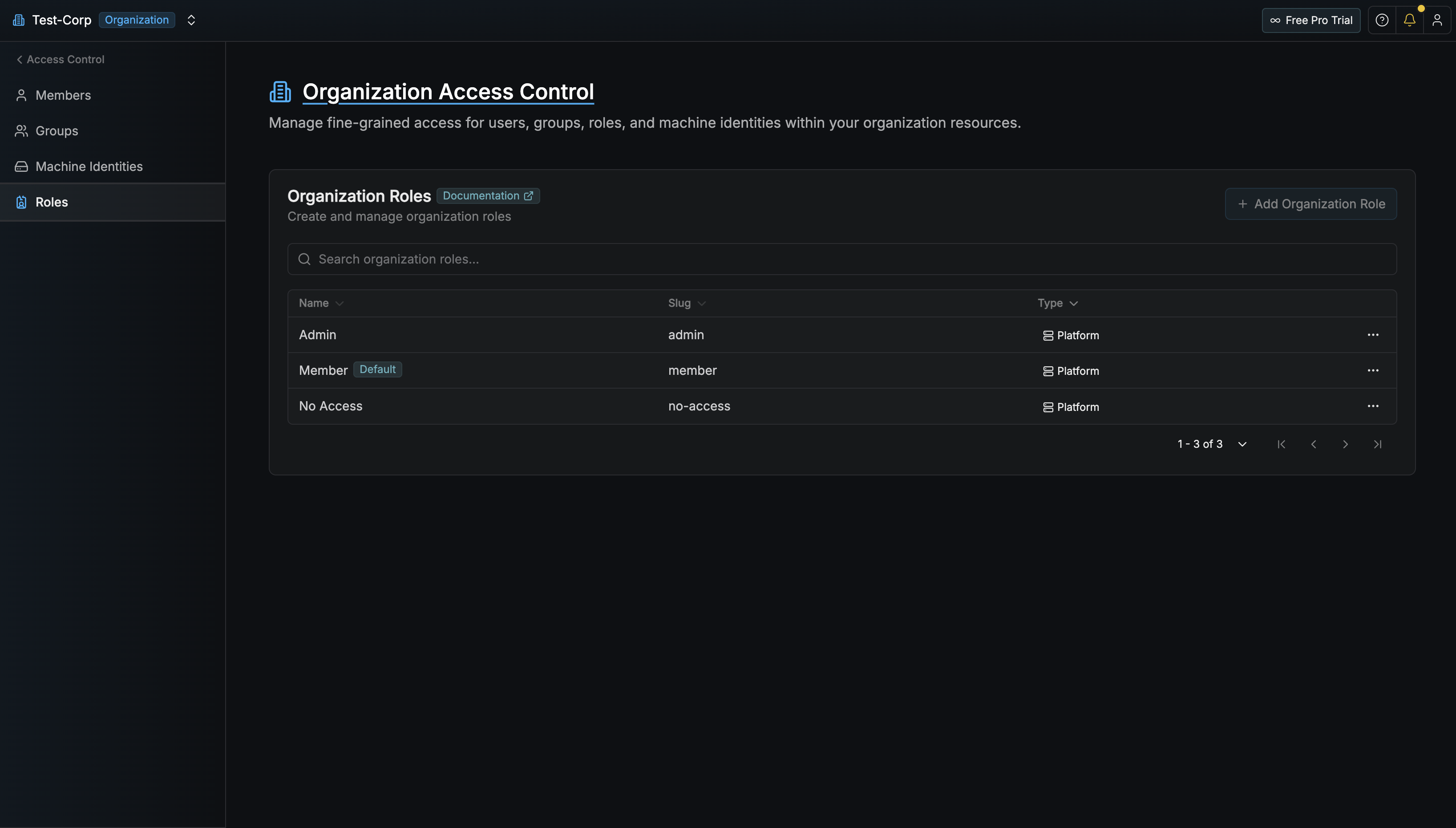
Every user and machine identity in an organization is assigned one of the following built-in roles:
* **Admin**: Full control over the organization, including adding and removing members, managing access controls, configuring security settings, setting up identity providers, managing billing, and creating new projects.
* **Member**: Can access projects they are added to and perform day-to-day actions, but is restricted from removing organization members, modifying billing information, updating organization-level access controls, and performing other administrative actions. This is the default role assigned to new members.
* **No Access**: No permissions at the organization level. This role is useful when you want to grant access exclusively through project-level roles or [Additional Privileges](/documentation/platform/access-controls/additional-privileges).
Organization-level access controls are primarily administrative in nature. Access to projects, secrets, and other sensitive data is specified at the project level.
 ## Project-level access controls
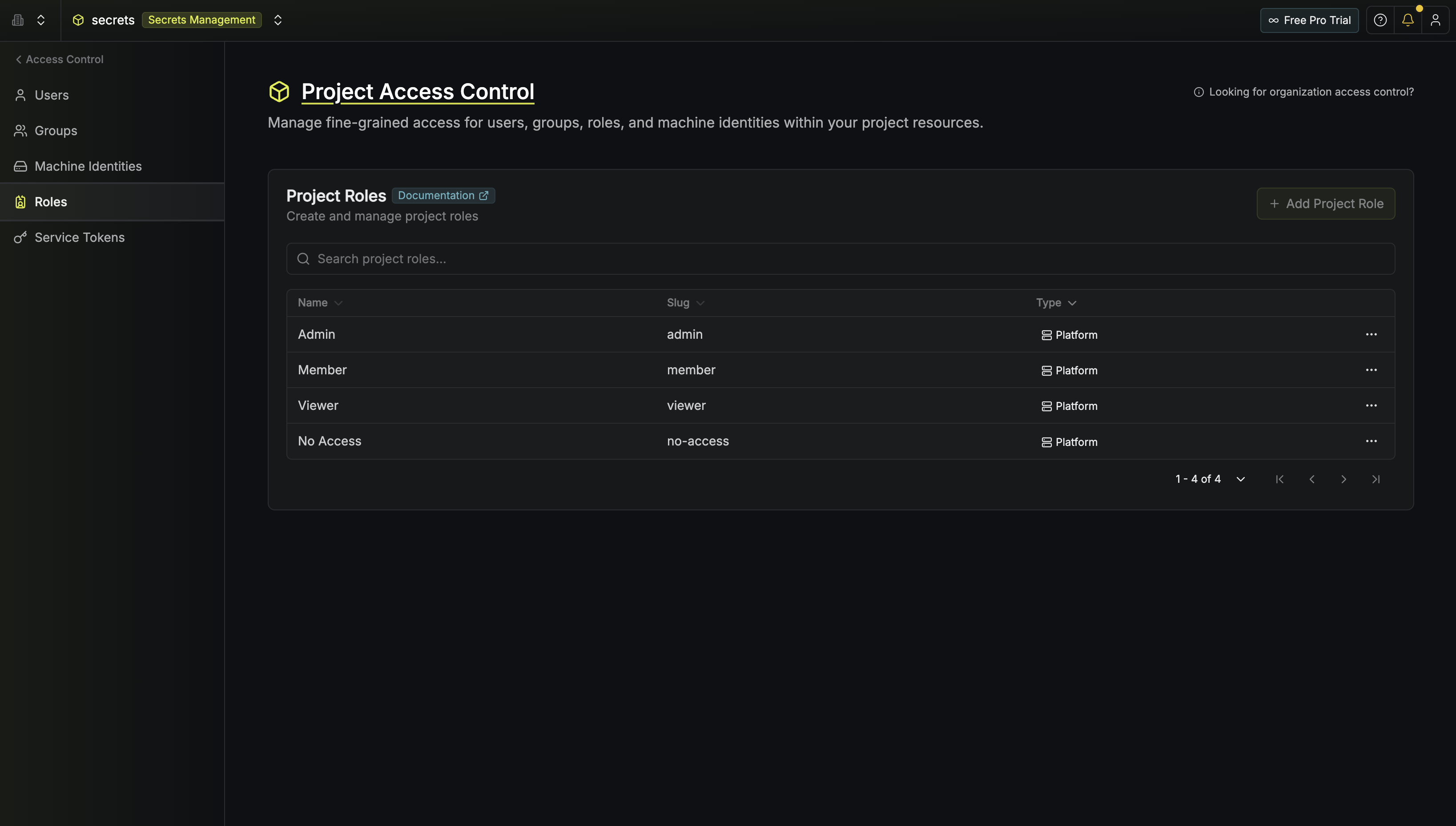
Every user and machine identity in a project is assigned one of the following built-in roles:
* **Admin**: Full access to all environments, folders, secrets, and actions within the project. Admins can manage project members, configure roles, set up Approval Workflow policies, and perform all other project-level operations.
* **Member**: Read and write access to secrets, folders, secret imports, integrations, webhooks, and other day-to-day resources across all environments. Members are restricted from performing administrative actions such as managing roles, updating Approval Workflow policies, and editing or removing other project members.
* **Viewer**: Read-only access to all resources within the project. Viewers cannot create, edit, or delete any resources.
* **No Access**: No permissions within the project. This role is useful when combined with [Additional Privileges](/documentation/platform/access-controls/additional-privileges) to grant scoped access to specific environments or secret paths.
## Project-level access controls
Every user and machine identity in a project is assigned one of the following built-in roles:
* **Admin**: Full access to all environments, folders, secrets, and actions within the project. Admins can manage project members, configure roles, set up Approval Workflow policies, and perform all other project-level operations.
* **Member**: Read and write access to secrets, folders, secret imports, integrations, webhooks, and other day-to-day resources across all environments. Members are restricted from performing administrative actions such as managing roles, updating Approval Workflow policies, and editing or removing other project members.
* **Viewer**: Read-only access to all resources within the project. Viewers cannot create, edit, or delete any resources.
* **No Access**: No permissions within the project. This role is useful when combined with [Additional Privileges](/documentation/platform/access-controls/additional-privileges) to grant scoped access to specific environments or secret paths.
 ## Creating custom roles
By creating custom roles, you can tailor permissions to the specific needs of your organization. This is useful for:
* Creating specialized roles such as superadmin, SRE engineer, or billing manager roles.
* Restricting access to specific secrets, folders, and environments.
* Embedding these roles into [Approval Workflow policies](/documentation/platform/pr-workflows).
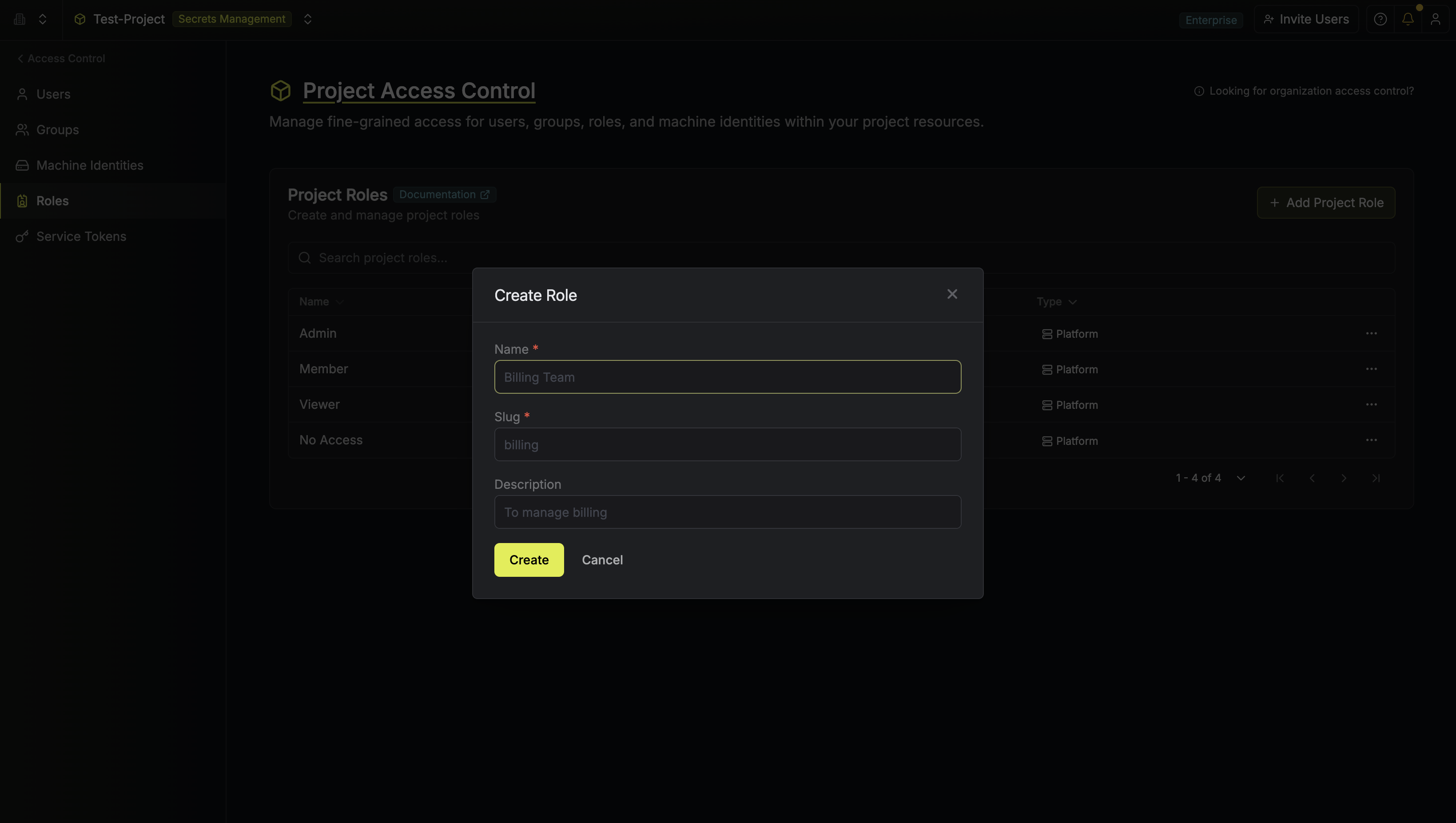
To create a custom role, navigate to the **Access Controls** page for your organization or project and click **Add Organization Role** or **Add Project Role**.
## Creating custom roles
By creating custom roles, you can tailor permissions to the specific needs of your organization. This is useful for:
* Creating specialized roles such as superadmin, SRE engineer, or billing manager roles.
* Restricting access to specific secrets, folders, and environments.
* Embedding these roles into [Approval Workflow policies](/documentation/platform/pr-workflows).
To create a custom role, navigate to the **Access Controls** page for your organization or project and click **Add Organization Role** or **Add Project Role**.
 Users and machine identities can be assigned multiple built-in and custom roles. An identity gains access to all actions across all of its assigned roles — permissions are additive, not intersected.